Meta health
Shows the status of each connected WhatsApp number, as reported by Meta, and how it evolves. Menu: Marketing › Channels › Meta health.
Availability
Meta health permission · Edition: Growth and Enterprise (WhatsApp Channel feature)
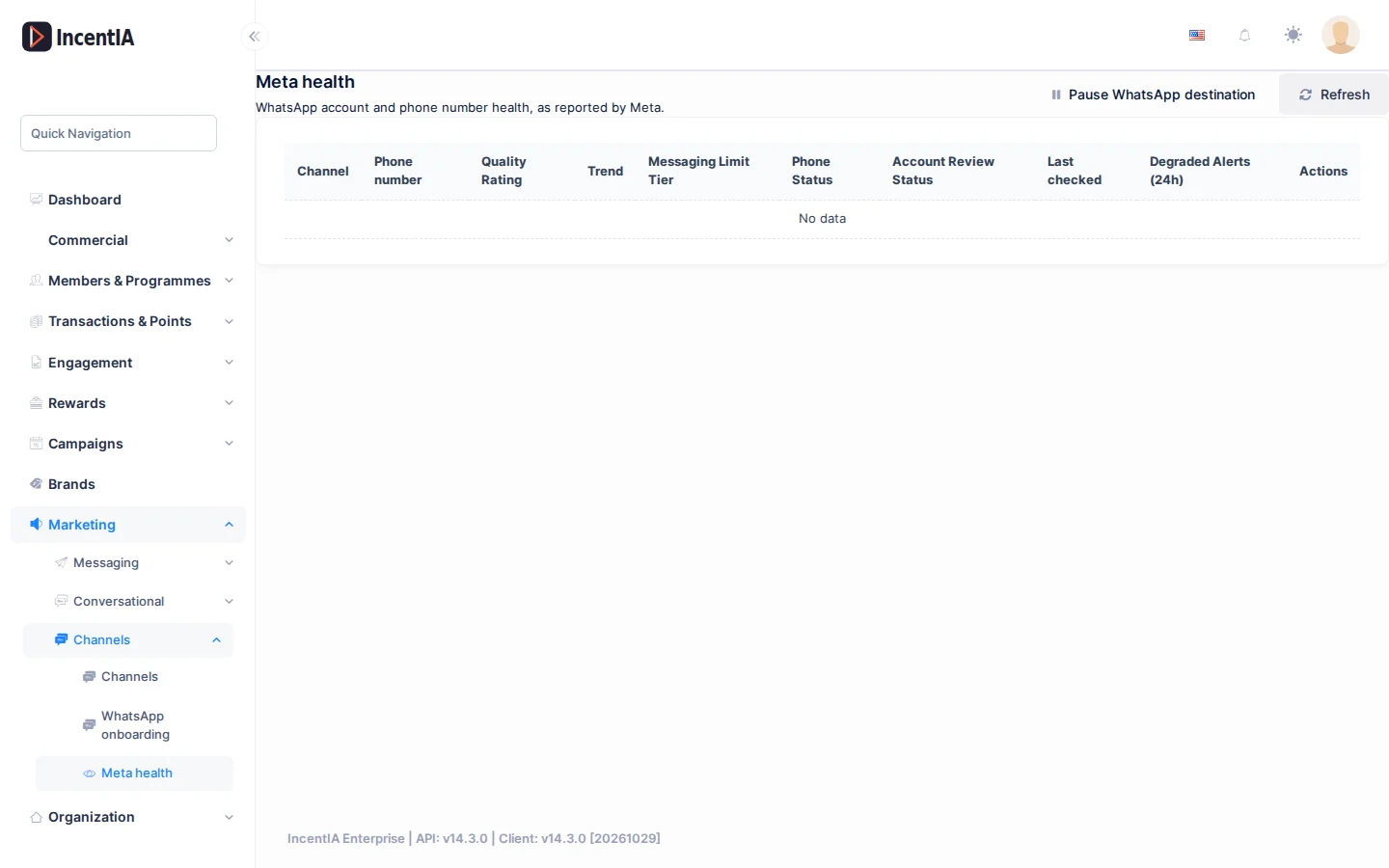
List
The platform queries Meta periodically and stores each result. When the status worsens compared with the previous one, the platform operations team is notified.
| Column | What it is | Notes |
|---|---|---|
| Channel | WhatsApp channel | |
| Phone | Number | |
| Quality Rating | Green, yellow or red | Coloured by severity |
| Trend | Chart of the last 7 days | |
| Messaging Limit Tier | Contacts allowed every 24 h | |
| Phone Status | Connected or disconnected | |
| Account Review Status | Approved, pending or restricted | |
| Last checked | Date of the last reading | |
| Degraded Alerts (24h) | Deteriorations in the last 24 h | Red if greater than 0 |
| Actions | View History and Refresh Now |
- View History opens the latest readings for that channel.
- Refresh Now queries Meta immediately, without waiting for the scheduled cycle. It requires the Refreshing Meta Health permission.
- Refresh reloads the table.
Pause the WhatsApp destination
With the Pausing WhatsApp destination via Meta-health permission you see the Pause WhatsApp destination button. It forces WhatsApp QR codes and links to lead to webchat, even if Meta marks the account green.
- Click Pause WhatsApp destination.
- The notice "El destino de WhatsApp está actualmente PAUSADO para este tenant…" appears.
- To go back to WhatsApp, click Resume WhatsApp destination.
To pause a single channel and configure its automatic reply, use Channels.
What to do if a channel gets worse
- Open View History and find the reading where it changed.
- Check which broadcast or campaign was going out at that moment in Messages and errors.
- Pause the suspect template or broadcast until you understand the cause.
- Wait about 30 minutes and click Refresh Now.
Statuses and limits
- Meta can take hours to reflect a deterioration: you may see delivery failures before the quality change.
- A restricted account can only be released by Meta. The platform stops sending for as long as it lasts.
Permissions
| Action | Permission (UI text) | Technical id |
|---|---|---|
| View the screen | Meta health | Pages.Communications.MetaHealth |
| Refresh now | Refreshing Meta Health | Pages.Communications.MetaHealth.Refresh |
| Pause and resume the destination | Pausing WhatsApp destination via Meta-health | Pages.Communications.MetaHealth.Pause |
Related
- Concept: Communications
- Guide: Set up channels and templates
- WhatsApp · Channels