Flows
A flow is a branching conversation script: it sends messages, asks questions and runs actions (registering a member, awarding points, receiving a receipt). Menu: Marketing › Conversational › Flows.
Conversation Flows permission (create, edit and delete have their own permissions) · Growth and Enterprise editions (Conversation Flows feature).
List
Search with Search... and click Refresh to reload. Click Create New to open the template gallery.
| Column | What it is | Notes |
|---|---|---|
| Name | Flow name and description | The interface shows these headers untranslated |
| Channel | Channel the flow runs on | |
| Keywords | Activation keywords | |
| Audience | Target audience; segment, tier or points range if any | |
| Campaign | Linked campaign | - if none |
| Active | Whether the flow is in use | The draft tag indicates unpublished changes |
Under Actions you have:
- Edit properties: opens the properties form (see below).
- Edit flow: opens the card editor.
- Duplicate: creates a copy.
- Save as template: saves it to My templates in the gallery.
- Delete.
Create a flow from a template
- Click Create New. The gallery opens.
- Choose a template or Blank (empty canvas). Your saved templates are under My templates.
- Check how many nodes it adds and which variables it expects, and click Apply. The editor opens with a draft.
The gallery includes six templates: WhatsApp welcome + enrolment, QR scan → game → reward, Birthday campaign, Survey → coupon, Cart abandonment and NPS → segmentation. Their names appear in English in the interface.
Flow properties
With Edit properties (or when creating) Edit flow / Create new flow opens.
| Field | What it is | Notes |
|---|---|---|
| Name | Internal name | Required |
| Description | Note for the team | |
| Channel | Email, WhatsApp, Telegram, SMS, Push or InApp | Web chat does not require it |
| Activation keywords | Words that start the flow, separated by commas | See Web chat |
| Exit / escape | How the member leaves mid-flow | Default: salir, cancelar, cancel, exit; or custom words, or disabled |
| Campaign (optional) | Links the flow to a campaign | -- No campaign (always active) -- |
| Target audience | All, Members only or Non-members (new) | |
| Segment (optional), Tier (optional) | Limit to a segment or tier | |
| Min points (optional), Max points (optional) | Limit by balance | |
| Active | Turns the flow on or off |
When a message arrives, the platform chooses the channel's active flow whose activation keyword matches. The longest keyword wins. Then it applies the target audience.
The editor
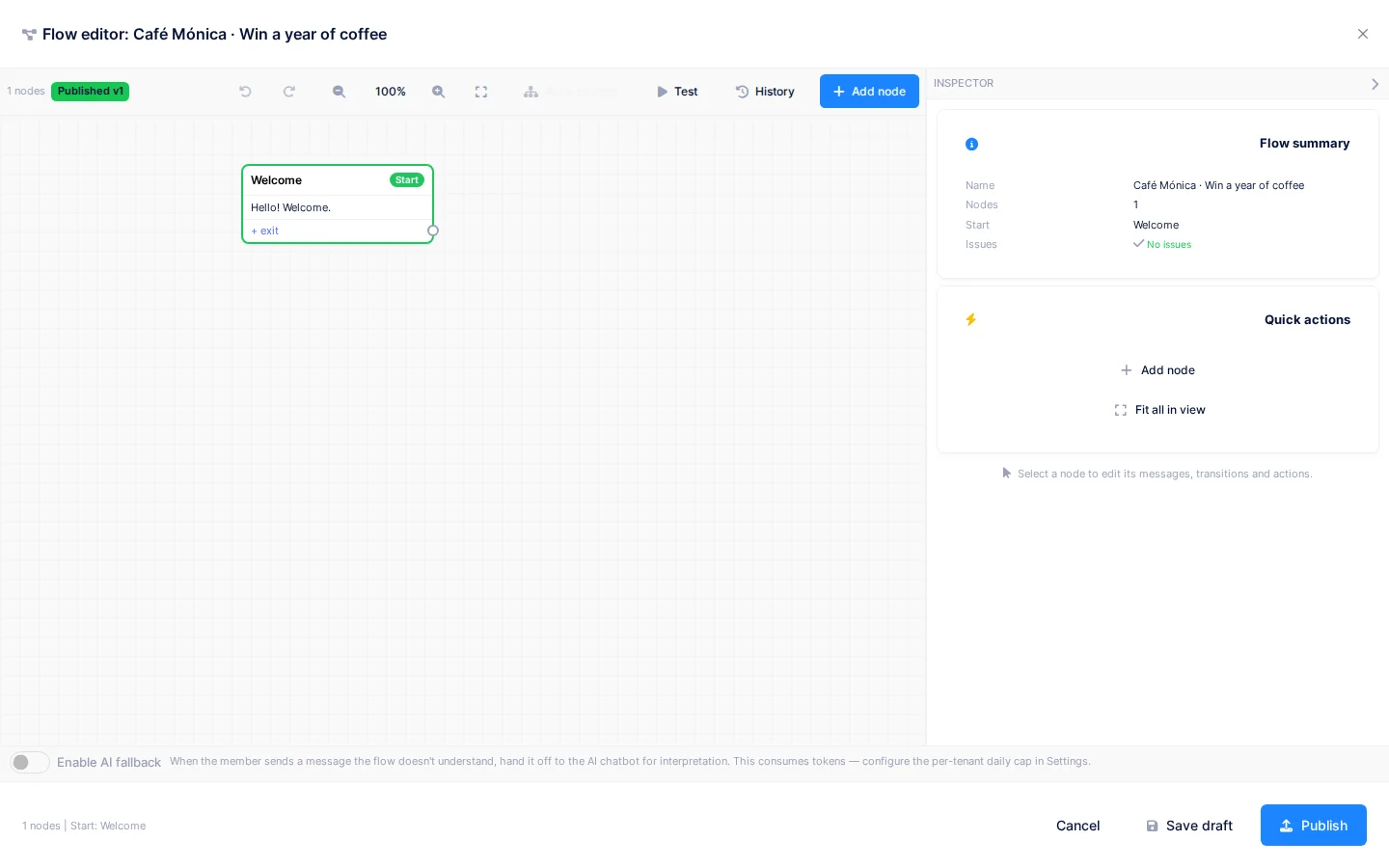
The editor opens full screen. Each step is a card; the arrows are the transitions.
- Add node opens the palette with three tabs: Messages, Triggers and API.
- Under Messages you have Text, Buttons, List, Media, URL button and Ask for data.
- Under Triggers you have Wait, Keyword and End.
- Double-click a card to edit it in place. The side panel shows its properties.
- Hover over an arrow and click + to insert a node between two steps.
- Hold Shift and drag over the canvas to select several cards; Ctrl/Cmd+A also works. They move as a block.
- Auto-arrange places all the cards from left to right and adjusts the zoom. It is undone in a single step.
- Undo and Redo, and the zoom buttons, are in the top bar.
A card with a warning triangle has a problem (for example, an unconnected exit). The editor lists them and offers one-click fixes.
Available actions
On the API tab you choose actions that change data without sending a message.
| Action | What it does |
|---|---|
| Register member | Registers the contact as a member of the programme |
| Register participant | Enrols them in the campaign without registering them as a member |
| Accept terms | Stores their consent to the current terms |
| Check participant data | Looks at what data the participant already has so it is not asked for again |
| Validate email / Validate phone | Check the value; if it fails, the flow can ask again |
| Add to segment / Assign to campaign | Tags the member or signs them up to a campaign |
| Award points | Adds points (multipliers apply) |
| Submit receipt (photo) | Receives a receipt photo and sends it to evidence review |
| Claim instant win | Attempts a winning moment |
| Deliver coupon (limited stock) | Delivers a coupon while stock remains |
| Resume participation | Resumes a winning-moment attempt that was waiting for data |
| Send form link | Sends a link to a web form |
| Show data confirmation | Repeats what was collected so the contact can confirm it |
| Auto-continue (no wait) | Advances without a reply from the contact |
| Close conversation | Ends the conversation |
| Store input (legacy) | Stores text in a variable; use Ask for data in new flows |
If an action ends in an outcome with no transition, the conversation closes without notifying the contact. Connect all exits, including daily limits and rejections.
Draft and publishing
Changes are saved as a draft and do not affect members until published.
- Click Save draft to keep your work.
- Click Publish. If there are errors, the editor lists them and does not let you publish. With warnings it asks you to confirm.
- Write an optional Note describing the change and confirm.
History shows the published versions. With View you open them in read-only mode; with Restore as draft you recover them. Discard draft goes back to the last published version.
Test the flow
Test opens a panel that simulates the conversation with your draft, without sending real messages or saving data. Click Restart to start over. Choose a Scenario to test specific branches, or use Simulate completed form and Simulate photo.
AI reply
If you turn on Enable AI fallback, free text that does not match any exit is interpreted by an assistant. It can only choose among that node's exits. It costs AI tokens.
Click Review past AI responses → to mark each response as Good or Bad. Bad ones are fed back to the model as rejected patterns. If you do not want AI, add a catch-all exit that leads to a "I didn't understand you" message.
Statuses and limits
- On WhatsApp, each phone has a single active conversation. If they write again, they continue where they were. You can restart it in Conversations.
- Test conversations from the editor are deleted automatically after 24 hours.
- Accept terms needs a current terms version.
- Each step is recorded in the funnel, to see where participants drop off.
Permissions
| Action | Permission (UI text) | Technical id |
|---|---|---|
| View flows and conversations | Conversation Flows | Pages.Communications.Flows |
| Create, duplicate | Creating Flow | Pages.Communications.Flows.Create |
| Edit, publish, test | Editing Flow | Pages.Communications.Flows.Edit |
| Delete | Deleting Flow | Pages.Communications.Flows.Delete |