Constructor de landings
Monta la página pública de tu cuenta o de una campaña con secciones y bloques, sin escribir código. Esta página explica cada panel, bloque y acción del editor. Si prefieres un recorrido paso a paso, sigue el tutorial Diseñar una landing de campaña paso a paso.
Menú: Marca y contenido › Constructor de landings (landing de la cuenta) y Campañas › Certificado de sorteo.
Permiso Constructor de landings · Edición Enterprise con la función Landing Page Builder y el editor de landings v2 activados. Sin la función, el menú no aparece. Sin el editor v2, se abre el editor clásico, que no se describe aquí. Si no ves lo que describe esta página, pide que activen el editor v2 en tu cuenta.
Qué landing editas
Cada landing se guarda para una entidad: tu cuenta o una campaña concreta.
- Cuenta: Constructor de landings abre la landing del programa.
- Campaña: abre la campaña y pulsa Editar landing en la pestaña general. El botón solo aparece con la campaña ya guardada. Desde el listado de campañas, Diseñar landing abre el editor con el asistente en Crear con IA.
- Certificado de sorteo: página aparte. Mira Certificado de sorteo.
Si una campaña no tiene landing propia, los participantes ven la página automática de la campaña. La landing de la cuenta no la sustituye. Detalles en Landing pages.
Pantalla del editor
El editor se abre a pantalla completa y tiene cuatro zonas.
| Zona | Qué contiene |
|---|---|
| Barra superior | Estado de la página, dispositivo, idioma de edición, Brief, Comentarios, menú ⋯, Vista previa, Guardar borrador y Publicar…. |
| Estructura (izquierda) | Árbol de secciones, columnas y bloques. Aquí se ordenan arrastrando. Al final está el panel Problemas. |
| Lienzo (centro) | La página real. Haz doble clic en un texto para editarlo ahí mismo. |
| Propiedades (derecha) | Campos de lo que tengas seleccionado. Sin nada seleccionado, muestra las Animaciones de toda la página. |
Puedes contraer los paneles laterales. Al empezar, el lienzo se muestra en Móvil (390 px).
Barra superior
| Elemento | Qué hace |
|---|---|
| Estado | Borrador sin publicar, Publicado, Borrador con cambios sin publicar o Programado para una fecha. Junto a él, Cambios sin guardar o Guardado. |
| Móvil, Tablet, Escritorio | Cambian el ancho del lienzo y el dispositivo que editas. Atajos: 1, 2, 3. |
| Idioma | Cambia el idioma que editas. El primero es el base. Sirve cuando la página tiene varios idiomas. |
| Deshacer / Rehacer | Ctrl+Z y Ctrl+Mayús+Z. |
| Brief | Abre el panel de brief. |
| Comentarios | Muestra las notas de los revisores sobre sus bloques. Mira Comentarios de revisión. |
| ⋯ | Menú de acciones. Mira abajo. |
| Vista previa | Abre el borrador actual en otra pestaña, sin guardar. El enlace dura 15 minutos. |
| Ver página | Abre la página publicada. |
| Guardar borrador | Ctrl+S. No cambia la página pública. |
| Publicar… | Pide confirmación y publica el borrador. |

Menú ⋯
| Opción | Para qué sirve |
|---|---|
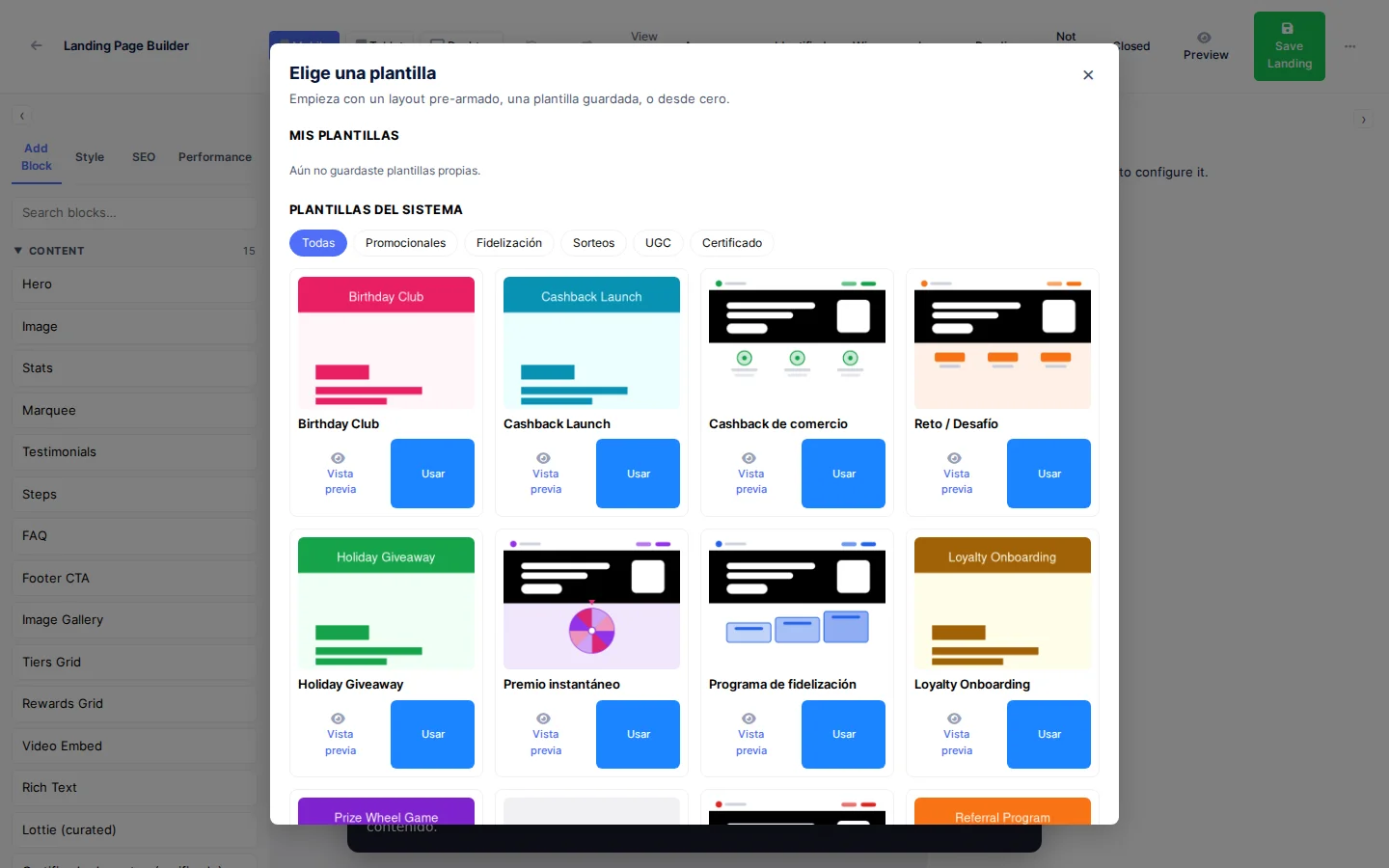
| Plantillas | Abre el selector de plantillas. Sustituye el contenido actual. |
| SEO y compartir | Título, descripción e imagen del enlace. Mira SEO y compartir. |
| Idiomas | Habilita idiomas y revisa las traducciones. Mira Idiomas. |
| Compartir vista previa | Enlace de revisión para otras personas. Mira Vista previa y comentarios. |
| Duplicar en… | Copia la landing a la cuenta o a otra campaña. Marca Incluir traducciones e Incluir variants A/B si los quieres copiar. |
| Brief | Igual que el botón de la barra. |
| Kit de marca | Elige el kit de la landing. Mira Kits de marca. |
| Programar | Fija Publicar el y Despublicar el. La fecha de despublicación debe ser posterior. |
| Descartar borrador | Vuelve a la versión publicada y pierde los cambios sin publicar. |
| Historial de versiones | Mira Historial de versiones. |
| Abrir editor clásico | Vuelve al editor v1. Solo para urgencias. |
Borrador y publicación
La landing tiene dos copias: el borrador, que es lo que editas, y la versión publicada, que ven los participantes.
- El editor guarda el borrador solo, pocos segundos después de cada cambio, y también con Guardar borrador (
Ctrl+S). Nada de esto cambia la página pública. - Publicar… pide confirmar: «¿Publicar la página? N bloque(s) cambiado(s).». Si el brief tiene errores de contenido, el aviso los lista y ofrece Publicar de todas formas. Los textos legales no cuentan como errores de contenido.
- Si sigues editando tras publicar, la barra indica Borrador con cambios sin publicar hasta que publiques otra vez.
- Programar publica o despublica en las fechas que indiques. Guarda el borrador antes.
- Si otra persona guarda la landing mientras la editas, aparece Alguien ha guardado con Recargar y Sobrescribir. El guardado automático se detiene hasta que elijas.
Con la landing vacía, pulsa Guardar borrador una vez antes de asignar un kit de marca o compartir la vista previa. Esas acciones necesitan una página guardada.
Estructura: secciones, columnas y bloques
La página es una lista de secciones. Cada sección tiene una o varias columnas y cada columna contiene bloques.
Añadir secciones
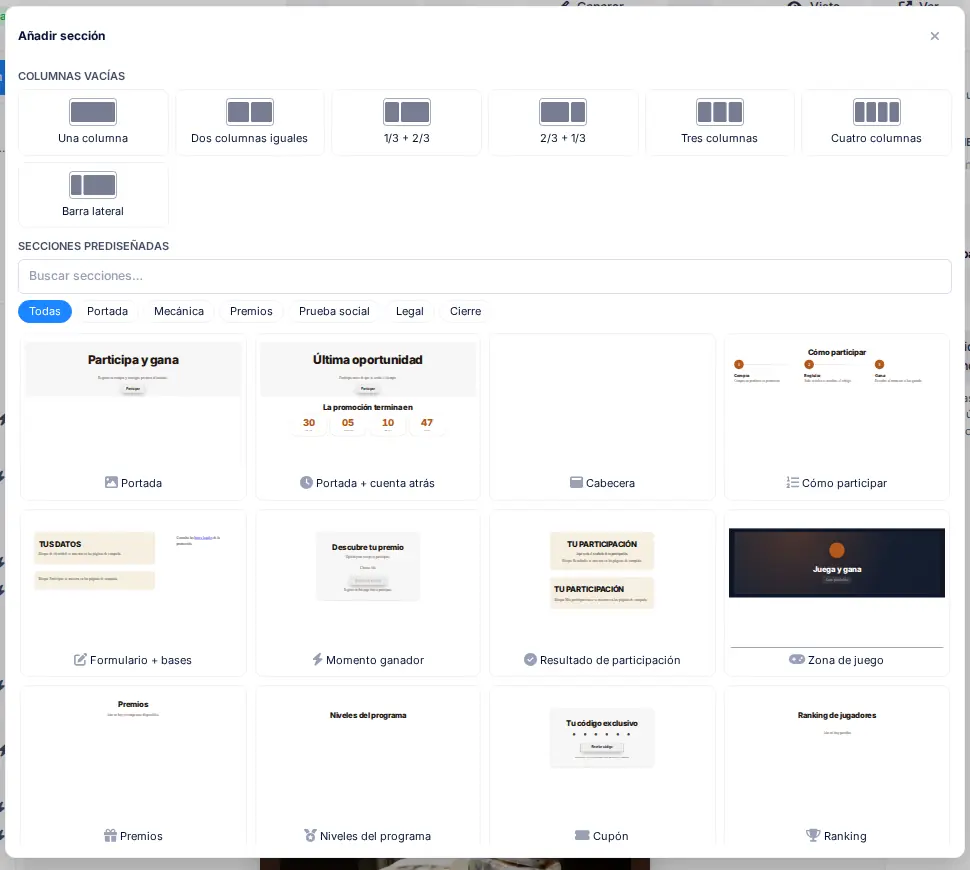
Añadir sección (arriba de la estructura) o el + entre dos secciones del lienzo abren la biblioteca:
- Columnas vacías: una columna, dos iguales, 1/3 + 2/3, 2/3 + 1/3, tres, cuatro o Barra lateral.
- Secciones prediseñadas, con bloques y textos de ejemplo. Se filtran por Portada, Mecánica, Premios, Prueba social, Legal y Cierre, y se buscan con Buscar secciones…. Hay, por ejemplo, Portada, Cómo participar, Premios, Formulario + bases, Preguntas frecuentes, Portada + cuenta atrás, Cifras clave, Testimonios, Concurso de fotos y Mapa de tiendas.
Cada sección y bloque tiene acciones de Arrastra para mover, Subir, Bajar, Duplicar, Ocultar en este dispositivo y eliminar. Atajos: Ctrl+D duplica, Supr borra y Alt+↑ / Alt+↓ mueven. Bloquear bloque impide editar un bloque por descuido.
Paleta de bloques
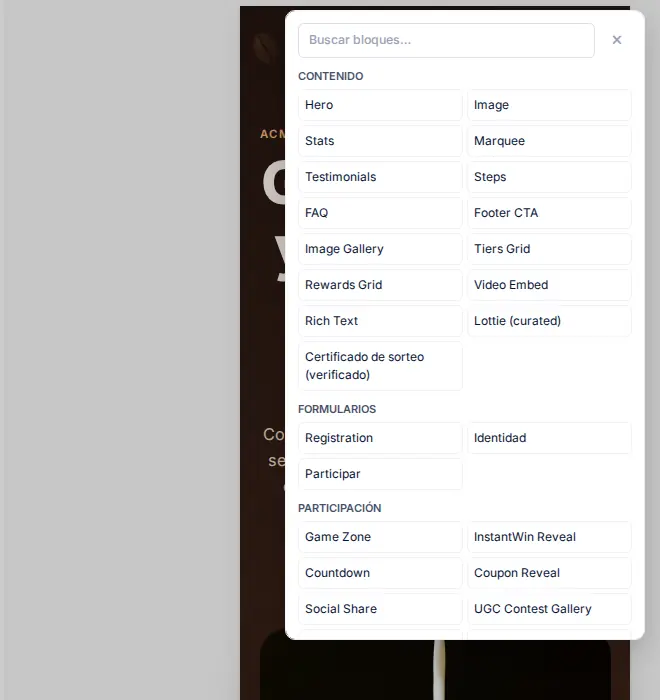
Añadir bloque dentro de una columna abre la paleta, con buscador (Buscar bloques…) y cuatro grupos: Contenido, Formularios, Participación y Estructura.
Propiedades de una sección
| Campo | Qué hace |
|---|---|
| Fondo | Ninguno, Color, Imagen, Degradado o Vídeo. La imagen debe estar en la mediateca. El vídeo admite mp4 o webm de hasta 4 MB, exige una Imagen de portada y permite elegir qué se ve En móvil. |
| Capa de color y Texto claro (fondo oscuro) | Oscurecen el fondo y claren el texto. |
| Espaciado | Margen vertical, Ancho del contenido (Estrecho, Normal, Ancho, Completo) y Espacio entre columnas. |
| Visibilidad | Muestra u oculta la sección por dispositivo. |
| Mostrar en estados | Limita la sección a ciertos estados de la participación. Sin marcar, se ve siempre. |
| Avanzado | Ancla (para enlaces #) y Nombre accesible. |
| Decoración | Imágenes libres sobre la sección. Mira Decoraciones. |
Las columnas añaden Alineación vertical, Espacio entre bloques y Orden en móvil.
Bloques disponibles
El registro del editor ofrece 35 bloques. Los nombres salen tal cual en la paleta; la mayoría está en inglés. Libre indica que el bloque se puede sacar de la columna y colocar libremente sobre la sección; Giro, que además admite rotación.
| Bloque | Grupo | Para qué sirve | Libre / Giro |
|---|---|---|---|
| Hero | Contenido | Portada con titular, subtítulo, botón e imagen de fondo. | Giro |
| Image | Contenido | Imagen suelta, con texto alternativo. | Libre y giro |
| Image Gallery | Contenido | Rejilla de imágenes. | |
| Marquee | Contenido | Cinta de elementos de texto o imagen, por ejemplo premios. | Libre |
| Stats | Contenido | Cifras destacadas. | Libre |
| Testimonials | Contenido | Opiniones de clientes. | Giro |
| Steps | Contenido | Pasos numerados de la promoción. | |
| FAQ | Contenido | Preguntas frecuentes. También sirve como acordeón de bases. | |
| Footer CTA | Contenido | Llamada a la acción de cierre. | Giro |
| Video Embed | Contenido | Vídeo incrustado por URL. | Libre |
| Rich Text | Contenido | Texto con formato. Útil como etiqueta o pie legal. | Libre y giro |
| Lottie (curated) | Contenido | Animación de una galería predefinida. | Libre |
| Tiers Grid | Contenido | Niveles del programa. | |
| Rewards Grid | Contenido | Premios del catálogo. | |
| Certificado de sorteo (verificado) | Contenido | Certificado del sorteo con datos reales. Sin campos editables. | |
| Registration | Formularios | Formulario de registro con casillas legales. | |
| Identidad | Formularios | Identificación del participante. El formulario sale de la configuración de participación de la campaña. | |
| Participar | Participación | Envío de ticket, código o QR. Solo en páginas de campaña. | |
| Resultado | Participación | Resultado de la última participación. Solo en páginas de campaña. | |
| Mis participaciones | Participación | Historial del visitante. Pide identificarse. | |
| Game Zone | Participación | Lanza un juego concreto. | |
| InstantWin Reveal | Participación | Revela un premio al instante. | |
| Coupon Reveal | Participación | Revela un código de cupón. Pide registro previo. | |
| Countdown | Participación | Cuenta atrás hasta una fecha. | Libre y giro |
| Social Share | Participación | Botones para compartir. | Libre |
| UGC Contest Gallery | Participación | Galería de fotos de un concurso con votación. | |
| Social Wall | Participación | Muro de publicaciones aprobadas. | |
| Game Leaderboard | Participación | Clasificación de un juego. | |
| Campaign Ranking | Participación | Ranking de una campaña. | |
| Quiz Results | Participación | Resultados de un quiz. | |
| Sports Prediction | Participación | Predicciones deportivas. Mira Predicciones deportivas. | |
| Journey | Participación | Muestra un journey por su slug. Mira Journeys en la landing. | |
| Store Map | Participación | Mapa de comercios participantes. | |
| Spacer | Estructura | Espacio vertical. | |
| Branding Header | Estructura | Logo y nombre de la marca. |
Al seleccionar un bloque, Propiedades reúne sus campos en pestañas: Contenido, Diseño, Animación y, en algunos bloques, Estados. Los campos de imagen permiten Subir un archivo o elegirlo en Galería. Escribe siempre el texto alternativo.
Kits de marca
Un kit de marca reúne colores, fuentes, forma de botones y logo. La landing los hereda, así que no eliges colores bloque a bloque.
- ⋯ › Kit de marca muestra el kit heredado (por ejemplo Heredado: nombre (campaña)), los kits disponibles y Gestionar kits. Restablecer al heredado quita la elección.
- La herencia va de la landing a la campaña, de ahí a la marca y por último al kit general de la cuenta.
- Los kits se crean en Ajustes › Kits generales (o en la ficha de la marca). Detalle de la herencia con ejemplos: Ficha de marca (Brand Hub).

Brief y generación con IA
El Brief describe el objetivo de la página: Objetivo, Mecánica, Público, Propuesta o gancho, Premios, Fechas y legal, Tono, Llamada a la acción, Imprescindibles, Evitar, Idiomas y Notas libres. En una campaña, mecánica, premios y fechas se rellenan solos desde la campaña (Automático); Editar cambia un dato solo para el brief.

- Plantilla aplica un brief guardado. Guardar como plantilla… crea uno general o de una marca.
- Generar desde brief propone una página. Antes de aplicar nada, ves Cambios propuestos y eliges Aplicar al borrador o Descartar.
- Regenerar con IA… y Reescribir sección rehacen toda la página o las secciones elegidas. Se conservan tal cual los bloques protegidos (ver Procedencia y protección).
- Generaciones IA hoy: n/m muestra la cuota diaria de la cuenta.
Si la campaña cambia (premios, fechas, juego…) o el brief cambia después de generar, el panel avisa con Datos de campaña actualizados o Brief cambiado desde la última generación. Actualizar datos vuelve a leer la campaña y Usar el automático descarta tu edición de un campo.
Procedencia y protección
Cada sección y bloque recuerda quién lo creó (origin: IA, usuario, plantilla o sistema). Es un dato solo del editor: no se publica ni aparece en la comparación de versiones. En la Estructura, una insignia lo muestra:
| Insignia | Significado |
|---|---|
| IA | Bloque generado por IA. |
| ✎ | Editado tras la IA — protegido de la regeneración. Se marca solo al tocar un bloque generado. |
| ⚖ | Bloque legal o de sistema — protegido de la regeneración. |
Al regenerar, la IA no reescribe los bloques protegidos: los legales, los de sistema, los editados por ti y los bloqueados. Aunque el modelo los cambie, mueva o borre, el servidor restaura el original. En el diálogo de regenerar, Incluir editados permite sobrescribir también los editados (pide confirmación); los legales, los de sistema y los bloqueados nunca se pueden incluir.
Comprobar brief
Es una revisión automática, sin IA y sin gastar cuota. Se hace en el panel Problemas, en el grupo Brief (solo aparece si la página tiene brief), con Comprobar brief. Cada hallazgo tiene Ir al bloque o sección y, cuando es mecánico, Arreglar (un solo paso de deshacer). Si todo está bien, ves El brief se cumple en la página.
| Gravedad | Qué detecta | Arreglar |
|---|---|---|
| Error | No hay enlace a las bases de la campaña. | Añade el pie legal. |
| Error | Aparece en la página algo que el brief pide Evitar. | No (el texto es tuyo). |
| Error | La llamada a la acción no coincide con el canal principal del brief. | Con WhatsApp, apunta el botón del hero a WhatsApp. |
| Error | Se piden datos sensibles cerca de una mención a WhatsApp. | No. |
| Aviso | Falta la fecha de fin, la política de privacidad, un Imprescindible, un premio del brief o un idioma del brief. | Cuenta atrás, pie legal, cuadrícula de premios o añadir el idioma (no los imprescindibles). |
| Aviso | El brief no tiene objetivo ni gancho. | No. |
| Info | El brief o la campaña cambiaron desde la última generación. | No. |
Al pulsar Publicar… con errores de brief, el editor los lista y pide confirmar con Publicar de todas formas. No bloquean la publicación: son contenido, no requisitos legales. Los requisitos legales (consentimientos, bases) se avisan por su cauce habitual en Problemas.
Revisión IA
Junto a Comprobar brief hay un botón Revisión IA, que se activa solo después de comprobar el brief. Pide a la IA una segunda lectura de los textos de la página frente al brief:
- Devuelve como máximo 5 comentarios de tipo Info (gancho flojo, premio sin mencionar, tono que no encaja, llamada a la acción poco clara, público que no encaja u otros), cada uno con Ir a la sección.
- No cambia nada ni se guarda: las sugerencias las aplicas tú a mano. No ofrece Arreglar.
- Gasta una generación de la cuota diaria (Generaciones IA hoy: n/m). Si falla, ves La revisión IA ha fallado. Inténtalo de nuevo.; si no hay nada que decir, La revisión IA no ha encontrado nada que añadir.
- Solo lee los textos del idioma base. No recibe textos legales, imágenes, enlaces ni traducciones, y no repite lo que Comprobar brief ya detectó.
- Es una opinión, no una garantía: puede equivocarse. Requiere el editor v2 y una página con secciones.
La IA nunca modifica los textos legales ni los de consentimiento. Una insignia IA marca los bloques que ha generado.
Texto, imagen y diseño por dispositivo
Con Tablet o Móvil activo, la pestaña Diseño guarda cambios solo para ese dispositivo: alineación, tamaño de texto, espaciado interior y visibilidad. Un punto azul (Cambiado para este dispositivo) lo indica y Restablecer vuelve a heredar del escritorio. Con Escritorio activo, editas la base de todos los dispositivos.
El panel Problemas avisa antes de publicar. Cada aviso es un Error, un Aviso o una Info, con Ir al bloque y, cuando se puede, Arreglar. Detecta, por ejemplo, formularios sin bases ligadas a una versión de términos, falta de pie legal o de título principal, imágenes sin texto alternativo, contraste bajo y animaciones en la portada o el formulario.
Decoraciones
Las decoraciones son imágenes libres que flotan sobre una sección. Se añaden en Decoración › Añadir decoración. En Diseño se colocan con X %, Y %, W % y H %, se giran con Rotación y se ordenan con Orden de capas (detrás del contenido o sobre el contenido).
En En móvil eliges Debajo del contenido, Ocultar o Mantener en su sitio. Dejar pasar los clics evita que tape botones y Permitir que sobresalga deja que salga de la sección. Marca Imagen decorativa (sin texto alternativo) para que los lectores de pantalla la ignoren.
Animaciones y parallax
Las animaciones están paradas mientras editas. Pulsa Reproducir animaciones (Mayús+Espacio) para verlas. En el lienzo, decoraciones y fondos se muestran en su posición de reposo.

- Página (sin nada seleccionado, Animaciones): interruptor Animaciones de la página activadas, Intensidad (Sutil, Normal, Marcada), Botones al pasar el ratón (Ninguno, Elevar, Brillo, Escalar) y En móvil (Reducidas (recomendado), Completas, Desactivadas). Reducidas quita el parallax de fondo y el desenfoque y atenúa el resto; es lo recomendado si mucho tráfico llega desde el móvil.
- Bloque (pestaña Animación): Entrada (Aparecer, Subir, Bajar, Desde la izquierda, Desde la derecha, Acercar, Desenfoque), Velocidad (Rápida, Normal, Lenta), Retardo, Distancia (Corta, Media, Larga) y Solo la primera vez. Reproducir prueba solo ese bloque. En móvil, Desenfoque se muestra como Aparecer.
- Sección: Escalonar elementos (No, Suave, Medio, Marcado) para que los bloques entren uno tras otro.
- Al hacer scroll: efecto ligado al desplazamiento (Parallax, Deriva horizontal, Girar, Escalar, Desvanecer), con Intensidad y comportamiento En móvil (Apagado, Atenuado, Completo). Fijar sección (Arriba o Abajo) mantiene la sección en pantalla mientras se avanza. Un bloque con animación lleva la marca Tiene animación en la estructura.
- Las animaciones de la tablet y el móvil se pueden cambiar por dispositivo, igual que el diseño.
Accesibilidad
Quien tiene activado «reducir movimiento» en su dispositivo ve la página sin animaciones: todo aparece de golpe. No hace falta configurarlo. Aun así, el mensaje debe entenderse siempre sin movimiento, y evita animar la portada y el formulario (el panel Problemas lo avisa).
Idiomas
⋯ › Idiomas habilita los idiomas de la página; el primero es el base. Con varios idiomas, el selector de la barra cambia el idioma de edición y el panel de traducciones lista lo pendiente. Cada texto tiene Copiar del base, Marcar revisado y Quitar revisado. Los campos comunes a todos los idiomas se editan en el idioma base.
Vista previa con contraseña
- Vista previa (barra): abre el borrador actual en otra pestaña, sin guardar. Caduca a los 15 minutos.
- ⋯ › Compartir vista previa: abre el diálogo Compartir con dos pestañas. Vista previa (privada) crea un enlace temporal de 24 horas para revisar el borrador sin iniciar sesión, con Contraseña (opcional) de al menos 4 caracteres (se muestra una sola vez: guárdala). Público (go-live) es el enlace de la landing publicada y no caduca.
- Hay además un Enlace corto rastreable y la opción Descargar PNG de la tarjeta. Tras tres contraseñas erróneas desde la misma IP, el enlace se bloquea. Mira Enlaces cortos.
Comentarios de revisión
Quien abre el enlace de la vista previa privada puede dejar notas ancladas a un bloque o notas General. En el editor, Comentarios muestra un contador y marca cada nota con un pin sobre su bloque. Resolver cierra la nota.
Historial de versiones
⋯ › Historial de versiones lista las versiones guardadas. Puedes Nombrar esta versión, Comparar una con la actual (secciones añadidas, cambiadas y eliminadas, con Resaltar en el lienzo) y Restaurar como borrador. Restaurar no publica nada.
SEO y compartir
⋯ › SEO y compartir controla cómo se ve el enlace en buscadores y al compartirlo. El diálogo tiene un bloque SEO / Compartir con estos campos:
| Campo | Qué es | Notas |
|---|---|---|
| Título | Título de la pestaña (<title>) y de la tarjeta social. | Hasta 200 caracteres; se avisa por encima de 60 porque Google puede truncarlo. |
| Descripción | Meta descripción y texto de la tarjeta. | Una o dos frases, hasta 400 caracteres; se avisa por encima de 160. |
| Imagen OG | Imagen de la tarjeta, también para X/Twitter. | Recomendada de 1200×630 (1,91:1). Sin imagen, el editor avisa de que la tarjeta será solo texto. |
| Vista previa | Simula la tarjeta en WhatsApp, Twitter/X y la búsqueda de Google. |
Los cambios de SEO se publican con la página, no antes. Qué ocurre después:
- Buscadores y redes sin JavaScript. El servidor entrega título, descripción, imagen, enlace canónico e idiomas alternativos ya dentro de la página, así que los rastreadores y las vistas previas de WhatsApp los leen sin ejecutar nada. El enlace canónico es la dirección preferida de la campaña (dominio propio verificado, subdominio de la plataforma o
/landing/c/…). - Si dejas un campo vacío, se usa el de la landing de la cuenta; si tampoco hay, el nombre y la imagen de marca de la cuenta.
- Idiomas. Los idiomas de ⋯ › Idiomas se publican como idiomas alternativos de la página.
- Solo lo publicado. Una landing en borrador o programada y las vistas previas privadas no se muestran a buscadores ni llevan estas etiquetas.
- Indexación. El editor no tiene un ajuste para excluir la página de Google (
noindex): cualquier landing publicada puede indexarse.
WhatsApp guarda en caché las previsualizaciones durante días. Si cambias la imagen, añade ?v=2 al enlace corto para forzar la actualización.
Journeys en la landing
Un journey es el recorrido guiado de una campaña: capturar datos, jugar, validar y premiar. Se diseña aparte y se muestra en la landing con el bloque Journey.
- Abre la ficha de campaña y pulsa Diseñar journey. Solo lo ves con el permiso del Journey Builder.
- En el editor del journey, añade nodos y conéctalos. Los tipos son: disparador, captura, juego, juego externo, puerta, premio, cashback y final.
- Guarda. En el constructor de landings, añade el bloque Journey e indica el slug del journey.
El Journey Builder comparte la función Enterprise con el constructor de landings.
Certificado de sorteo
El certificado público de un sorteo tiene su propio editor. Se abre desde Campañas › Certificado de sorteo (para la cuenta) o con Editar certificado en el sorteo de una campaña. La página pública está en /landing/raffle/{id de campaña}/certificate. Si no existe un certificado propio, se muestra el certificado fijo del sistema, que no se puede editar.
Límites
- El CSS propio admite hasta 20 000 caracteres y no permite scripts,
@importni URLs externas. - Las imágenes de fondo y de bloque deben estar en la mediateca. No se admiten URL externas.
- El vídeo de fondo pesa como máximo 4 MB. Por encima de 2 MB, el editor avisa de que puede ir lento con datos móviles.
- La IA tiene un límite diario de generaciones por cuenta.
- Una campaña sin landing propia muestra su página automática, aunque la cuenta tenga una landing.
Permisos
| Acción | Permiso (texto UI) | id técnico |
|---|---|---|
| Abrir el constructor, el certificado, el historial y la IA | Constructor de landings | Pages.Loyalty.LandingBuilder |
| Diseñar el journey de una campaña | JourneyBuilder (sin traducir en la UI de roles) | Pages.Gamification.JourneyBuilder |
Ambos exigen la función Enterprise Landing Page Builder. El editor v2 exige además su propia función.
Preguntas frecuentes
¿Por qué no veo el editor nuevo? Tu cuenta no tiene activado el editor de landings v2 y se abre el clásico. Pide que lo activen.
¿Publicar cambia la página al guardar? No. Guardar borrador (y el guardado automático) solo toca el borrador. La página pública cambia al pulsar Publicar….
¿Cómo vuelvo a la versión publicada? ⋯ › Descartar borrador. Pierdes los cambios sin publicar.
¿Puedo recuperar una versión antigua? Sí: ⋯ › Historial de versiones › Restaurar como borrador. Después publícala si te sirve.
¿Por qué no puedo asignar el kit de marca? La página aún no está guardada. Pulsa Guardar borrador y repite.
El formulario aparece sin bases legales. ¿Qué hago? Abre el bloque Registration, añade una casilla en Legals y liga la versión de bases. El panel Problemas te lo avisa. Mira Versiones de términos.
¿Por qué mi animación no se ve en el editor? Están paradas mientras editas. Pulsa Reproducir animaciones.
La IA reescribió algo que yo había retocado.
No debería: lo que editas tras generar queda protegido (✎). Si lo incluiste con Incluir editados, usa Deshacer (Ctrl+Z) justo después, o ⋯ › Descartar borrador para volver a la versión publicada.
¿Por qué no puedo pulsar Revisión IA? Se activa solo después de Comprobar brief, y la página necesita brief y secciones. También gasta una generación de la cuota diaria.
¿Cómo cambio una sola cosa en móvil? Selecciona Móvil, abre la pestaña Diseño del bloque y cambia el campo. Solo afecta a ese dispositivo.
¿La IA puede cambiar mis bases legales? No. Los textos legales y de consentimiento se conservan siempre.
Otra persona está editando la misma landing. Si guarda antes que tú, verás Alguien ha guardado. Elige Recargar para ver sus cambios o Sobrescribir para mantener los tuyos.
Relacionado
- Diseñar una landing de campaña paso a paso y Publicar la landing con enlace corto y QR.
- Landing pages: direcciones públicas y qué ve el participante.
- Sorteos y Ficha de campaña.
- Enlaces cortos, Versiones de términos y Variantes A/B.