Landing builder
Build the public page for your account or for a campaign with sections and blocks, without writing code. This page explains every panel, block and action of the editor. For a step-by-step walkthrough, follow the tutorial Design a campaign landing page step by step.
Menu: Branding › Landing Builder (account landing) and Campaigns › Raffle Certificate.
Landing Builder permission · Enterprise edition with the Landing Page Builder feature and landing editor v2 turned on. Without the feature, the menu does not appear. Without editor v2, the classic editor opens, which this page does not describe. If you do not see what this page describes, ask for editor v2 to be turned on for your account.
Which landing you edit
Each landing is saved for an entity: your account or a specific campaign.
- Account: Landing Builder opens the program landing.
- Campaign: open the campaign and press Edit landing on the general tab. The button only appears once the campaign is saved. From the campaign list, Design landing opens the editor with the wizard on Create with AI.
- Raffle certificate: a separate page. See Raffle certificate.
If a campaign has no landing of its own, participants see the automatic campaign page. The account landing does not replace it. Details in Landing pages.
Editor screen
The editor opens full screen and has four areas.
| Area | What it holds |
|---|---|
| Top bar | Page state, device, editing language, Brief, Comments, the ⋯ menu, Preview, Save draft and Publish…. |
| Structure (left) | Tree of sections, columns and blocks. Drag to reorder. The Problems panel is at the bottom. |
| Canvas (centre) | The real page. Double-click a text to edit it in place. |
| Properties (right) | Fields of whatever is selected. With nothing selected, it shows the Animations of the whole page. |
You can collapse the side panels. The canvas starts in Mobile (390 px).
Top bar
| Element | What it does |
|---|---|
| State | Draft, not published, Published, Draft with unpublished changes or Scheduled for a date. Next to it, Unsaved changes or Saved. |
| Mobile, Tablet, Desktop | Change the canvas width and the device you edit. Shortcuts: 1, 2, 3. |
| Language | Changes the language you edit. The first one is the base. Useful when the page has several languages. |
| Undo / Redo | Ctrl+Z and Ctrl+Shift+Z. |
| Brief | Opens the brief panel. |
| Comments | Shows reviewers' notes on their blocks. See Review comments. |
| ⋯ | Actions menu. See below. |
| Preview | Opens the current draft in another tab, without saving. The link lasts 15 minutes. |
| View page | Opens the published page. |
| Save draft | Ctrl+S. Does not change the public page. |
| Publish… | Asks for confirmation and publishes the draft. |

⋯ menu
| Option | What it is for |
|---|---|
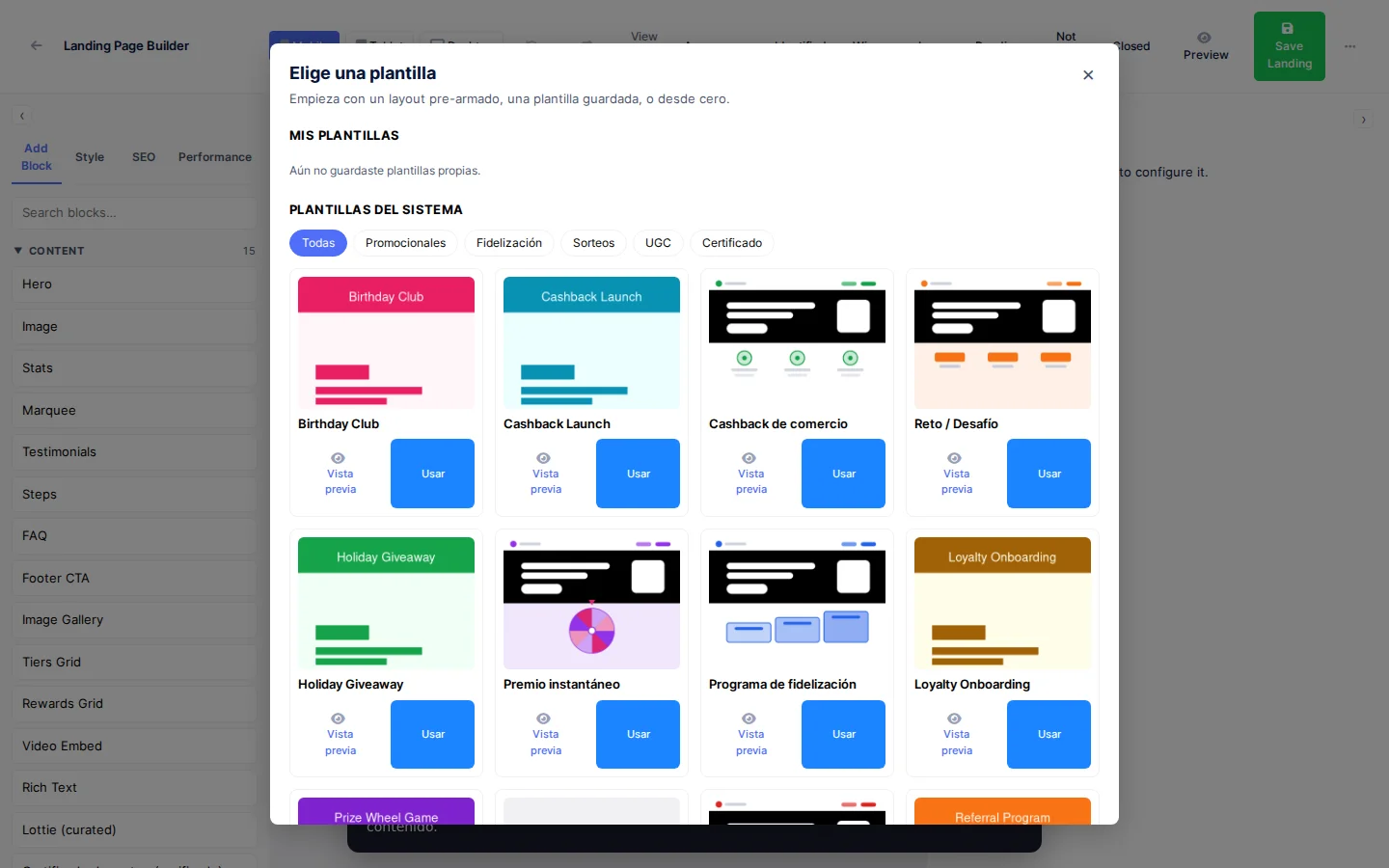
| Templates | Opens the template picker. Replaces the current content. |
| SEO and sharing | Title, description and image of the link. See SEO and sharing. |
| Languages | Enables languages and reviews translations. See Languages. |
| Share preview | Review link for other people. See Password-protected preview. |
| Duplicate to… | Copies the landing to the account or to another campaign. Tick Include translations and Include A/B variants to copy them too. |
| Brief | Same as the top bar button. |
| Brand kit | Picks the landing's kit. See Brand kits. |
| Schedule | Sets Publish on and Unpublish on. The unpublish date must be later. |
| Discard draft | Goes back to the published version and loses unpublished changes. |
| Version history | See Version history. |
| Open classic editor | Goes back to editor v1. Only for emergencies. |
Draft and publishing
A landing has two copies: the draft, which you edit, and the published version, which participants see.
- The editor saves the draft by itself a few seconds after each change, and also with Save draft (
Ctrl+S). None of this changes the public page. - Publish… asks you to confirm: "Publish the page? N block(s) changed." If the brief has content errors, the notice lists them and offers Publish anyway. Legal texts do not count as content errors.
- If you keep editing after publishing, the bar shows Draft with unpublished changes until you publish again.
- Schedule publishes or unpublishes on the dates you set. Save the draft first.
- If someone else saves the landing while you edit, Someone else saved appears with Reload and Overwrite. Autosave stops until you choose.
With an empty landing, press Save draft once before assigning a brand kit or sharing the preview. Those actions need a saved page.
Structure: sections, columns and blocks
The page is a list of sections. Each section has one or more columns and each column holds blocks.
Adding sections
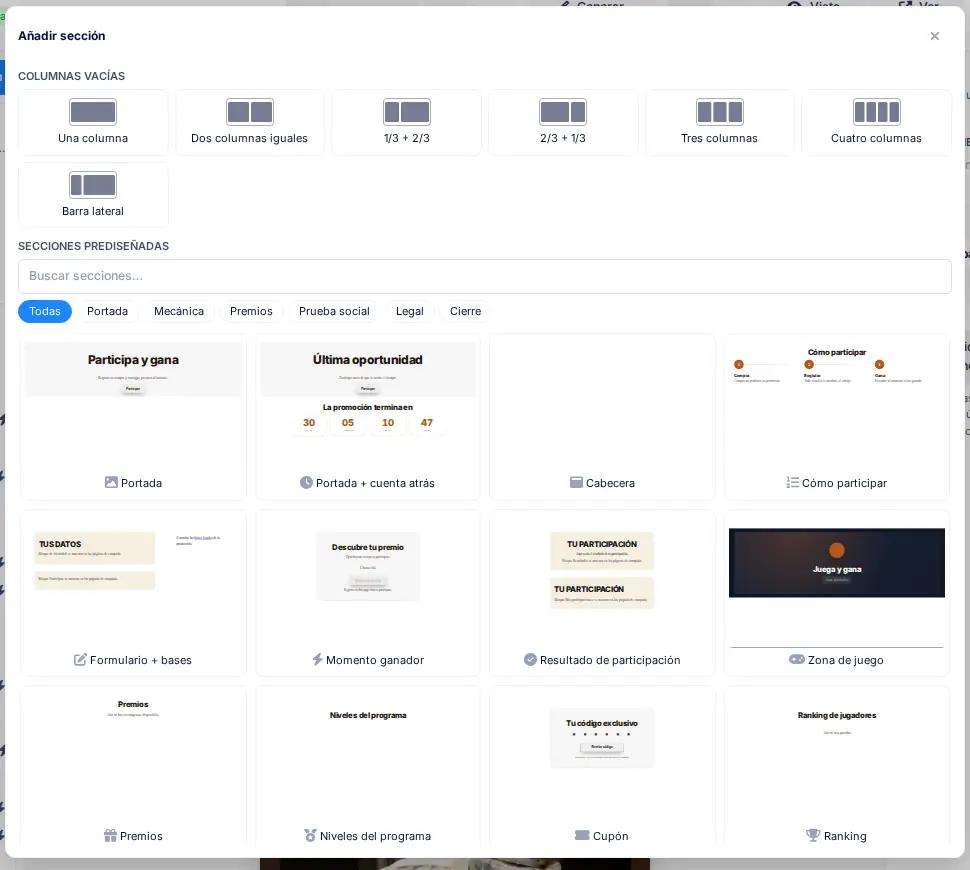
Add section (above the structure) or the + between two sections on the canvas open the library:
- Empty columns: one column, two equal, 1/3 + 2/3, 2/3 + 1/3, three, four or Sidebar.
- Ready-made sections, with example blocks and texts. Filter by Hero, Mechanic, Prizes, Social proof, Legal and Closing, and search with Search sections…. For example: Hero, How to take part, Prizes, Form + terms, FAQ, Hero + countdown, Key figures, Testimonials, Photo contest and Store map.
Every section and block has Drag to move, Move up, Move down, Duplicate, Hide on this device and delete. Shortcuts: Ctrl+D duplicates, Del deletes and Alt+↑ / Alt+↓ move. Lock block stops a block from being edited by accident.
Block palette
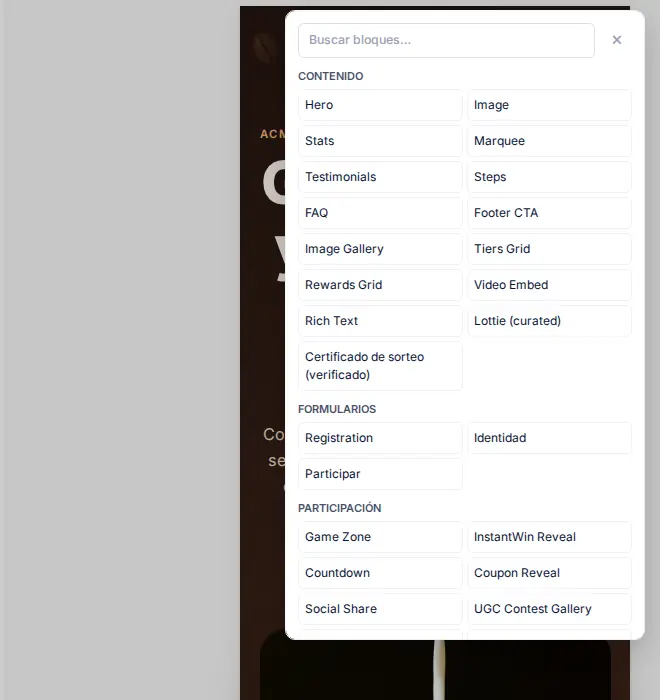
Add block inside a column opens the palette, with a search box (Search blocks…) and four groups: Content, Forms, Engagement and Layout.
Section properties
| Field | What it does |
|---|---|
| Background | None, Color, Image, Gradient or Video. The image must be in the media library. Video accepts mp4 or webm up to 4 MB, requires a Cover image and lets you choose what shows On mobile. |
| Overlay and Light text (dark background) | Darken the background and lighten the text. |
| Spacing | Vertical padding, Content width (Narrow, Normal, Wide, Full) and Space between columns. |
| Visibility | Shows or hides the section per device. |
| Show in states | Limits the section to certain participation states. With none ticked, it always shows. |
| Advanced | Anchor (for #links) and Accessible name (screen readers). |
| Decoration | Free images over the section. See Decorations. |
Columns add Vertical alignment, Space between blocks and Order on mobile.
Available blocks
The editor's registry offers 35 blocks. Names appear as they do in the palette; most are in English. Free means the block can be taken out of the column and placed freely over the section; Rotate means it also supports rotation.
| Block | Group | What it is for | Free / Rotate |
|---|---|---|---|
| Hero | Content | Header with headline, subhead, button and background image. | Rotate |
| Image | Content | A single image, with alt text. | Free and rotate |
| Image Gallery | Content | Grid of images. | |
| Marquee | Content | Ribbon of text or image items, for example prizes. | Free |
| Stats | Content | Highlighted figures. | Free |
| Testimonials | Content | Customer opinions. | Rotate |
| Steps | Content | Numbered steps of the promotion. | |
| FAQ | Content | Frequently asked questions. Also works as a terms accordion. | |
| Footer CTA | Content | Closing call to action. | Rotate |
| Video Embed | Content | Video embedded by URL. | Free |
| Rich Text | Content | Formatted text. Handy as a label or legal footer. | Free and rotate |
| Lottie (curated) | Content | Animation from a predefined gallery. | Free |
| Tiers Grid | Content | Program tiers. | |
| Rewards Grid | Content | Rewards from the catalogue. | |
| Certificado de sorteo (verificado) | Content | Raffle certificate with real data. No editable fields. | |
| Registration | Forms | Registration form with legal checkboxes. | |
| Identidad | Forms | Participant identification. The form comes from the campaign's participation settings. | |
| Participar | Engagement | Ticket, code or QR submission. Campaign pages only. | |
| Resultado | Engagement | Result of the latest participation. Campaign pages only. | |
| Mis participaciones | Engagement | The visitor's history. Asks them to identify. | |
| Game Zone | Engagement | Launches a specific game. | |
| InstantWin Reveal | Engagement | Reveals a prize instantly. | |
| Coupon Reveal | Engagement | Reveals a coupon code. Asks for prior registration. | |
| Countdown | Engagement | Countdown to a date. | Free and rotate |
| Social Share | Engagement | Share buttons. | Free |
| UGC Contest Gallery | Engagement | Photo contest gallery with voting. | |
| Social Wall | Engagement | Wall of approved posts. | |
| Game Leaderboard | Engagement | A game's ranking. | |
| Campaign Ranking | Engagement | A campaign's ranking. | |
| Quiz Results | Engagement | Quiz results. | |
| Sports Prediction | Engagement | Sports predictions. See Sports prediction. | |
| Journey | Engagement | Shows a journey by its slug. See Journeys in the landing. | |
| Store Map | Engagement | Map of participating stores. | |
| Spacer | Layout | Vertical space. | |
| Branding Header | Layout | Brand logo and name. |
When you select a block, Properties groups its fields in tabs: Content, Layout, Animation and, on some blocks, States. Image fields let you Upload a file or pick it from Gallery. Always write the alt text.
Brand kits
A brand kit gathers colours, fonts, button shape and logo. The landing inherits them, so you do not pick colours block by block.
- ⋯ › Brand kit shows the inherited kit (for example Inherited: name (campaign)), the available kits and Manage kits. Reset to inherited removes your choice.
- Inheritance runs from the landing to the campaign, then to the brand, and finally to the account's general kit.
- Kits are created in Settings › General kits (or on the brand page). How inheritance works, with examples: Brand file (Brand Hub).

Brief and AI generation
The Brief describes the goal of the page: Objective, Mechanic, Audience, Proposition or hook, Prizes, Dates and legal, Tone, Call to action, Must-haves, Avoid, Languages and Free notes. In a campaign, mechanic, prizes and dates fill in by themselves from the campaign (Automatic); Edit changes a value for the brief only.

- Template applies a saved brief. Save as template… creates a general one or one for a brand.
- Generate from brief proposes a page. Before anything is applied, you see Proposed changes and choose Apply to draft or Discard.
- Regenerate with AI… and Rewrite section redo the whole page or the sections you pick. Protected blocks are kept as they are (see Provenance and protection).
- AI generations today: n/m shows the account's daily quota.
If the campaign changes (prizes, dates, game…) or the brief changes after a generation, the panel warns you with Campaign data updated or Brief changed since the last generation. Refresh data reads the campaign again and Use automatic drops your edit of a field.
Provenance and protection
Every section and block remembers who created it (origin: AI, user, template or system). It is editor-only data: it is never published and does not show up in the version comparison. In the Structure panel, a badge shows it:
| Badge | Meaning |
|---|---|
| AI | AI-generated block. |
| ✎ | Edited after the AI — protected from regeneration. Set automatically when you touch a generated block. |
| ⚖ | Legal or system block — protected from regeneration. |
When regenerating, the AI does not rewrite protected blocks: legal ones, system ones, the ones you edited and the locked ones. Even if the model changes, moves or deletes them, the server restores the original. In the regenerate dialog, Include edited lets it overwrite edited blocks too (it asks for confirmation); legal, system and locked blocks can never be included.
Check brief
This is an automatic check with no AI and no quota cost. It lives in the Problems panel, in the Brief group (shown only when the page has a brief), under Check brief. Each finding has Go to the block or section and, when the change is mechanical, Fix (a single undo step). If all is well, you see The page meets the brief.
| Severity | What it detects | Fix |
|---|---|---|
| Error | No link to the campaign terms. | Adds the legal footer. |
| Error | The page contains something the brief says to Avoid. | No (the text is yours). |
| Error | The call to action does not match the brief's main channel. | With WhatsApp, points the hero button to WhatsApp. |
| Error | Sensitive data is requested near a mention of WhatsApp. | No. |
| Warning | The end date, the privacy policy, a Must-have, a brief prize or a brief language is missing. | Countdown, legal footer, prizes grid or adding the language (not must-haves). |
| Warning | The brief has no objective or hook. | No. |
| Info | The brief or the campaign changed since the last generation. | No. |
When you press Publish… with brief errors, the editor lists them and asks you to confirm with Publish anyway. They do not block publishing: they are content checks, not legal requirements. Legal requirements (consents, terms) are flagged through the usual route in Problems.
AI review
Next to Check brief there is an AI review button, enabled only after you have checked the brief. It asks the AI for a second reading of the page texts against the brief:
- It returns at most 5 Info comments (weak hook, prize not mentioned, tone mismatch, unclear call to action, audience mismatch or others), each with Go to the section.
- It changes nothing and saves nothing: you apply the suggestions by hand. There is no Fix.
- It uses one generation from the daily quota (AI generations today: n/m). If it fails, you see The AI review failed. Please try again.; if it has nothing to say, The AI review found nothing to add.
- It reads only the base-language texts. It does not receive legal texts, images, links or translations, and it does not repeat what Check brief already found.
- It is an opinion, not a guarantee, and can be wrong. It needs editor v2 and a page with sections.
AI never changes legal or consent texts. An AI badge marks blocks it generated.
Per-device layout
With Tablet or Mobile active, the Layout tab saves changes for that device only: alignment, text size, inner padding and visibility. A blue dot (Changed for this device) shows it and Reset goes back to inheriting from desktop. With Desktop active, you edit the base for all devices.
The Problems panel warns you before publishing. Each notice is an Error, a Warning or an Info, with Go to the block and, when possible, Fix. It detects, for example, forms with terms not linked to a terms version, a missing legal footer or main title, images without alt text, low contrast, and animations on the hero or the form.
Decorations
Decorations are free images that float over a section. Add them under Decoration › Add decoration. In Layout you position them with X %, Y %, W % and H %, rotate with Rotation and order with Stacking order (behind the content or over the content).
Under On mobile pick Below content, Hide or Keep in place. Let clicks pass through stops it covering buttons and Allow overflow lets it extend past the section. Tick Decorative image (no alt text) so screen readers ignore it.
Animations and parallax
Animations are paused while you edit. Press Play animations (Shift+Space) to see them. On the canvas, decorations and backgrounds show at rest.

- Page (nothing selected, Animations): the Page animations enabled switch, Intensity (Subtle, Normal, Bold), Buttons on hover (None, Lift, Glow, Scale) and On mobile (Reduced (recommended), Full, Off). Reduced drops background parallax and blur and softens the rest; recommended if much of your traffic arrives on mobile.
- Block (Animation tab): Entrance (Fade in, Up, Down, From the left, From the right, Zoom in, Blur in), Speed (Fast, Normal, Slow), Delay, Distance (Short, Medium, Long) and Only the first time. Play previews just that block. On mobile, Blur in shows as a plain fade.
- Section: Stagger items (No, Soft, Medium, Strong) so blocks enter one after another.
- On scroll: an effect tied to scrolling (Parallax, Horizontal drift, Rotate, Scale, Fade), with Intensity and On mobile behaviour (Off, Reduced, Full). Pin section (Top or Bottom) keeps the section on screen while scrolling. A block with an animation carries the Has animation mark in the structure.
- Tablet and mobile animations can be overridden per device, just like layout.
Accessibility
Anyone who has "reduce motion" turned on in their device sees the page without animations: everything appears at once. You don't need to configure anything. Still, the message must make sense without motion, and you should avoid animating the cover and the form (the Problems panel warns you).
Languages
⋯ › Languages enables the page's languages; the first one is the base. With several languages, the top bar selector changes the editing language and the translations panel lists what is pending. Each text has Copy from base, Mark reviewed and Unmark reviewed. Fields shared across languages are edited in the base language.
Password-protected preview
- Preview (top bar): opens the current draft in another tab, without saving. It expires after 15 minutes.
- ⋯ › Share preview: opens the Share dialog with two tabs. Preview (private) creates a 24-hour temporary link to review the draft without logging in, with an optional Password (optional) of at least 4 characters (shown only once: keep it). Public (go-live) is the link of the published landing and does not expire.
- There is also a Trackable short link and a Download PNG option for the card. After three wrong passwords from the same IP, the link is blocked. See Short links.
Review comments
Anyone who opens the private preview link can leave notes pinned to a block, or General notes. In the editor, Comments shows a counter and marks each note with a pin on its block. Resolve closes the note.
Version history
⋯ › Version history lists the saved versions. You can Name this version, Compare one with the current one (Added, Changed and Removed sections, with Highlight in canvas) and Restore as draft. Restoring does not publish anything.
SEO and sharing
⋯ › SEO and sharing controls how the link looks in search engines and when shared. The dialog has an SEO / Sharing block with these fields:
| Field | What it is | Notes |
|---|---|---|
| Title | Tab title (<title>) and social card title. | Up to 200 characters; a warning shows above 60 because Google may truncate it. |
| Description | Meta description and card text. | One or two sentences, up to 400 characters; a warning shows above 160. |
| OG image | Card image, also used for X/Twitter. | 1200×630 (1.91:1) recommended. With no image, the editor warns the card will be text-only. |
| Preview | Simulates the card on WhatsApp, Twitter/X and Google search. |
SEO changes go live with the page, not before. What happens next:
- Search engines and networks without JavaScript. The server delivers title, description, image, canonical link and alternate languages already inside the page, so crawlers and WhatsApp previews read them without running anything. The canonical link is the campaign's preferred address (verified custom domain, platform subdomain or
/landing/c/…). - If you leave a field empty, the account landing's value is used; if there is none either, the account's brand name and image.
- Languages. The languages in ⋯ › Languages are published as alternate languages of the page.
- Published only. A draft or scheduled landing and private previews are not shown to search engines and carry no such tags.
- Indexing. The editor has no setting to exclude the page from Google (
noindex): any published landing may be indexed.
WhatsApp caches previews for days. If you change the image, add ?v=2 to the short link to force a refresh.
Journeys in the landing
A journey is the guided path of a campaign: capture data, play, validate and reward. It is designed separately and shown on the landing with the Journey block.
- Open the campaign detail and press Design journey. You only see it with the Journey Builder permission.
- In the journey editor, add nodes and connect them. Types are: trigger, capture, game, external game, gate, prize, cashback and end.
- Save. In the landing builder, add the Journey block and enter the journey slug.
The Journey Builder shares the Enterprise feature with the landing builder.
Raffle certificate
The public certificate of a raffle has its own editor. Open it from Campaigns › Raffle Certificate (for the account) or with Edit certificate in a campaign's raffle. The public page is at /landing/raffle/{campaign id}/certificate. If there is no certificate of its own, the fixed system certificate is shown, which cannot be edited.
Limits
- Custom CSS accepts up to 20,000 characters and does not allow scripts,
@importor external URLs. - Background and block images must be in the media library. External URLs are not accepted.
- Background video weighs at most 4 MB. Above 2 MB, the editor warns that it may be slow on mobile data.
- AI has a daily generation limit per account.
- A campaign without its own landing shows its automatic page, even if the account has a landing.
Permissions
| Action | Permission (UI text) | Technical id |
|---|---|---|
| Open the builder, the certificate, the history and AI | Landing Builder | Pages.Loyalty.LandingBuilder |
| Design a campaign's journey | JourneyBuilder (untranslated in the roles UI) | Pages.Gamification.JourneyBuilder |
Both require the Enterprise feature Landing Page Builder. Editor v2 also requires its own feature.
FAQ
Why don't I see the new editor? Your account does not have landing editor v2 turned on, so the classic one opens. Ask for it to be turned on.
Does saving change the published page? No. Save draft (and autosave) only touches the draft. The public page changes when you press Publish….
How do I go back to the published version? ⋯ › Discard draft. You lose the unpublished changes.
Can I recover an old version? Yes: ⋯ › Version history › Restore as draft. Then publish it if it suits you.
Why can't I assign the brand kit? The page is not saved yet. Press Save draft and try again.
The form shows no legal terms. What do I do? Open the Registration block, add a checkbox under Legals and link the terms version. The Problems panel warns you. See Terms versions.
Why can't I see my animation in the editor? They are paused while you edit. Press Play animations.
The AI rewrote something I had touched.
It shouldn't: whatever you edit after generating is protected (✎). If you included it with Include edited, use Undo (Ctrl+Z) right after, or ⋯ › Discard draft to go back to the published version.
Why can't I press AI review? It is enabled only after Check brief, and the page needs a brief and sections. It also uses one generation from the daily quota.
How do I change just one thing on mobile? Select Mobile, open the block's Layout tab and change the field. It only affects that device.
Can AI change my legal terms? No. Legal and consent texts are always kept.
Someone else is editing the same landing. If they save before you, you will see Someone else saved. Choose Reload to see their changes or Overwrite to keep yours.
Related
- Design a campaign landing page step by step and Publish the landing with a short link and QR.
- Landing pages: public addresses and what the participant sees.
- Raffles and Campaign detail.
- Short links, Terms versions and A/B variants.