Your stores
Register the stores you visit and review the ones you have already created.
Register a store
- On the home screen, click Register store (or Create new store when linking a booklet).
- Type the Name. It is the only required field, along with the location.
- The app uses your GPS and suggests the address (Getting location…). If it fails, click Retry GPS.
- If you prefer to type the address, use Search address. If there are several matches, choose one.
- Drag the map marker if the point is not on the store.
- If you wish, fill in Store ID (the code the client gives you), address, postcode, city, province, country, Phone and Manager.
- Click Register.
GPS accuracy is shown as "± N m". In the field rep Guide: green is good, amber is acceptable and red is poor.
If a similar one already exists
If there are nearby stores with a similar name, the app asks Is it one of these stores?. Click This one if it is the same or Different, create it if it is not.
View and edit your stores
My stores lists your stores, ordered by proximity if there is GPS and otherwise alphabetically. Use Search store to filter. Each one shows how many booklets it has.
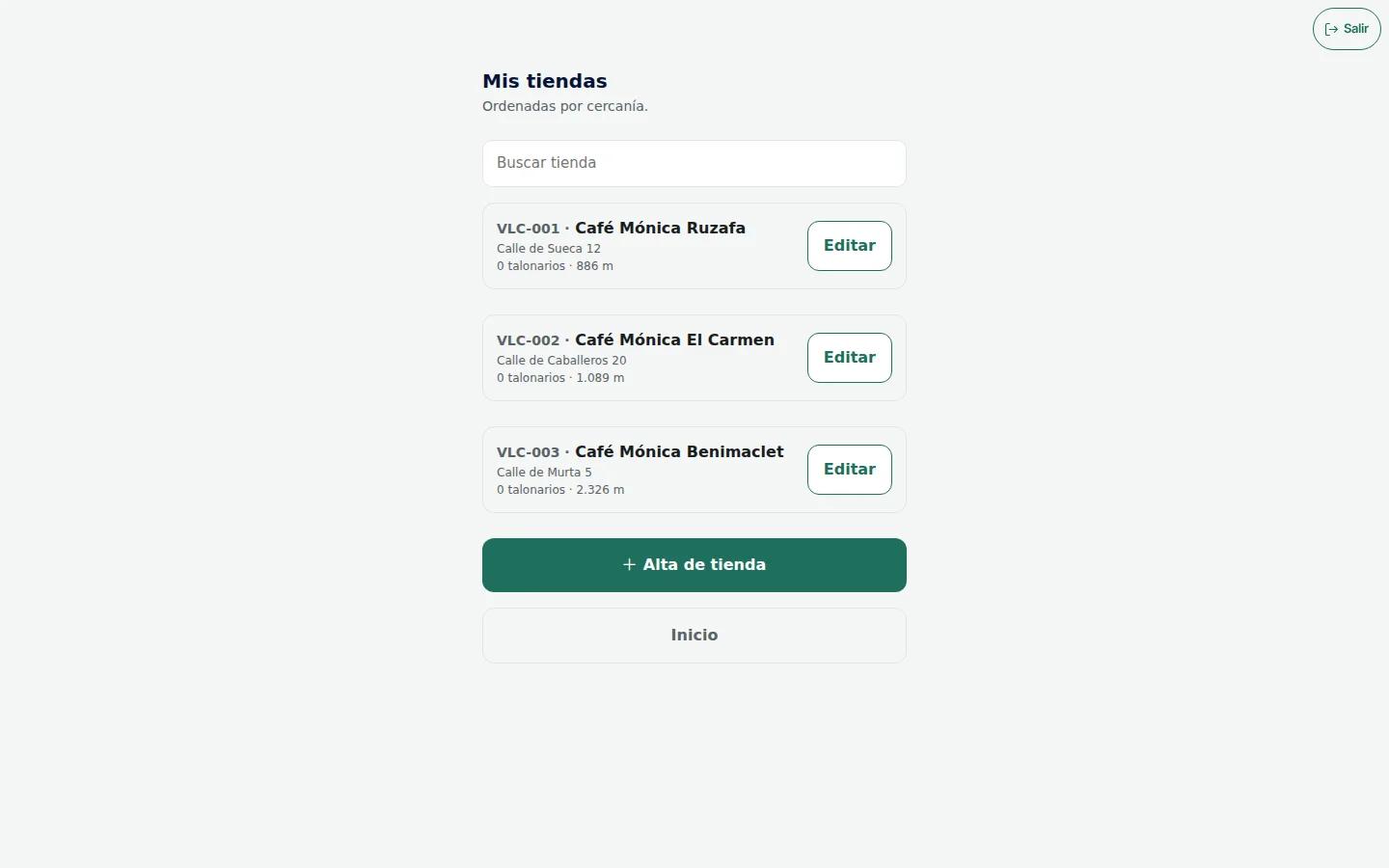
Click Edit to change its details, use your current location (Use my GPS) and Save changes. If you do not have any yet, you will see No stores.
No coverage
Your registration is saved as a draft on your phone. If the network fails, the app retries on its own; if it still does not go through, click Retry submission when you have signal.
Next steps
For the operator
Administrators manage all stores in Stores: registration with a map and bulk import. The field rep only sees and edits the stores they have registered; they do not see the full list.