Invite your field reps
Register the people who visit stores with PIN code booklets. They work from their phone, not from the panel. It takes about 10 minutes.
- Permissions: Users and Creating new user · All editions.
- You have a brand if you want them to see its logo and colours in the app.
1. Invite a field rep
Go to Commercial › Field reps and click Invite field rep.
- Fill in Email, First name and Last name.
- If you like, add Phone number, Brand, Rep code and Zone.
- Click Invite field rep.
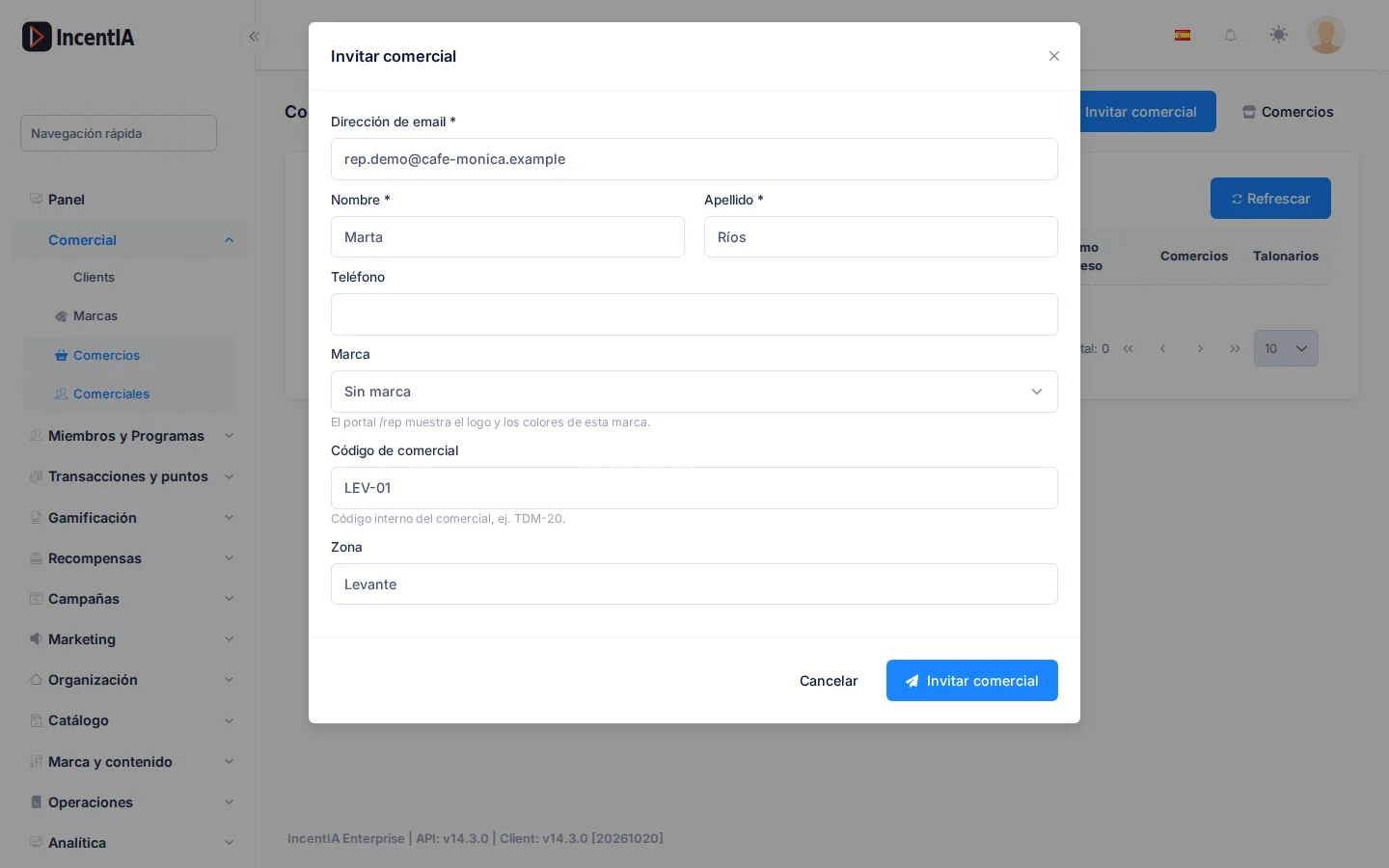
IncentIA sends an email with a Create password button. The field rep sets their own from there. The link expires after a few hours.
2. Share the link yourself
After inviting, the dialog shows the Invitation link. Click Copy link or WhatsApp to send it.
The link is equivalent to a password. Share it only with the field rep.
If it didn't reach them, under Actions on their row (while they are Invitation pending) you have Resend invitation, Copy link and WhatsApp.
3. Invite several at once
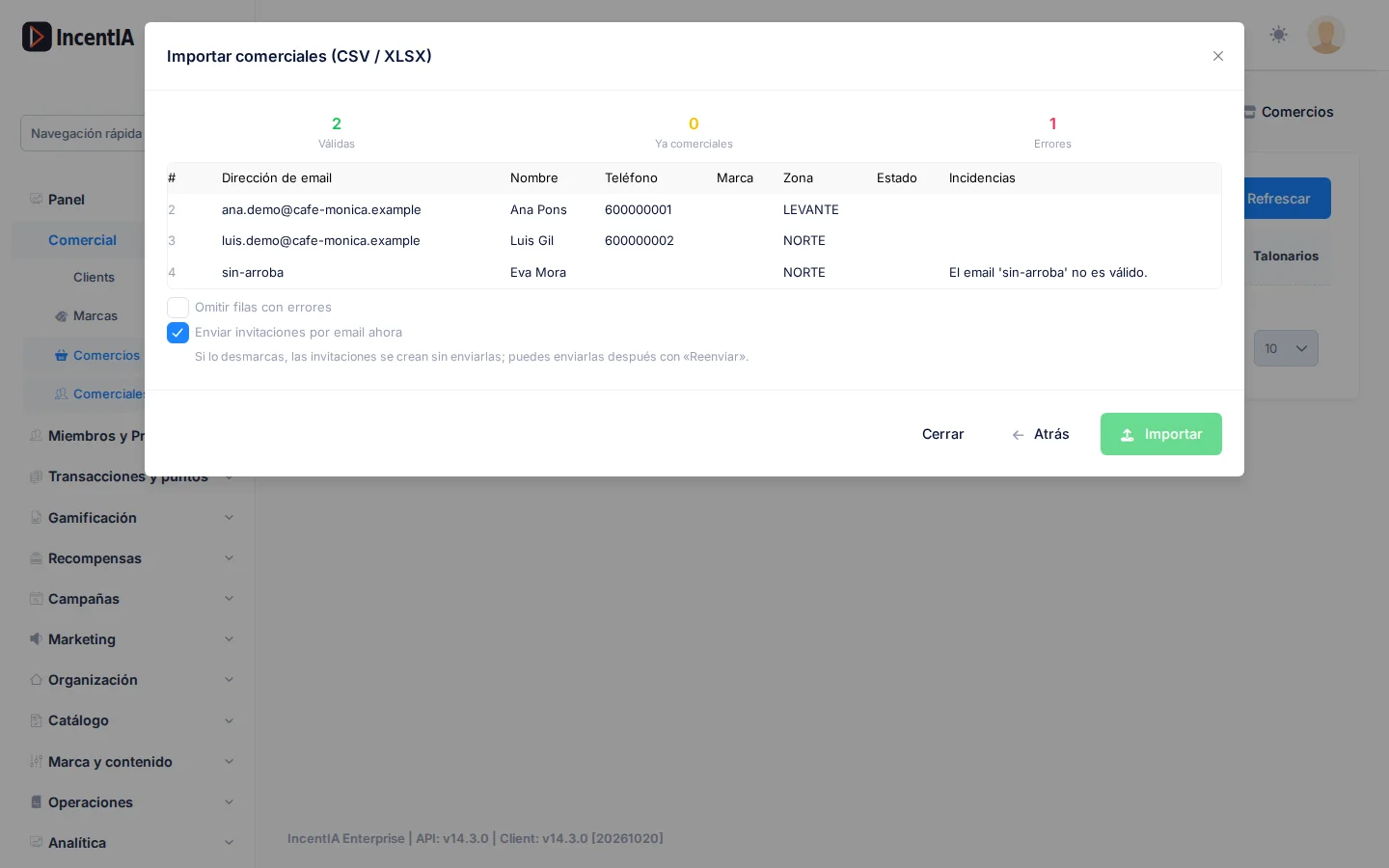
Click Import field reps and upload a .csv or .xlsx (up to 5 MB and 5,000 rows). The required columns are email and nombre. Use Download XLSX template to start from the right format.
Review the preview and click Import. The summary shows Invited, Updated, Failed and Skipped.
4. Show them how to use the app
When they sign in, they see Scan booklet, Register store, My stores and Guide. To link a booklet: Scan booklet, point at the QR code, choose the nearby store (or Create new store) and confirm.
Check that it works
- Under Field reps, the status changes from Invitation pending to Active when they create their password.
- After linking a booklet, the store appears in their My stores with the number of booklets.
Next steps
- Field reps: zones, email template and the
/repapp. - Launch PIN codes with booklets
- Stores
- Give your team access