Field reps
A field rep is a member of your team who visits stores with booklets of PIN codes. They scan the booklet QR, find or register the store and link the booklet to it. Menu: Commercial › Field reps.
Users permission · Edition: all (Free, Starter, Pro, Growth, Enterprise)
Field reps don't use the admin panel: they work from their phone in the field rep app (/rep). This page covers the administration side; the app has its own section.
What a field rep can do
Each account has a Comercial role. It grants only two store permissions: Associate Store and Creating Store.
A field rep does not see the list or map of all stores, nor can they edit or delete them from the panel. On login, a pure field rep lands directly on /rep instead of the panel. More in Roles and permissions.
Field reps screen
Go to Commercial › Field reps. You can also get there with the Field reps button on the Stores screen. For each field rep the table shows: name, email, phone, brand, rep code, zone, status (Invitation pending or Active), last login, stores and booklets.
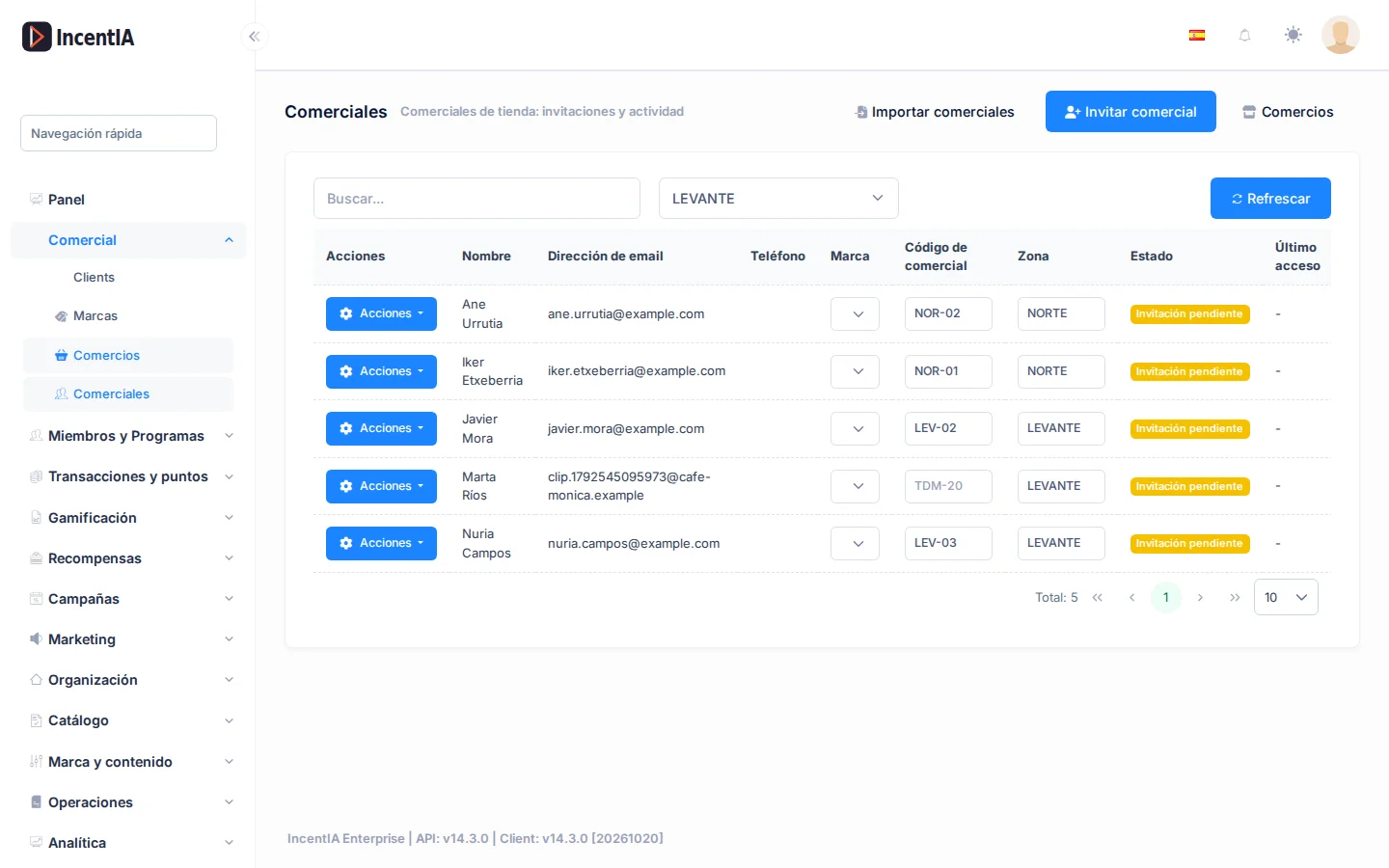
- Search by text with the search box and click Refresh.
- Filter by zone with the All zones dropdown (it only lists zones that already exist).
- Brand, Rep code and Zone are edited directly in the row (requires permission to edit users). The brand determines the logo and colours the field rep sees on
/rep.
Invite a field rep
- In Field reps, click Invite field rep (requires permission to create users).
- Fill in Email, First Name and Last name (required). Optional: Phone, Brand, Rep code (internal code, e.g.
TDM-20) and Zone. - Click Invite field rep.
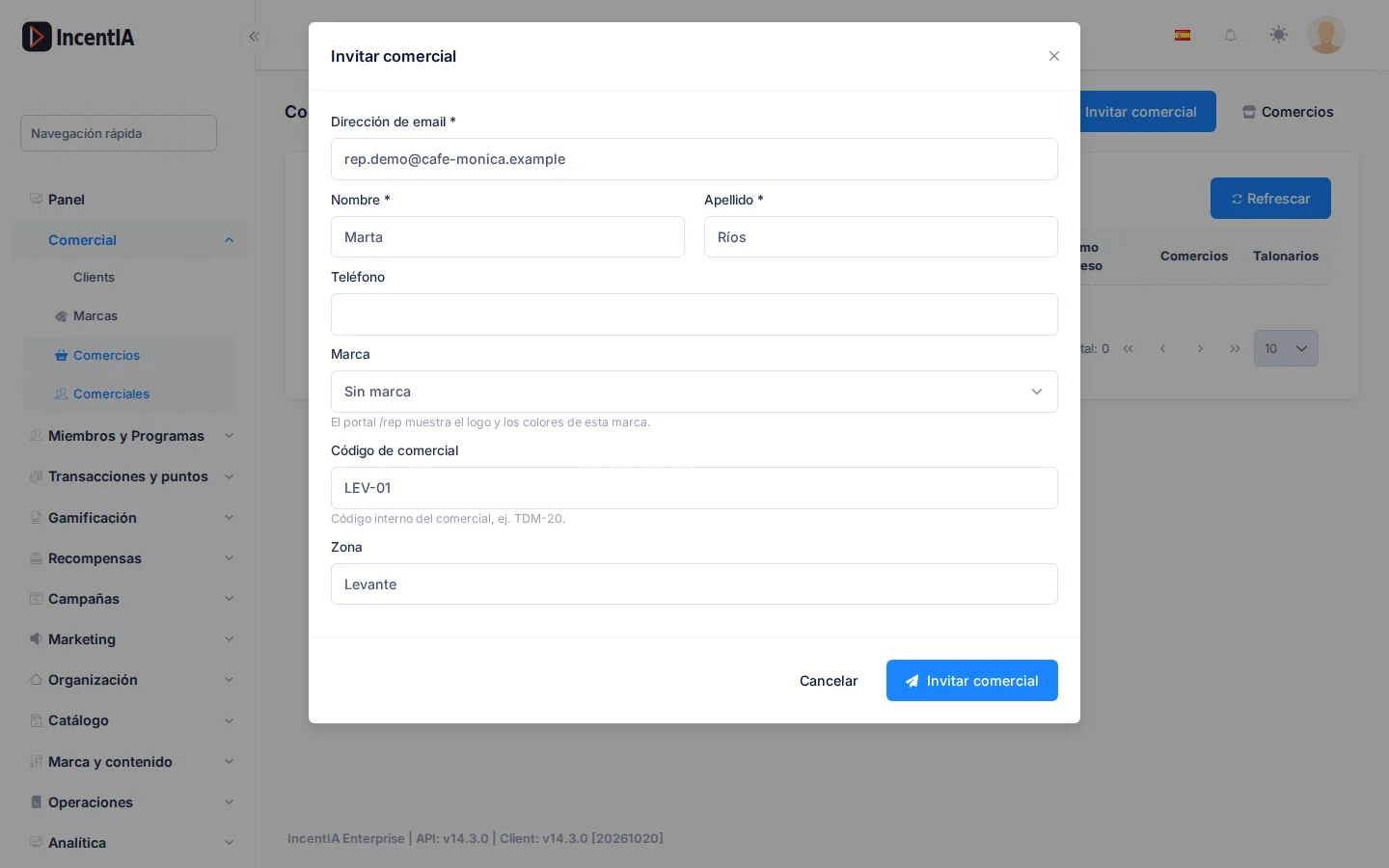
IncentIA creates the user with the Field Rep role and sends an email with a Create password button. No password is sent in plain text: the field rep sets their own from the link, which expires after a few hours (the email states how long).
The same dialog switches to Invitation link with two shortcuts so you can share it yourself:
- Copy link
- WhatsApp: opens a message with the link already prepared.
The link is equivalent to a password: share it only with the field rep.
Resend or recover a link
While the invitation is in Invitation pending status, the Actions menu on the row offers Resend invitation, Copy link and WhatsApp. If the field rep has already created their password, there are no actions: they must use "Forgot your password?" on the login page.
An email that already belongs to a user who is not a field rep can't be invited: field reps need an account of their own.
Customise the email
The email comes from the FieldRepInvitation message template, which you can edit in Marketing › Messaging › Templates (see Templates). If you don't include {{InvitationLink}}, the button is added at the end. You can assign the template to a campaign of the brand so that it is only used with that brand's field reps; without a campaign it applies to all.
Commercial zone
The zone (up to 50 characters) groups field reps by territory (e.g. "North", "Levante"). You can set it when inviting, edit it in the table, or import it in bulk. It is used to filter the list and appears as a Zone column in the booklet records export, so you can see which zone linked each store.
Import field reps
- Click Import field reps.
- Upload a
.csv(;or,separator) or.xlsxfile of up to 5 MB and 5,000 rows. Use Download XLSX template if you want to start from the right format. - Columns: required
email,nombre; optionalapellidos,telefono,marca(name of an active brand) andzona. - Review the preview: counters for Valid, Already reps and Errors, and the Issues column per row.
- Tick Skip rows with errors if you want to import only the valid ones, and Send invitations by email now (if you untick it, they are created without being sent and you can use Resend invitation later).
- Click Import. The summary shows Invited, Updated, Failed and Skipped; with Download failed rows (CSV) you get the ones that failed.
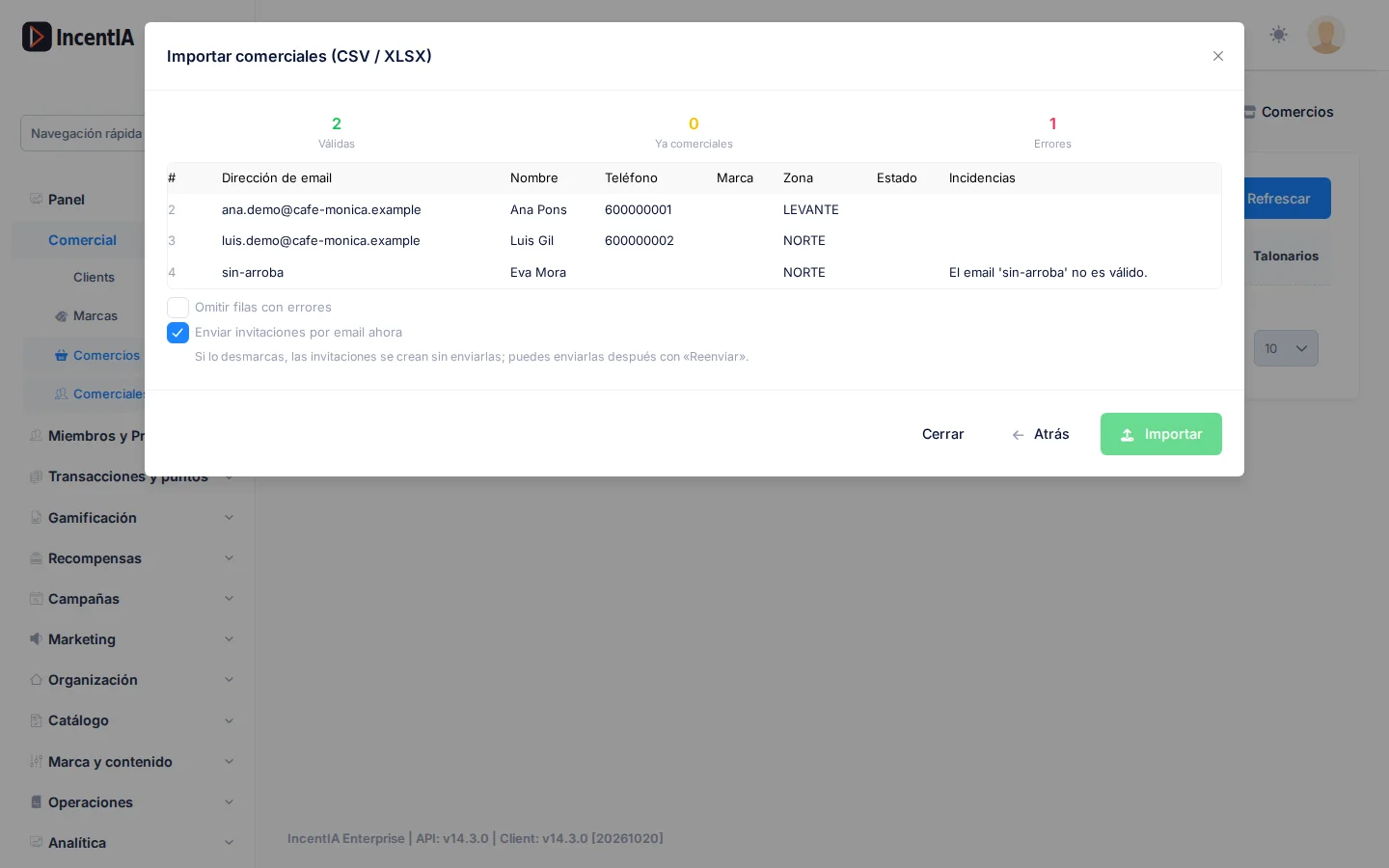
If an email is already a field rep, the row doesn't generate an invitation: only the zone or brand is updated, if provided.
Field rep app (/rep)
Field reps work from their phone in the /rep app: they scan booklets, register stores and view their own. You'll find all the detail in the Field rep app section: Booklets and Your stores.
Store management (administrator)
Administrators manage stores from Stores: manual registration with a map and bulk import.
Permissions
| Action | Permission (UI text) | Technical id |
|---|---|---|
| View the field reps screen | Users | Pages.Administration.Users |
| Invite, import, resend invitation | Creating new user | Pages.Administration.Users.Create |
| Edit brand, rep code and zone | Editing user | Pages.Administration.Users.Edit |
| Link booklets to stores (Field Rep role) | Associate Store | Pages.Stores.Associate |
| Register stores (Field Rep role) | Creating Store | Pages.Stores.Create |