Review evidence
Review pending receipts and photos so your participants get their prize or points. It takes about 5 minutes per batch.
- Permission: Review and change evidence status (and Evidence to see the screen) · Edition: all except Free.
- There is evidence in Pending. If not, upload a test receipt from a campaign.
1. Open the list
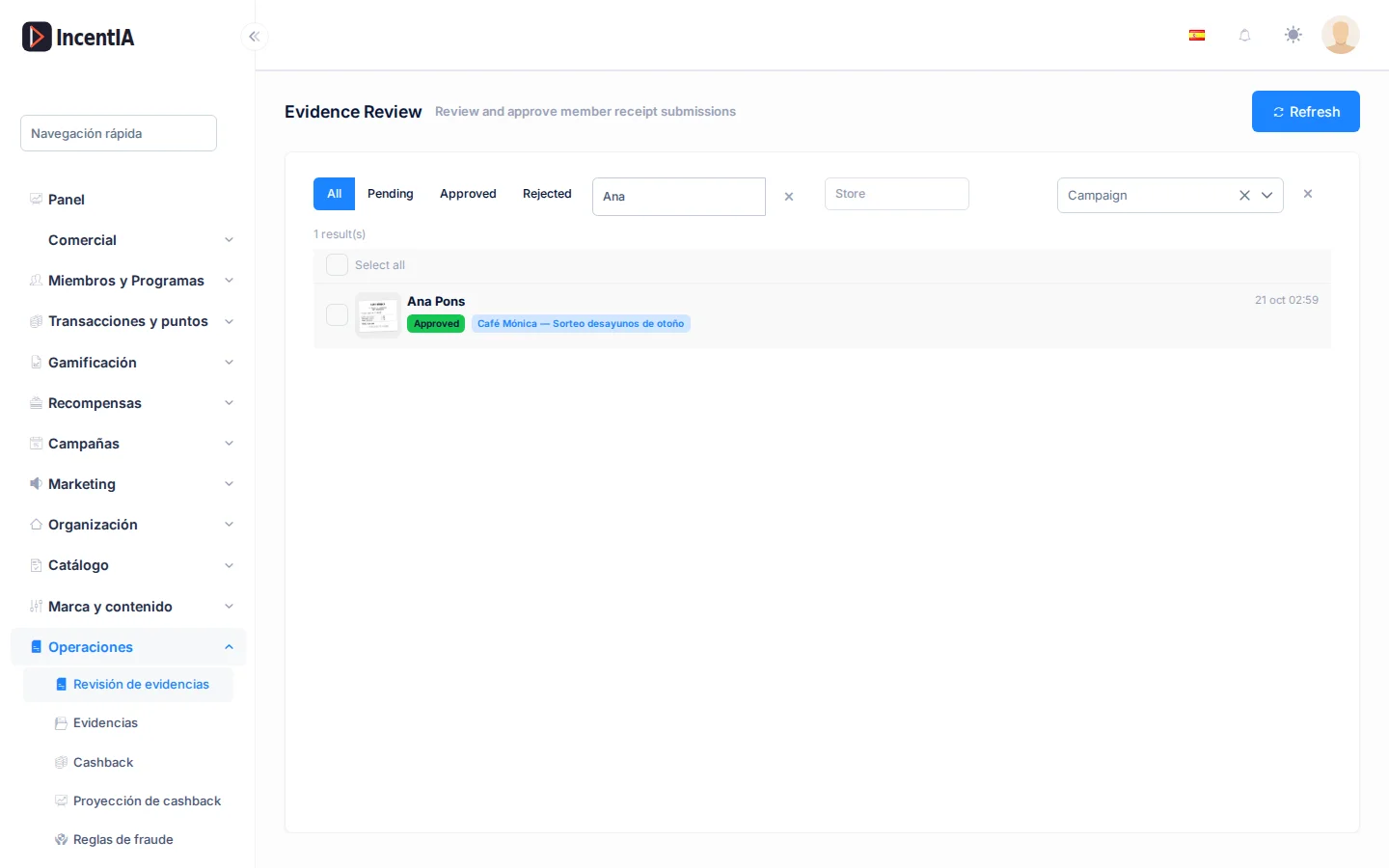
Go to Operations › Evidence review. Click Pending to see only those waiting. To search for a person, type their ID, email, phone or alias in Person.
2. Review each one
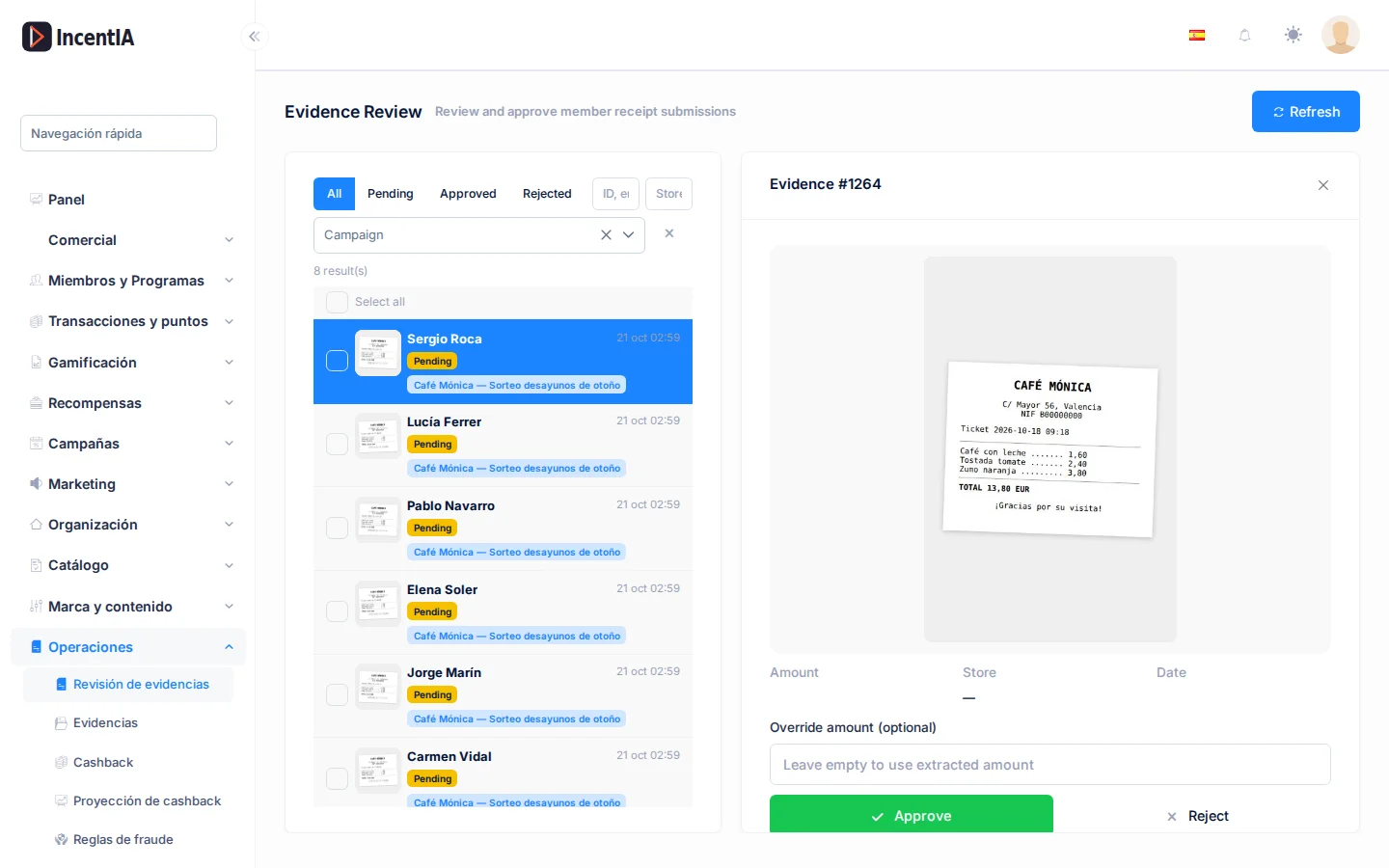
- Click a row. On the right you see the photo and the extracted data: Amount, Store, Date.
- Check that the amount and the store match the photo.
- If the amount is wrong, enter the right one in Override amount (optional).
- Click Approve, or Reject: pick a reason in Rejection reason, add a text in Reason if you want, and click Confirm reject (see step 6).
When you approve, you see Approved — N points awarded. If the campaign awards the prize automatically, the notice says so and the badge changes to validated, awarding.
3. Clear the queue in bulk
- Tick several rows, or click Select all.
- Click Approve to approve them all with their extracted amount, or Reject and enter the reason in Reason.
- A notice summarises the result: approved, closed, skipped and failed.
The skipped ones have no associated member (for example, an anonymous upload from a landing page): they stay in Pending, so review them one by one.
Review one by one those with a high amount or the OCR unavailable badge. Approve the rest in bulk.
4. Decide whether to notify the participant
In the campaign's general tab, the Notify the participant when their photo is reviewed switch sends a message on approval or rejection. See Create a campaign.
5. Understand why an evidence reached review
An evidence can stay in Pending for three reasons: the OCR was not sure, a rule asked for review, or the campaign sent it to review on purpose. The last case is called review routing and is set per campaign.
Where to set it
On the campaign detail page, General tab, Participation Rules section. There are three fields; leave them empty to turn them off:
| Field | What it does |
|---|---|
| High-value threshold | Receipts with an amount equal to or above this value go to manual review. They are not rejected: the maximum amount in the rules still rejects on its own. |
| QA sample (%) | Percentage (0–100) of receipts that would have been auto-approved and are sent to review as a quality check. It is deterministic: the same receipt always gets the same result. |
| Risk-score threshold (0–100) | Receipts with a risk score equal to or above this value go to manual review. |
How they combine
- They only apply to receipts that would have passed all the rules. A receipt that already breaks a rule is rejected as usual.
- They are checked in this order and the first match wins: high value, QA sample, risk. A receipt is never logged with two reasons.
- The evidence stays in Pending, with no prize or points, until someone approves or rejects it. With the campaign's automatic delivery on, a routed receipt is not delivered automatically either.
- If you fill in none of them, the campaign behaves as before.
The risk score
It is only computed when the campaign has a risk threshold. It adds up to 100 points from these signals:
| Signal | Max points |
|---|---|
| OCR confidence below (or very close to) the auto-approval minimum | 25 |
| Photo almost identical to another one from the same person | 25 |
| Many uploads from the same person in 24 hours | 20 |
| Very new member account | 15 |
| Amount far above the campaign median | 15 |
A signal that is unknown adds 0. In the evidence detail you see the value under Risk score.
What the operator sees
In the evidence detail, the Decision timeline block lists every step. The routing step shows the stage Routing, the reason (HighValue, QaSample or RiskScore) and the outcome Sent to review. When someone approves or rejects, a Manual review step is added with who did it and when.
What the participant sees
While waiting, they see their entry as pending. They do not see the routing reason or the risk score: these are kept only in the internal timeline and never in the rejection text.
When you reject, the free text you write in Reason may reach the participant. Do not paste internal data there, such as the risk score or "quality sample".
6. Reject with a reason
When you click Reject, pick a reason in Rejection reason (Select a reason…) and, if you want, add a text in Reason. The picker is required, also for bulk reject. It is used for reports and to filter by rejection type later.
| Reason | When to use it |
|---|---|
| Other | None of the others fits. It is the default if none is given. |
| Illegible receipt | The amount, date or store cannot be read. |
| Duplicate receipt | The same photo or an almost identical receipt was already uploaded. |
| Ticket already submitted | The same receipt already took part. |
| Amount below the minimum | The purchase does not reach the campaign's minimum amount. |
| Amount above the maximum | The purchase exceeds the maximum allowed amount. |
| Purchase too old | The receipt date is outside the allowed age. |
| Purchase outside the campaign dates | The purchase is not between the campaign start and end. |
| Required product missing | The receipt does not include the product the campaign asks for. |
| Required barcode missing | The required barcode does not appear. |
| Store not eligible | The store is not among the accepted ones. |
| Claim limit reached | The person already reached the maximum number of entries. |
| Invalid code format | The code does not have the expected format. |
| Suspected manipulation | The image looks edited. |
| Not a receipt | The photo is not a receipt. |
| Fraud risk | There are fraud signs even though the receipt looks valid. |
| Budget exhausted | The campaign has no budget left to reward. |
The automatic rules use these same reasons. In the Decision timeline you will see the reason on the rejected step.
Check that it works
- The evidence shows as Approved or Rejected and no longer has buttons.
- On an approved one you see the points awarded.
- The list with the Pending filter is empty.
Next steps
- Evidence review: statuses, notices and permissions.
- Evidence: how it is processed.
- Review fraud alerts
- Deliver prizes to winners