Sign in
You sign in to your portal without a password. Choose the method you prefer.
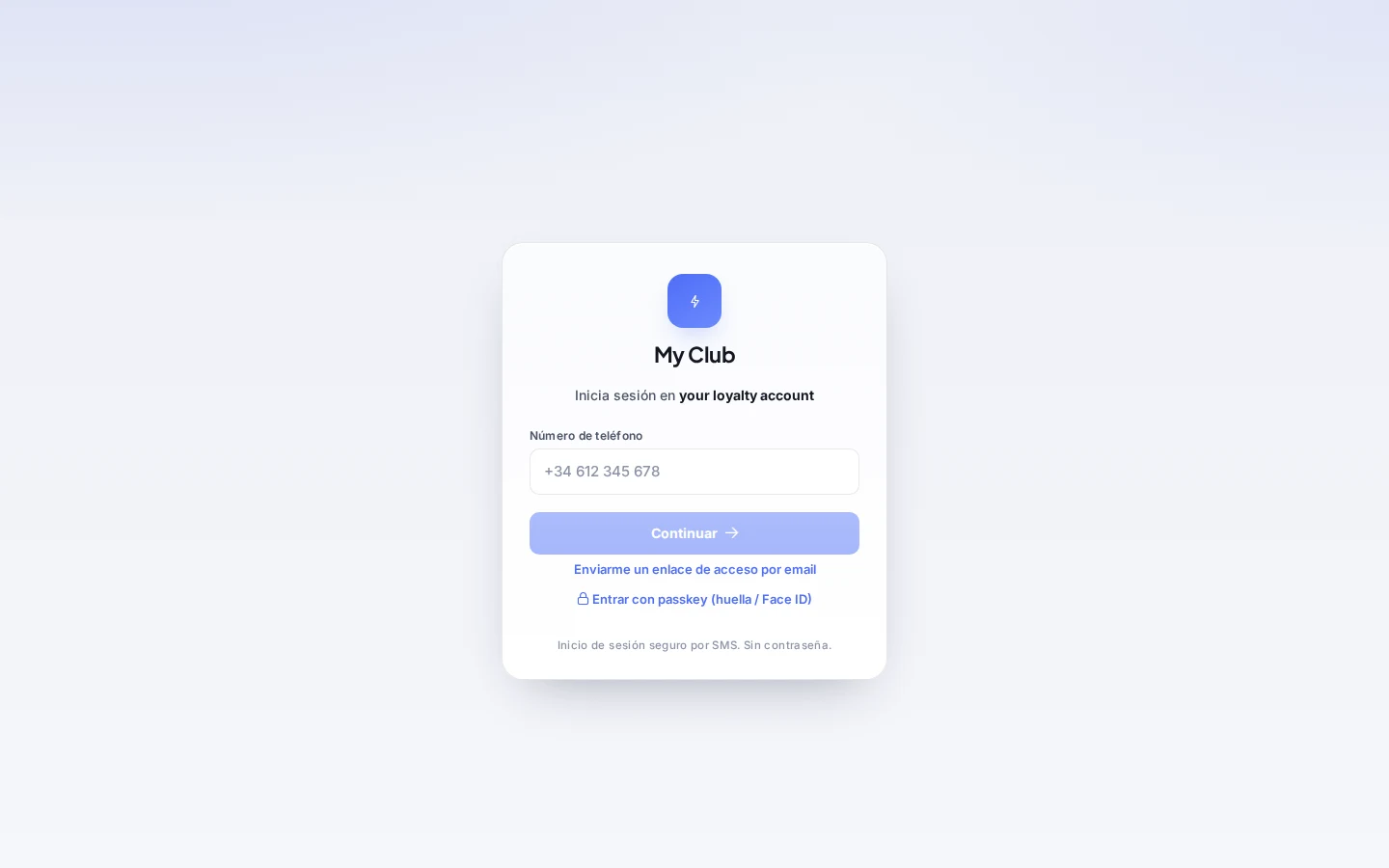
Sign-in screen
Open the sign-in from the brand's link (or /member/login) and enter your Phone number. From that screen you can choose:
- Continue → receive a 6-digit code.
- Email me a sign-in link → receive a magic link.
- Sign in with passkey (fingerprint / Face ID) → only appears if your device supports it.
One-time code (OTP)
- Type your Phone number and click Continue.
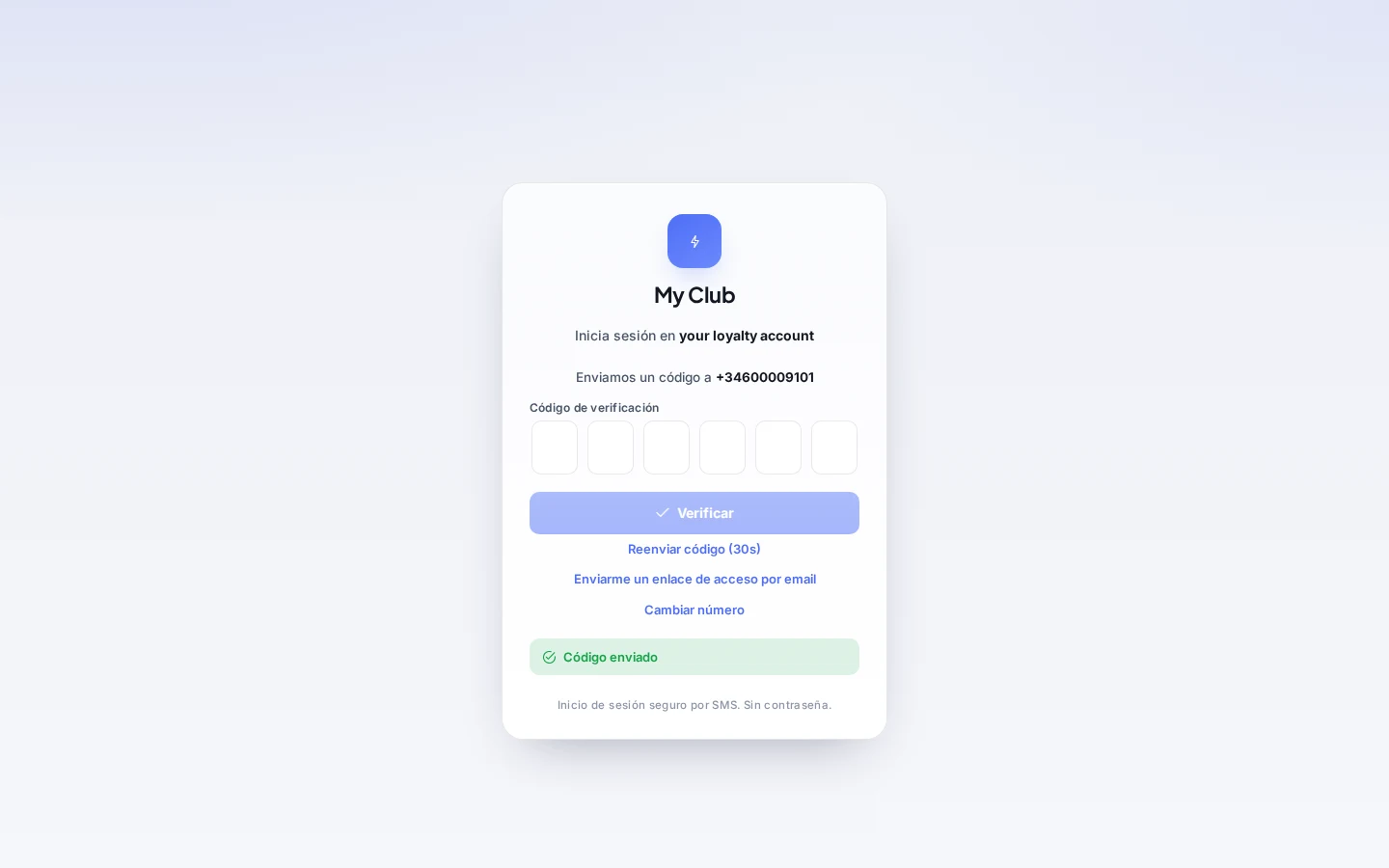
- The code arrives by email, WhatsApp or SMS, depending on the channel the programme has available for you. The screen shows the channel and the partially masked destination, for example "We sent a code by SMS to …".
- Type the 6 digits into the Verification code boxes. When the sixth box is filled it verifies automatically; you can also click Verify.
Resend the code
The Resend code button shows a countdown (Resend code (30s)). If it is requested several times in a row, resending is locked for a few minutes (Resend locked). Change number takes you back to the previous step.
If the programme cannot send the code through any channel, you see the message "We couldn't send you a code right now" and must contact the programme.
Email magic link
- On the sign-in screen, type your phone number and click Email me a sign-in link. It is also available on the code screen.
- Check your email appears. If there is an account associated, an email with the link arrives; it expires after 15 minutes and can only be used once.
- When you open the link, the portal shows Signing you in… and takes you to your home screen.
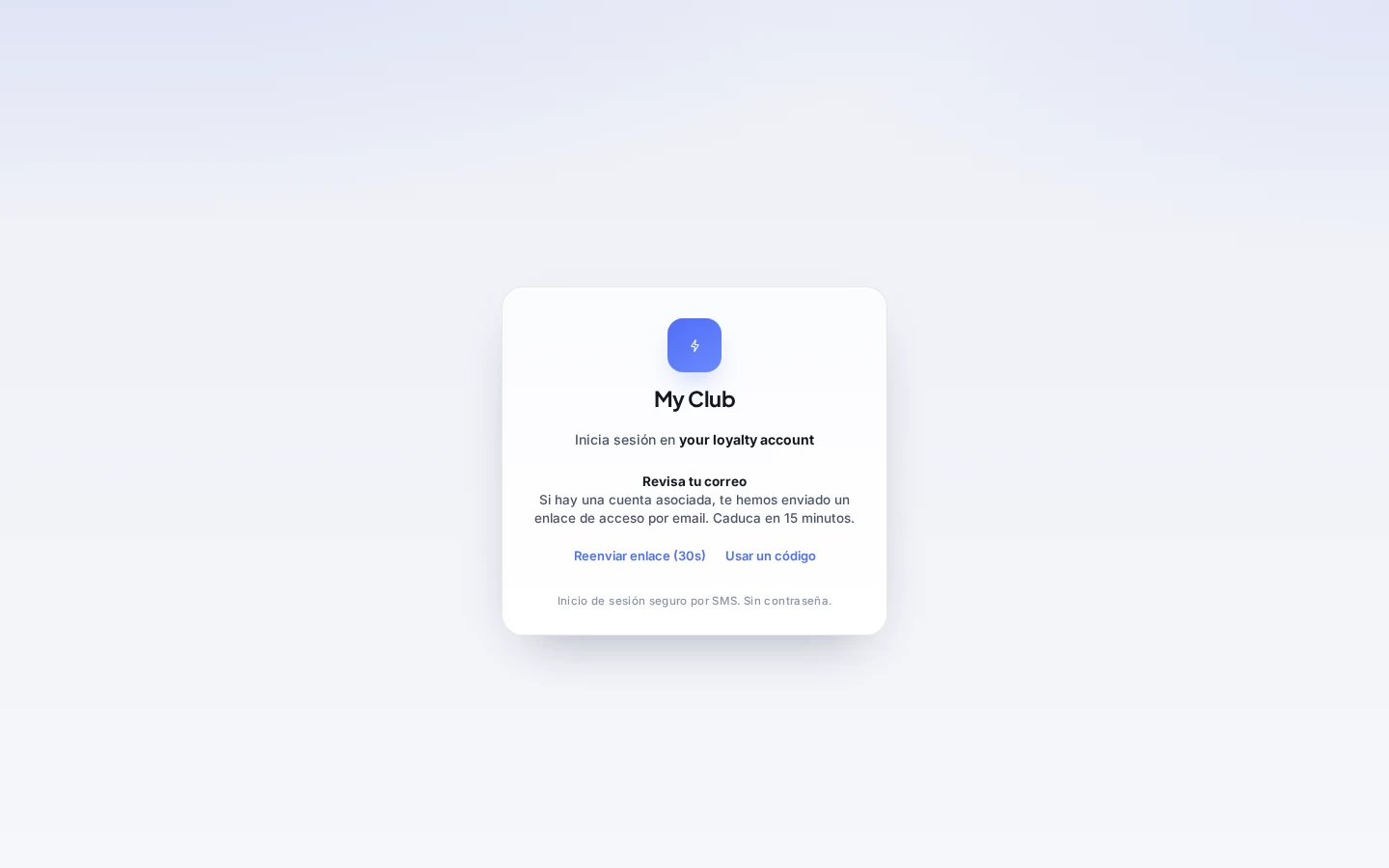
From that screen you can Resend link (with a countdown) or Use a code instead. If the link has expired or was already used, you will see Request a new link; if the connection fails, Try again.
For security, the message is the same whether or not an account exists with that phone number.
Passkeys (fingerprint, Face ID or screen lock)
A passkey lets you sign in with your device's fingerprint, face or screen lock, without a code.
Create a passkey
There are two ways:
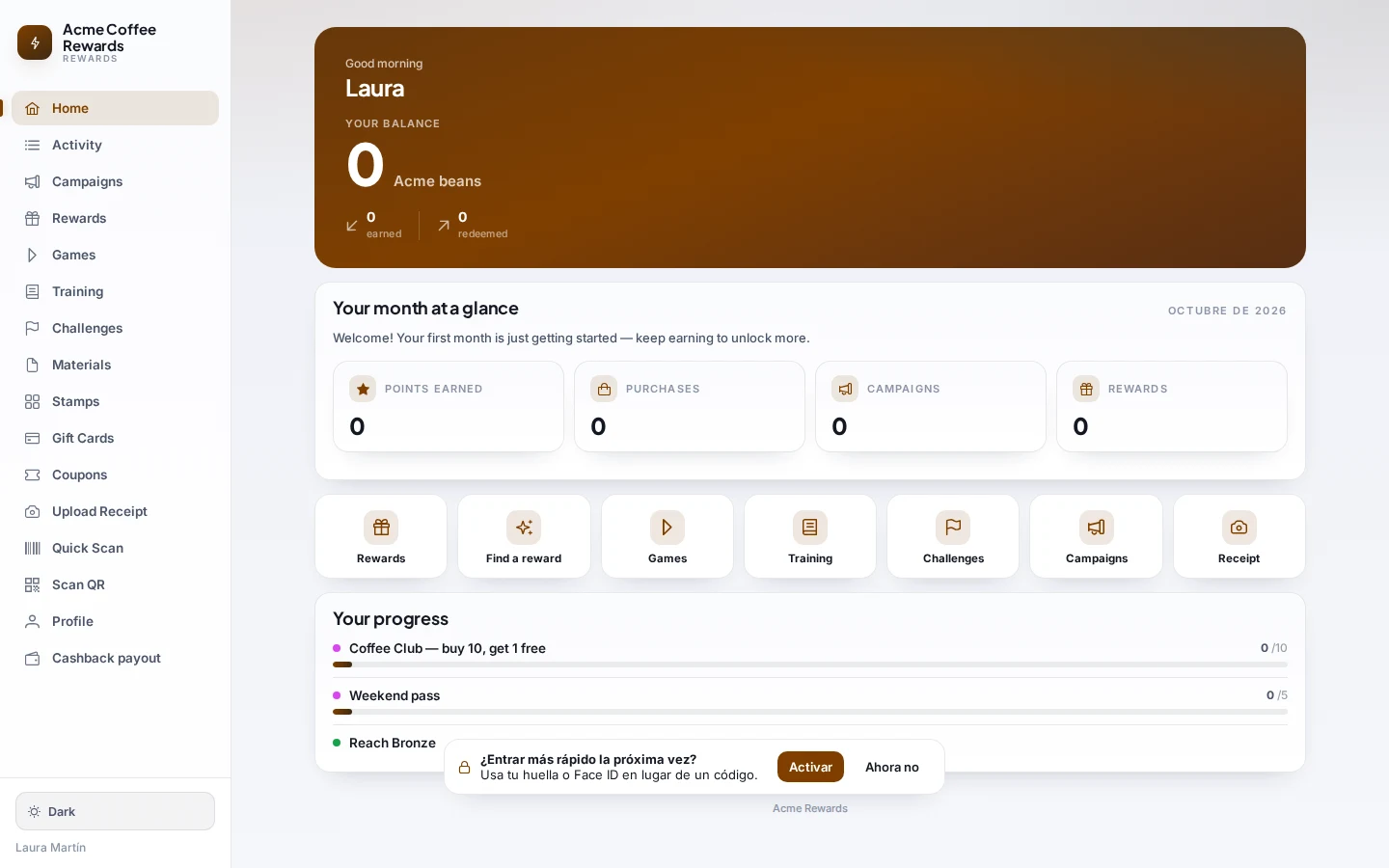
- Invitation after signing in. Right after you sign in, your home screen shows Sign in faster next time?. Click Enable and confirm in the browser dialog, or Not now to dismiss it.
- From your profile. In Profile → Passkeys section, click Add a passkey and confirm in the browser dialog. It appears in the list as Passkey on this device.
Sign in with a passkey
On the sign-in screen click Sign in with passkey (fingerprint / Face ID) and confirm on the device. If it fails, the portal tells you and you can use the code.
Manage passkeys
In Profile → Passkeys each passkey shows when it was added and its last use (or Never used). You can Rename or Remove it (Remove asks for confirmation; on that device you will need to use a code).

The passkey is only offered if the browser and the device support it. Nothing needs to be configured in the admin panel.
Programme friendly URL
Promoted programmes can have a short link /member/p/<name> that goes straight to that programme's sign-in. If the name does not exist, the generic sign-in opens.
Next steps
For the operator
There is nothing to configure for sign-in by code, link or passkey. For the code to arrive by SMS, WhatsApp or email, the programme needs active channels: Channels. In demo environments the code may fill in automatically (Demo mode — auto-signing you in); it is not for production.