Import and invite members
Bring your existing customers into the programme with a CSV file and give new ones a way to sign up. It takes about 15 minutes.
Before you start
1. Prepare the file
Go to Members & Programmes › Members and click Import CSV. In the Import Members from CSV dialog, click Download CSV template to get the template.
| Column | Required | Notes |
|---|---|---|
Phone | Yes | 6 to 20 characters. Must be unique in your account |
FirstName, LastName, Email | No | An invalid email is left empty with a warning |
MemberCode | No | Must be unique |
BirthDate | No | An invalid date is ignored with a warning |
MarketingOptIn | No | true, yes or 1 mark marketing consent |
The maximum is 5 MB and 50,000 rows.
2. Upload the file and review
- Choose the Loyalty Programme and the CSV File.
- Click Preview. You see the Valid, Warnings and Errors counts and the first 100 rows.
- If there are errors, fix the file or tick Skip N invalid row(s) and import the rest.
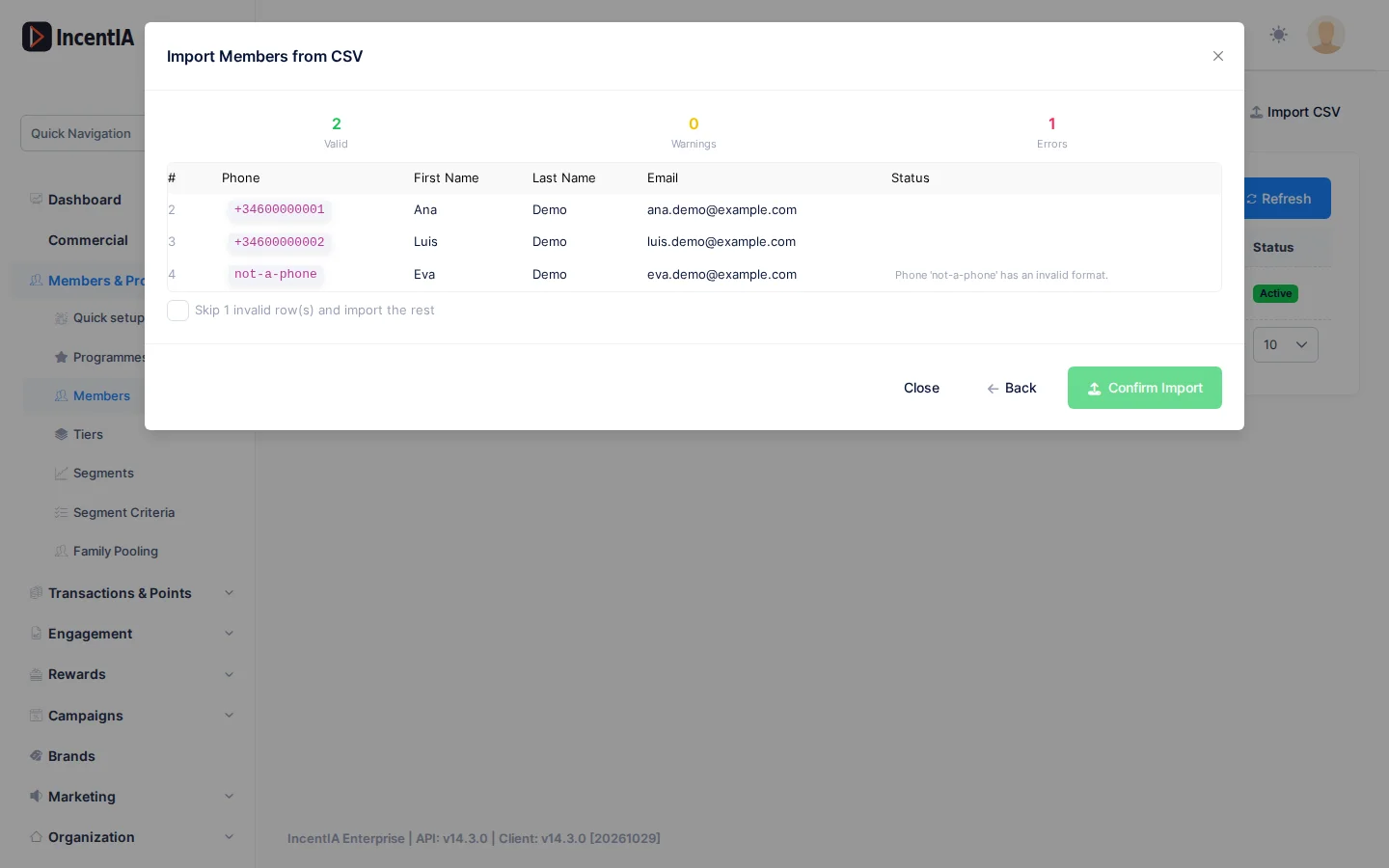
3. Confirm the import
Click Confirm Import. When it finishes you see Inserted, Skipped and Row Errors.
warning
Each preview can only be confirmed once. If you leave the dialog or the session expires, upload the file again.
4. Let new people sign up
For customers who aren't in the file:
- Share the programme's public landing page. Under Programmes › Edit, the View Landing link opens
/landing. - Put a QR code in your shop. For a campaign, create the short link and QR code.
- Members sign in with a one-time code, an email link or a passkey. See Ways to sign in.
5. Award welcome points
Create a PerAction earning rule with the Registration action, as in Set up a points programme.
Check that it works
- Under Members, the imported members appear with their Programme and
Activestatus. - A test member signs in to the portal with their phone.
- You can export the list with Export CSV and compare the count.
Next steps
- Members: search, edit and view a member's history.
- Members and participants
- Handle a GDPR request