Export data
Get what has happened in a campaign, or who is part of your programme, into Excel or CSV. It takes a couple of minutes.
Before you start
- Campaigns: Exporting Campaign Winners permission. To see email and phone in clear, also Exporting participant personal data (email, phone, sensitive fields).
- Members: Members permission.
1. Export a campaign
- Go to Campaigns › All campaigns and open the campaign.
- Open the Participants or Analytics tab and click Export.
- Choose Participations (Excel), Participations (CSV), Participants (Excel) or Participants (CSV).
- The button shows Exporting… and the browser downloads the file.
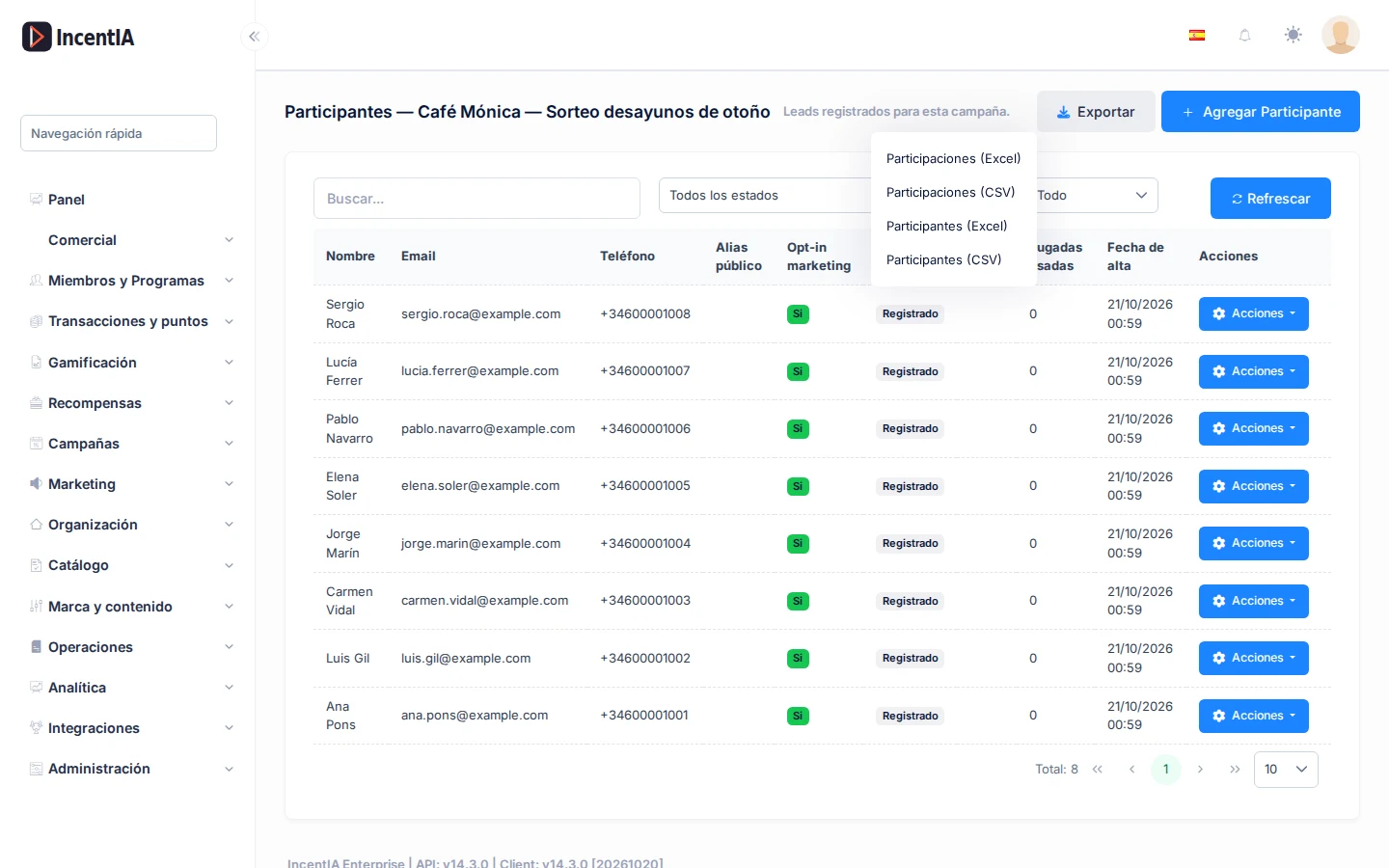
What to choose:
| Export | One row per… |
|---|---|
| Participations | Participation attempt, including rejected ones |
| Participants | Unique participant |
2. Export from the list
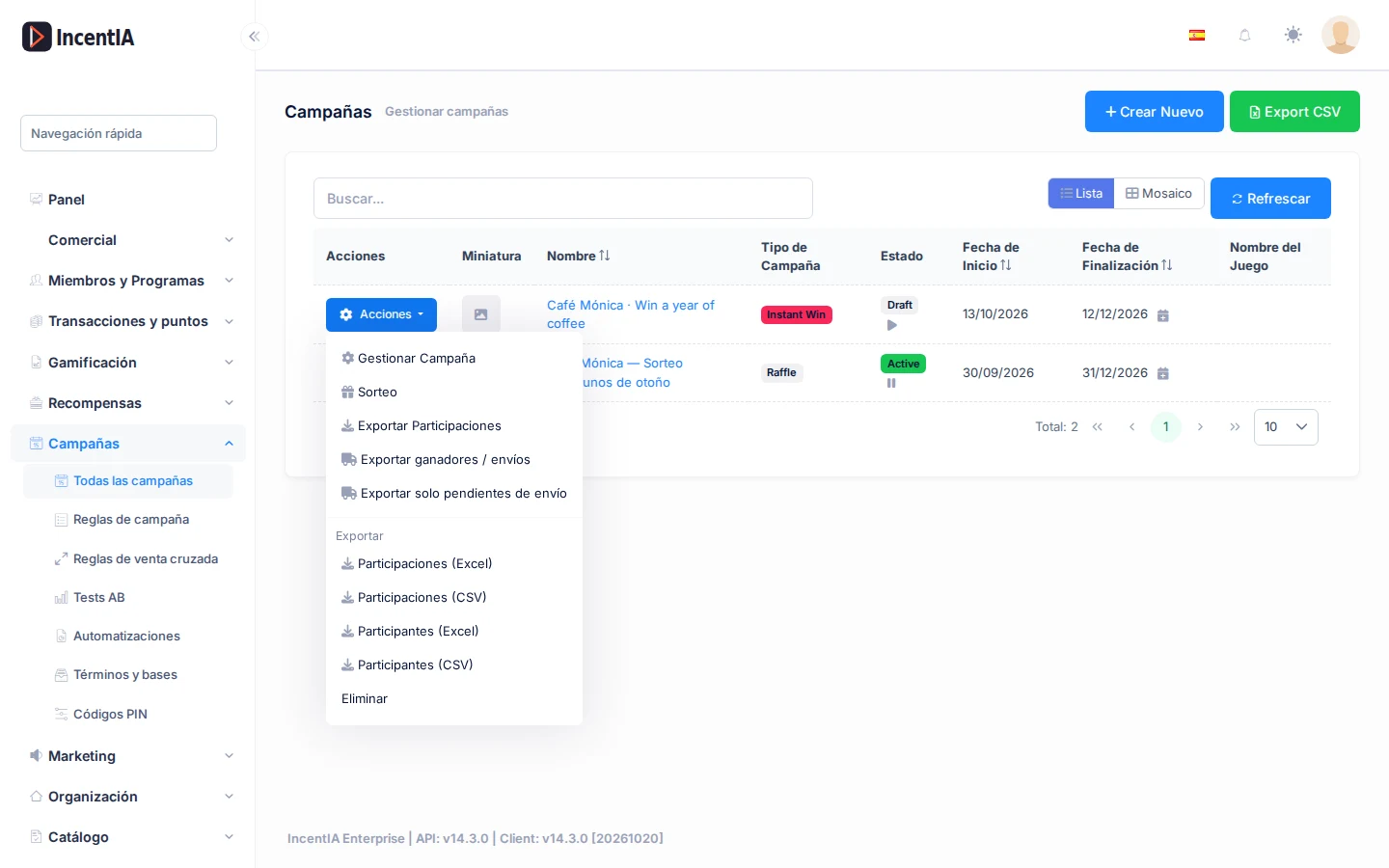
In Campaigns › All campaigns, the row's Actions menu offers Export Participations, Export winners / shipping and Export only pending shipments.
3. Export your members
Go to Members & Programmes › Members and click Export CSV. It downloads members.csv with code, name, email, phone, programme, balance, status and sign-up date (up to 50,000 rows).
4. Open the file
- Excel (XLSX) is the default format.
- CSV uses UTF-8. With your account in Spanish, Italian or Portuguese the separator is
;and decimals use a comma, so Excel opens it directly. - Cells starting with
=,+,-or@are neutralised so they don't run as formulas.
warning
An export containing personal data is data processing. Store it somewhere safe and delete it when you finish. Every download is recorded in the audit log.
Check that it works
- The file opens and the number of rows matches the screen.
- Without the personal data permission, email and phone come out masked or as
[redacted].
Next steps
- Export a campaign's data: booklets per store and the full format.
- Members
- Deliver prizes to winners