Evidence review
This is where you review the receipts and photos your members and participants upload, and decide whether to approve or reject them. Menu: Operations › Evidence review.
View the screen: Evidence permission · Approve and reject: Review and change evidence status permission · Edition: Starter, Pro, Growth and Enterprise (not included in Free)
If you do not have the review permission, you see the list and the detail, but the Approve and Reject buttons do not appear. To learn what evidence is and how it is processed, read Evidence.
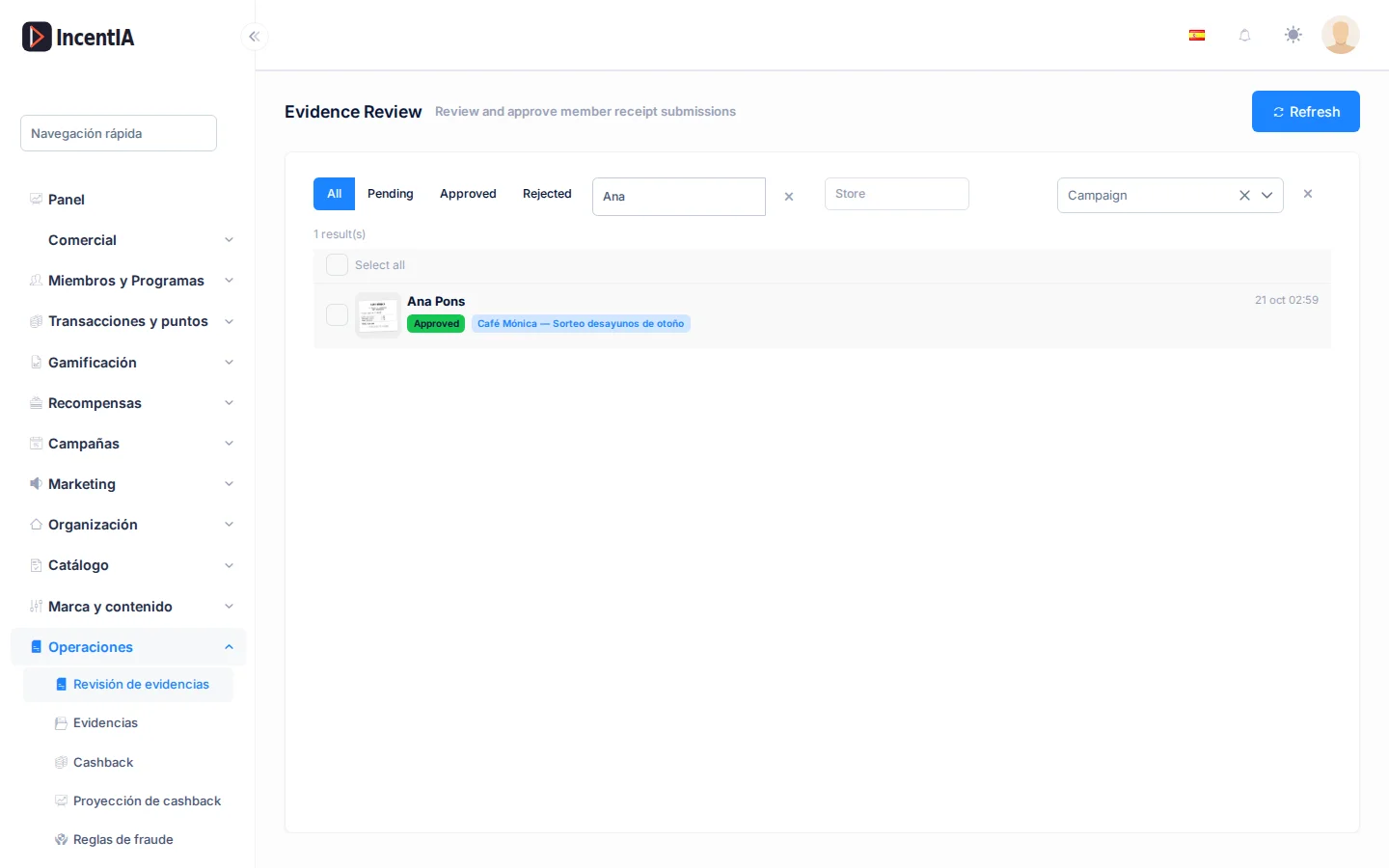
List
The screen is split in two: the list on the left and, when you choose an item of evidence, its detail on the right. At the top you have Refresh to reload.
| Filter | What it does | Notes |
|---|---|---|
| All, Pending, Approved, Rejected | Filters by status | Starts on All. Evidence in Processing or Duplicate status appears in the list with its badge, but has no filter button of its own |
| Person | Searches by ID, email, phone or alias | Type in ID, email, phone or alias. It applies after a pause, or when you press Enter. The cross icon (Clear person filter) empties it |
| Store | Filters by the store extracted from the receipt | Press Enter to apply |
| Campaign | Filters by campaign | |
| Button with the cross | Removes all filters |
Below the filters you see the total (N result(s)). The list loads the first 50 items of evidence that meet the filters: if there are more, narrow down with the filters.
Each row shows:
- The receipt thumbnail and who uploaded it: the name, Member #id or Participant #id. If it was uploaded from a landing by someone without an account, you will see Anonymous (landing).
- The upload date and the status badge (Pending, Processing, Approved, Rejected, Duplicate).
- The Pipeline · … badge when the evidence is part of a campaign with an automatic reward. The values are pending review, validated, awarding, rewarded, closed and In the draw.
- The extracted amount, the campaign, the store and the lot, if any.
- The OCR unavailable badge if the receipt reader failed with that photo.
Tick a row's checkbox, or Select all, to act in bulk.
Review an item of evidence
- Click a row. On the right, Evidence #id appears with the large photo.
- Check the extracted data: Amount, Store, Date and, where applicable, Lot. If the receipt includes product lines, you see them under Detected items (Product, Qty, Price).
- If the campaign asks the participant for data, it appears under Participation fields. Sensitive values are shown hidden behind a padlock (Sensitive value — hidden).
- If the receipt is Pending, decide:
- Approve: approves with the extracted amount. If the amount is wrong, enter the correct one in Override amount (optional) before approving.
- Reject: Rejection reason opens. Enter the reason and click Confirm reject. If you leave it empty, Rejected by admin is saved.
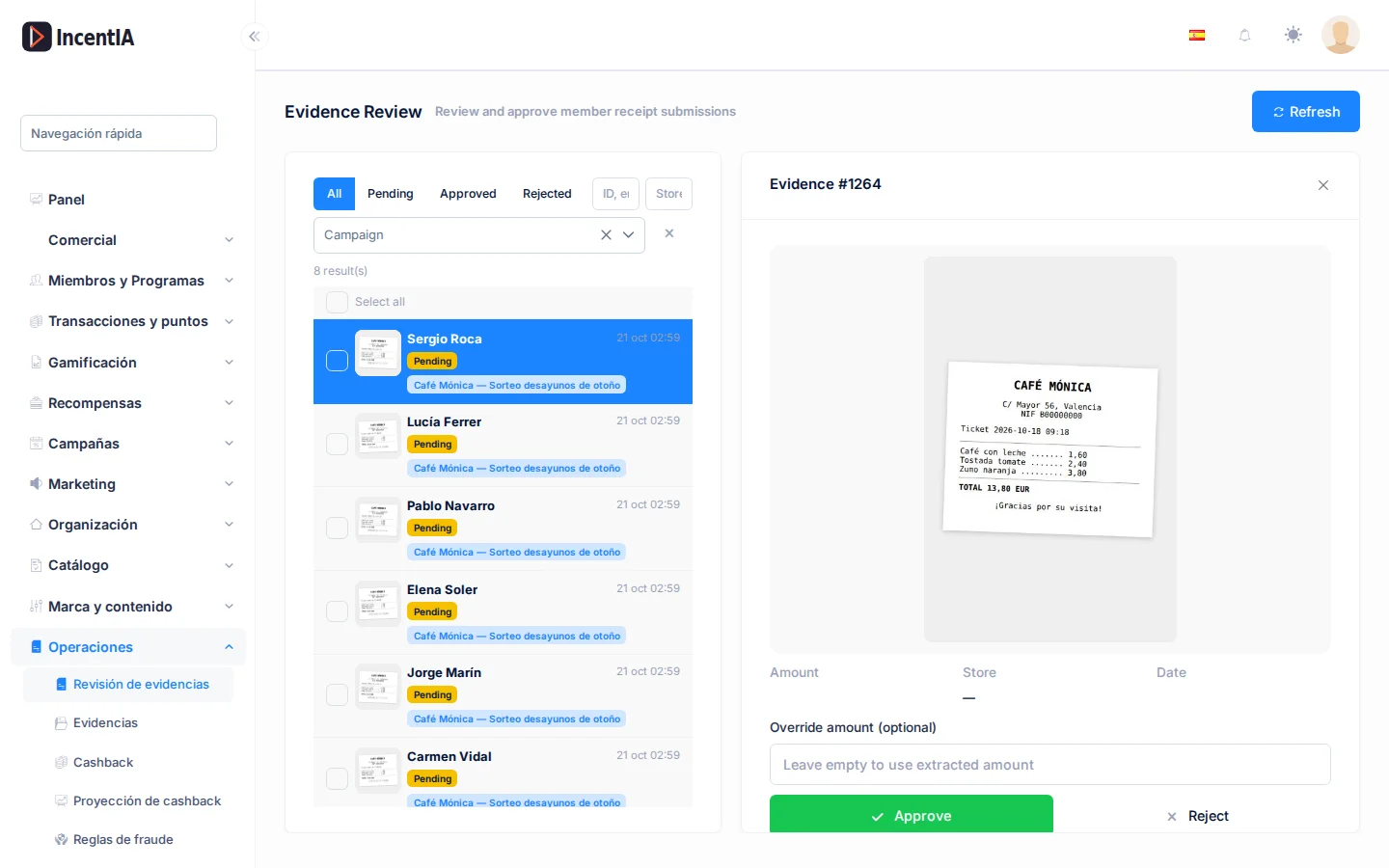
When you approve, you see the notice Approved — N points awarded. If the evidence belongs to a campaign with an automatic reward, you instead see Evidence validated: the participation pipeline is awarding the reward. and the badge changes to validated, awarding.
Once the evidence is Approved or Rejected, the detail shows the outcome and, for approved items, the points awarded. There are no buttons to change it.
If the receipt reader failed, the detail shows OCR unavailable and there is no amount. Check the photo and enter the amount in Override amount (optional).
Review in bulk
- Tick several rows or click Select all. A bar with N selected appears.
- Click Approve to approve them all with their extracted amount, or Reject.
- With Reject, enter the reason in Reason and click Confirm (or Cancel to go back). Clear empties the selection.
A bulk operation is never interrupted by one row. When it finishes, a notice summarises the result: N approved, N closed, N skipped (no member, still pending), N failed.
- Closed: the participation was already rejected and closed; it cannot be approved.
- Skipped: the evidence has no associated member (for example, an anonymous upload from a landing). It stays Pending: review it one by one.
- Failed: there was an error with that row. Retry or review it individually.
Notify the participant
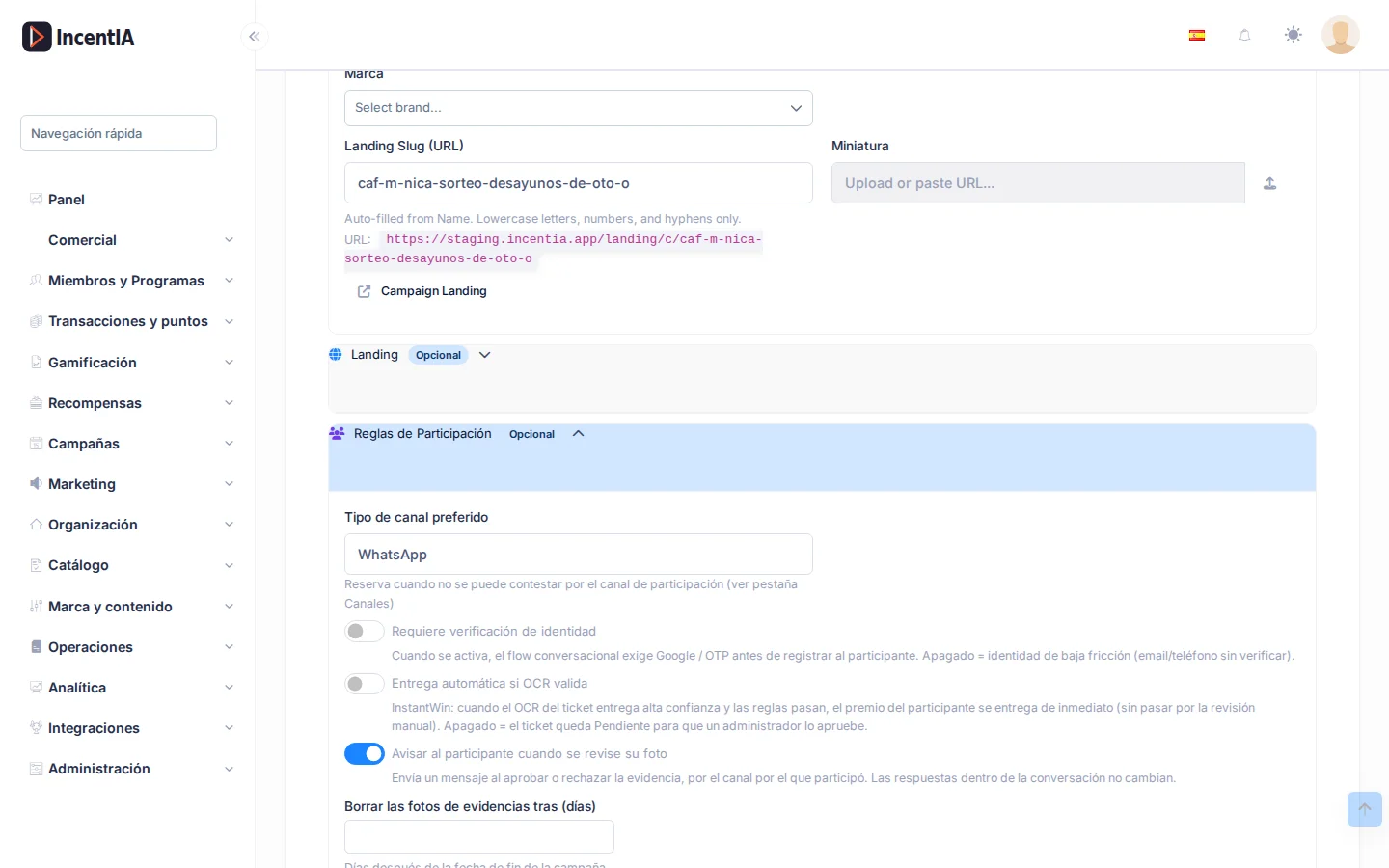
Each campaign decides whether the participant receives a message when their photo is approved or rejected. It is switched on with Notify the participant when their photo is reviewed on the campaign's general tab (see Create a campaign). The message goes out through the channel the participant used to take part.
Statuses and limits
| Message | What it means | What to do |
|---|---|---|
| You do not have permission to change the status of evidence. | Your role can see the screen, but not review | Ask an administrator for the review permission (see Roles and permissions) |
| This evidence was already rejected and its participation is closed; it cannot be approved. | The associated participation was closed when it was rejected | It cannot be reopened from here |
| Evidence not found. | The evidence in the link no longer exists | Go back to the list |
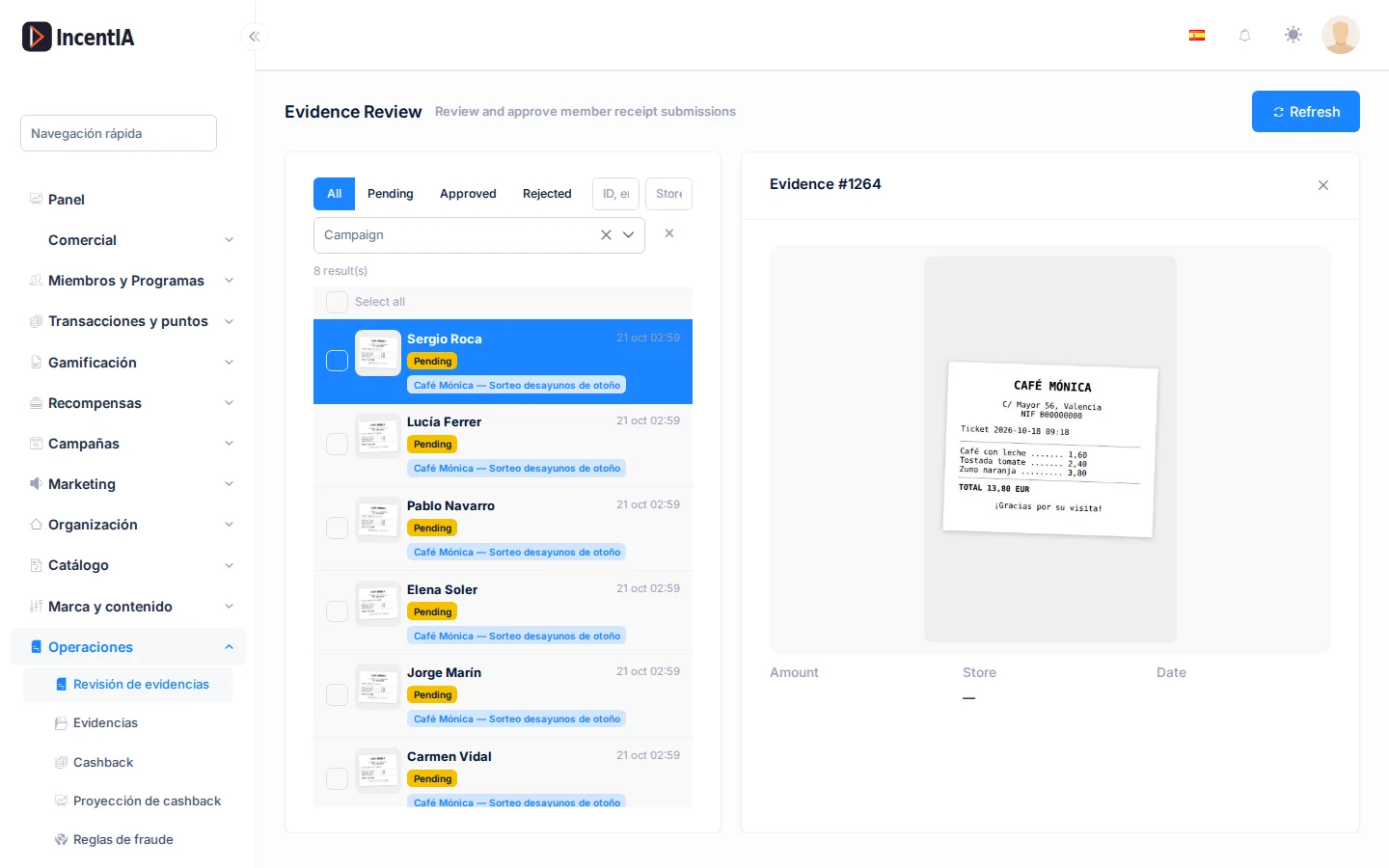
You can open a specific item of evidence from a link with ?evidenceId= at the end of the address. The screen also accepts ?person= or ?memberId= to open already filtered by person. This is what the receipt-photo links in conversations use.
Permissions
| Action | Permission (UI text) | Technical id |
|---|---|---|
| View the list, the detail and the photos | Evidence | Pages.Evidence |
| Approve and reject, individually or in bulk | Review and change evidence status | Pages.Evidence.Review |
| See the menu entry | Rewards | Pages.Loyalty.Rewards |
Related
- Evidence: what it is and how it is processed.
- Receipt reading (OCR): how the data is extracted.
- Launch a cashback with a receipt: a campaign that depends on this review.
- Fraud and alerts: rules that block abuse when earning points.