Webhooks
A webhook is an automatic notification. When an event occurs in your programme, IncentIA sends the data to a web address of yours. Menu: Integrations › Webhooks.
For the notification format and signature, see the developer documentation.
Webhook Subscriptions permission · Edition: Growth and Enterprise
Webhook subscriptions
The screen is titled Webhook Subscriptions. At the top there is a search box (Search...) and Refresh. Create New opens the form.
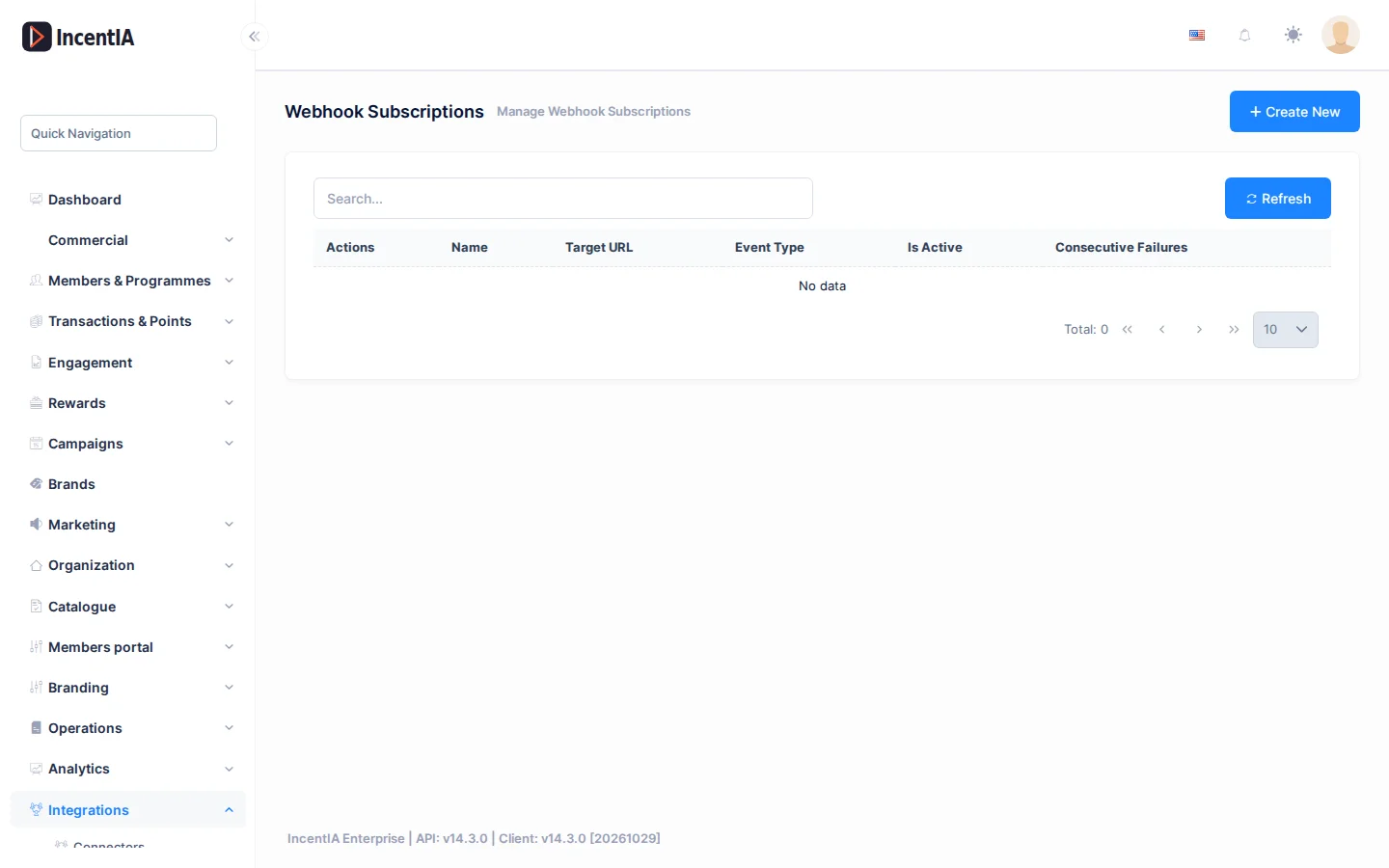
| Column | What it is | Notes |
|---|---|---|
| Name | Name of the subscription | |
| Target URL | Address that receives the notification | |
| Event Type | Which event triggers the notification | See the events table |
| Is Active | Whether the subscription sends notifications | |
| Consecutive Failures | Deliveries in a row that did not arrive | Keep an eye on it: it means your destination is not responding |
With Actions you can Edit or Delete each subscription.
Create a subscription
| Field | What to enter |
|---|---|
| Name | A name you will recognise |
| Target URL | The address of your system that will receive the notifications |
| Event Type | One event from the list. A subscription listens to one event |
| Secret | A key of your own. It is used to check that the notification comes from IncentIA |
| Is Active | Tick the box to start sending |
When editing, leave Secret empty to keep the current one.
Available events
The names appear in English in the list.
| Event | When it is sent |
|---|---|
| MemberCreated | A member registers |
| PointsEarned | A member earns points |
| PointsRedeemed | A member spends points |
| TierChanged | A member changes tier |
| RewardRedeemed | A member redeems a reward |
| CouponUsed | A coupon is used |
| PointsExpiring | A member is about to lose points to expiry |
| GamePrizeWon | A participant wins a prize in a game |
To listen to several events, create one subscription per event.
Incoming webhooks
Menu: Administration › Incoming Webhooks. This is the log of the notifications IncentIA receives from Shopify, WooCommerce, Stripe and evidence providers.
The screen lets you inspect, retry and audit each delivery.
| Field | What it is |
|---|---|
| Source | Who sent it: Shopify, WooCommerce, Stripe, Evidence or Other |
| Status | Received, Processing, Processed, Failed or Retrying |
| Path and HTTP Method | Which address it arrived at |
| Received At | Date and time |
| Retry Count | Times it has been processed again |
Filter by Source, Status and dates (From, To), and click Search. Details opens the content of the delivery. In shop deliveries, the buyer's personal data is hidden.
If a delivery failed, Replay processes it again. It asks for confirmation. The delivery is queued and you will see the result when you refresh.
If an order from your shop did not award points, find its delivery here and open Details. Check whether it arrived and what status it ended in.
Permissions
| Action | Permission (UI text) | Technical id |
|---|---|---|
| View subscriptions | Webhook Subscriptions | Pages.Loyalty.Webhooks |
| Create | Creating Webhook Subscription | Pages.Loyalty.Webhooks.Create |
| Edit | Editing Webhook Subscription | Pages.Loyalty.Webhooks.Edit |
| Delete | Deleting Webhook Subscription | Pages.Loyalty.Webhooks.Delete |
| View incoming webhooks | Incoming Webhooks | Pages.Administration.IncomingWebhooks |
| Replay a delivery | Replay Webhook | Pages.Administration.IncomingWebhooks.Replay |