Fraud and alerts
This is where you define when IncentIA should stop a suspicious operation and review what it has detected. There are two screens: Operations › Fraud Rules and Operations › Alerts.
Fraud Rules: Fraud Rules permission · Edition: Growth and Enterprise Alerts: Alerts permission
Fraud rules
Each rule belongs to a loyalty programme and is checked every time a member of that programme earns or redeems points. Only rules with Active ticked count.
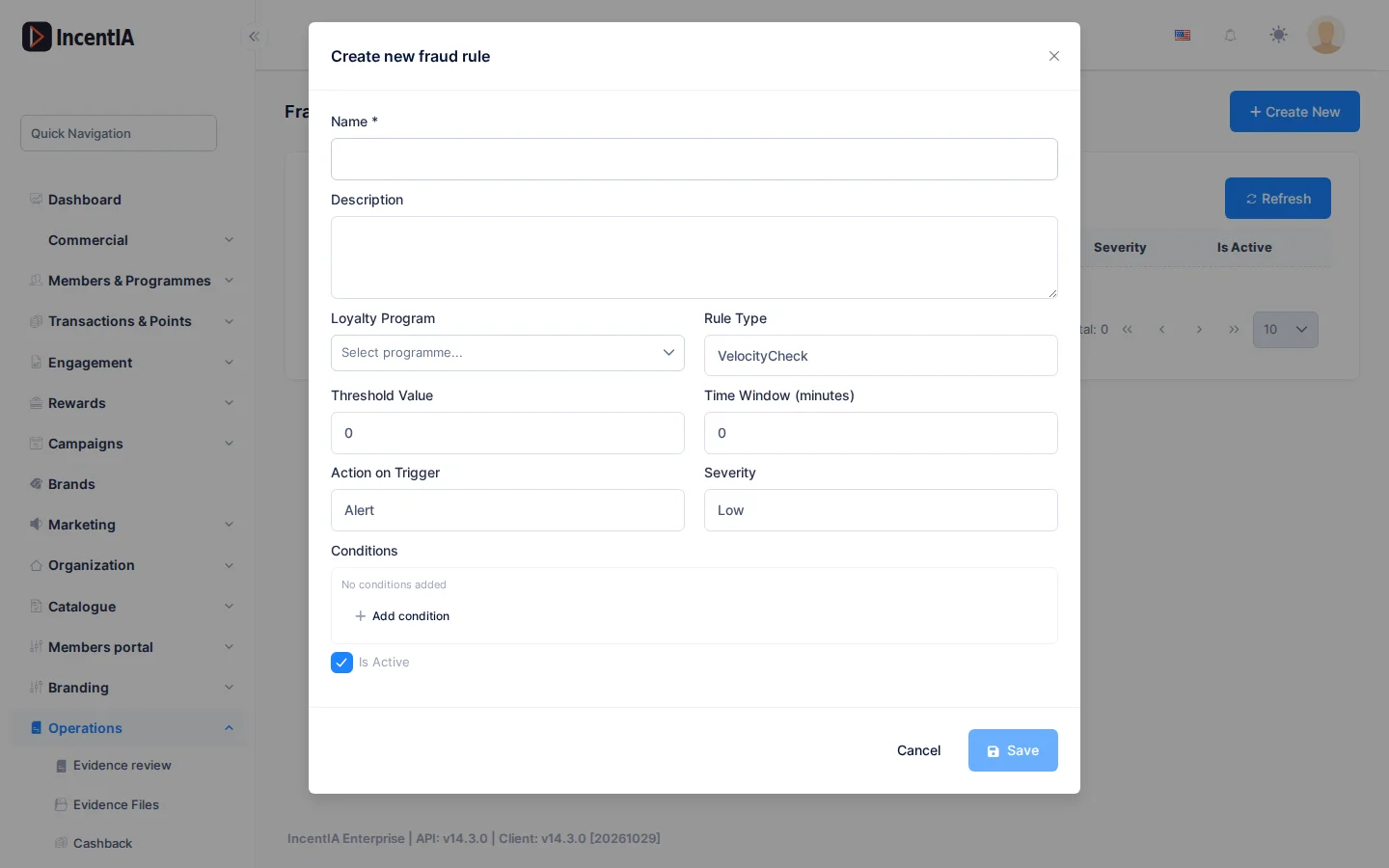
List
The screen has a search box (Search...) and Refresh. Create New appears only if you can create rules.
| Column | What it is | Notes |
|---|---|---|
| Name | Rule name | |
| Rule Type | What it checks | Shown by its English name, without spaces |
| Threshold Value | Limit that triggers the rule | Its meaning depends on the type |
| Action on Trigger | What IncentIA does | Alert, BlockTransaction, SuspendMember or RevertTransaction |
| Severity | Importance of the alert | Low, Medium, High, Critical |
| Active | Whether the rule applies | Green tick or red cross |
The Actions menu on each row offers Edit and Delete, depending on your permissions.
Create or edit a rule
- Click Create New (or Edit on a row).
- Enter the Name (required) and, if you wish, a Description.
- Choose the Loyalty Programme it applies to.
- Choose the Rule Type and fill in Threshold Value and Time Window (minutes).
- Choose the Action on Trigger and the Severity.
- Tick Active and click Save.
Rule types
| Type | Triggers when… | What to fill in |
|---|---|---|
| VelocityCheck | The member performs more operations than the threshold within the window | Threshold Value: number of operations. Time window: minutes |
| AnomalousAccrual | A single points accrual exceeds the threshold | Threshold Value: points. It does not look at redemptions or transfers |
| DuplicateEvidence | The member earns points several times with the same amount within the window | Threshold Value: repetitions (2 if left empty). Time window: minutes |
SameIpMultipleAccounts, PosVerification, GeoAnomalous and Custom appear in the list of types, but today they neither block nor alert anything. The Conditions block of the form is not applied either. Do not rely on them to protect your programme.
Actions
| Action | What happens |
|---|---|
| Alert | The operation goes ahead and an open alert is recorded |
| BlockTransaction | The operation is rejected and the member sees an error |
| SuspendMember | The operation is rejected, the member is suspended and their open sessions are closed |
| RevertTransaction | Today it behaves the same as BlockTransaction: the operation is rejected before it completes |
If several rules fire at once, the strongest action is applied. SuspendMember stops the check of the remaining rules.
Start with Alert and a low Severity. Watch the Alerts for a few days and, once the thresholds are reliable, switch to BlockTransaction.
Alerts
The screen is titled Operational Alerts. It summarises what an operator should look at: fraud, expiring points and unusual patterns. It is read-only.
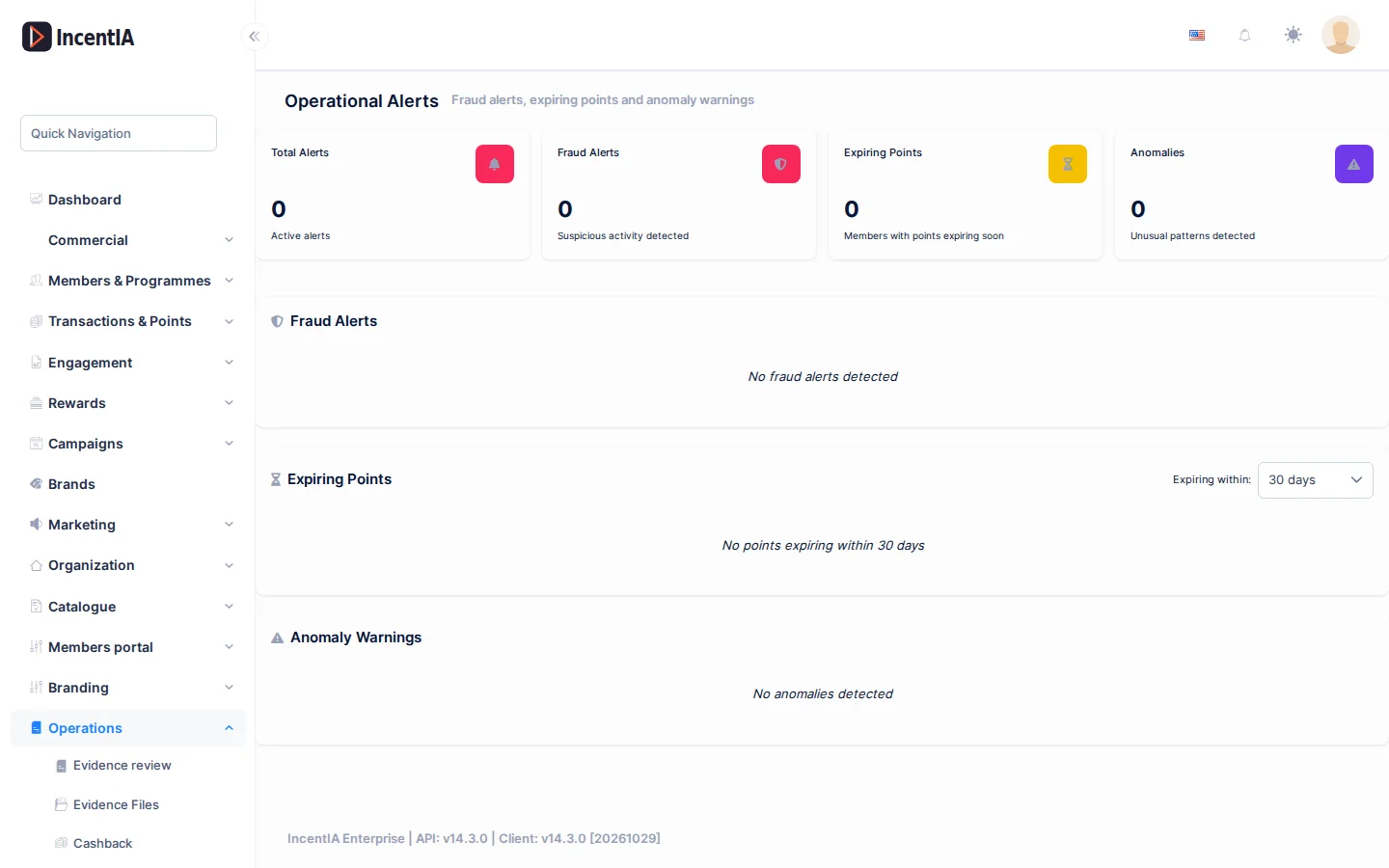
This screen's labels are shown in English. It is calculated when you open it, using the operations of the last 30 days and your active rules. It is not a task inbox: there are no buttons to mark an alert as reviewed.
Counters
At the top you see Total Alerts, Fraud Alerts, Expiring Points and Anomalies. Below, the breakdown by severity (Critical, High, Medium, Low), only for those with cases.
Sections
| Section | What it lists | Columns |
|---|---|---|
| Fraud Alerts | Cases from VelocityCheck and DuplicateEvidence rules | Rule, Type, Severity, Member, Program, Points, Detected, Description |
| Expiring Points | Members with points about to expire | Member, Program, Points Expiring, Expiry Date |
| Anomaly Warnings | Cases from AnomalousAccrual rules | Type, Severity, Member, Program, Value, Threshold, Detected, Description |
In Expiring Points, the Expiring within: selector accepts 7, 14, 30, 60 or 90 days. Only programmes that have point expiry configured are included. Each table paginates in tens.
If there are no cases, you see No fraud alerts detected, No anomalies detected or No points expiring within N days.
For fraud and anomaly alerts to appear you need active rules. Without rules, you will only see expiring points.
Permissions
| Action | Permission (UI text) | Technical id |
|---|---|---|
| View the rules | Fraud Rules | Pages.Loyalty.FraudRules |
| Create rules | Creating Fraud Rule | Pages.Loyalty.FraudRules.Create |
| Edit rules | Editing Fraud Rule | Pages.Loyalty.FraudRules.Edit |
| Delete rules | Deleting Fraud Rule | Pages.Loyalty.FraudRules.Delete |
| View the alerts screen | Alerts | Pages.Loyalty.Alerts |
Related
- Roles and permissions: how to give these permissions to your team.
- Evidence review: where you review suspicious receipts.
- The dashboard: the Fraud signals widget summarises the same thing on the home page.
- Launch a cashback with a receipt: a campaign where it is worth having fraud rules.