Cashback: payouts and runway
This is where you follow the cashback payouts your members request and control the pace at which you spend the budget. There are two screens: Operations › Cashback (the payouts) and Operations › Cashback runway (the budget).
Cashback permission (both screens) · Edition: Growth and Enterprise
To set up a cashback campaign, read Cashback. To see how the member requests it, read Collecting your cashback.
Cashback payouts
The screen is titled Cashback Disbursements. Each row is a payout request from a member.
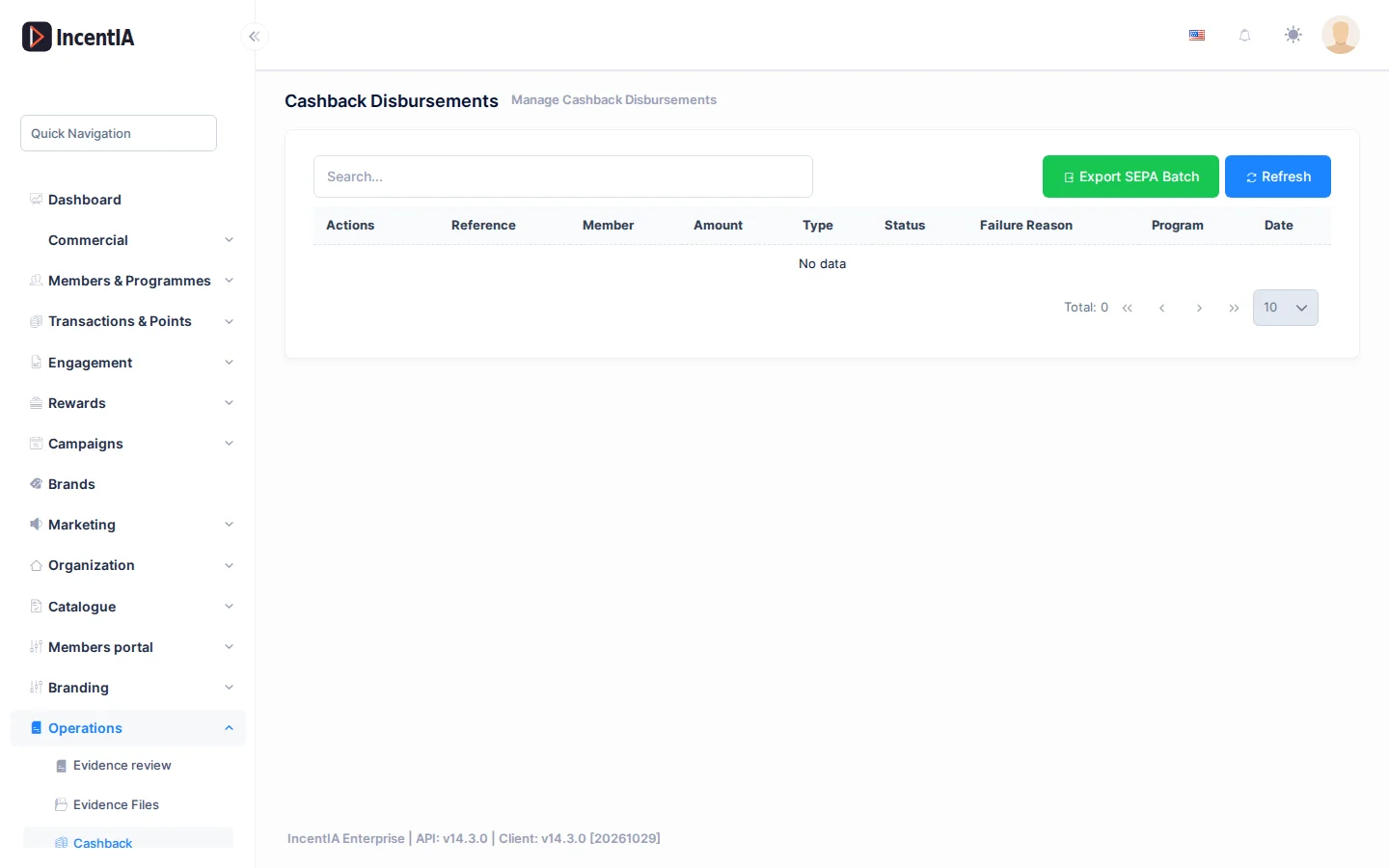
At the top you have a search box (Search...), Refresh and Export SEPA Batch.
| Column | What it is | Notes |
|---|---|---|
| Reference | Payout identifier | |
| Member | Member requesting it | |
| Amount | Amount in euros | |
| Type | How it is paid | Bank Transfer, Gift Card, Voucher, PayPal. Other types (such as Bizum) may show as Unknown |
| Status | Where the payout stands | See the statuses table |
| Failure Reason | Last provider error | If there were retries, you see Retries: N |
| Programme | Loyalty programme | |
| Date | When it was created |
Statuses
Statuses are shown exactly as listed here.
| Status | What it means |
|---|---|
| Pending | Awaiting decision or sending |
| Processing | Approved, waiting to be completed |
| Completed | Paid |
| Failed | The payout failed |
| Cancelled | Rejected or voided |
| Routing, Sent, Confirmed | The automatic payout is under way, sent or confirmed by the bank |
| SEPA Batch | Included in a SEPA batch pending upload to the bank |
| Needs reconciliation | It is not known whether the bank paid. It needs your decision |
Actions on each row
The row's Actions menu shows only what applies given the status and the payout type:
- Approve: moves a Pending payout to Processing. Manual payouts only.
- Complete: marks a Processing payout as paid. Manual payouts only.
- Reject: cancels the payout. It only appears when it is safe to do so.
- Reconcile: appears on Needs reconciliation payouts. See below.
Each action asks for confirmation (Approve this disbursement?, Mark this disbursement as completed?, Reject this disbursement?).
Approve and Complete only work if your account pays cashback manually. Bank transfers and Bizum are sent by the system itself via SEPA or Bizum, so you will not see these actions on those rows. If your account pays through PayPal or Stripe Connect, they do not work either.
Export a SEPA batch
- Click Export SEPA Batch.
- Confirm Export a SEPA batch for all pending disbursements?
- An XML file with the transfers is downloaded. Upload it to your bank.
- The payouts included move to SEPA Batch. If the download fails, click Export SEPA Batch again: the retry reuses the same batch.
The money moves when you upload the file to your bank. Review the batch before sending it.
Reconcile a held payout
A payout moves to Needs reconciliation when the payment channel could not confirm whether the money left. The amount remains deducted from the member's balance, so they cannot request it again until you resolve it.
- Check the bank statement.
- On the row, open Actions › Reconcile. Reconcile disbursement opens.
- Choose the outcome:
- The bank DID pay: settles the payout. The member's balance stays consumed. You can add the Bank transaction reference (optional) and a Note (optional).
- The bank did NOT pay: closes the payout as failed and releases the amount so the member can request it again. You must explain the reason (Why do you conclude the bank did not pay? (required)).
- Retry (SEPA only): puts the payout back in the queue. It only appears on SEPA transfers, where nothing was sent while it was held.
- Click Save. You see the reconciled-payout notice.
Choose The bank did NOT pay only if you have checked it on the statement. If the bank did pay, the member would be paid twice.
Cashback runway
The screen is titled Cashback Budget Runway and shows the pace at which the budget is spent and when it will run out.
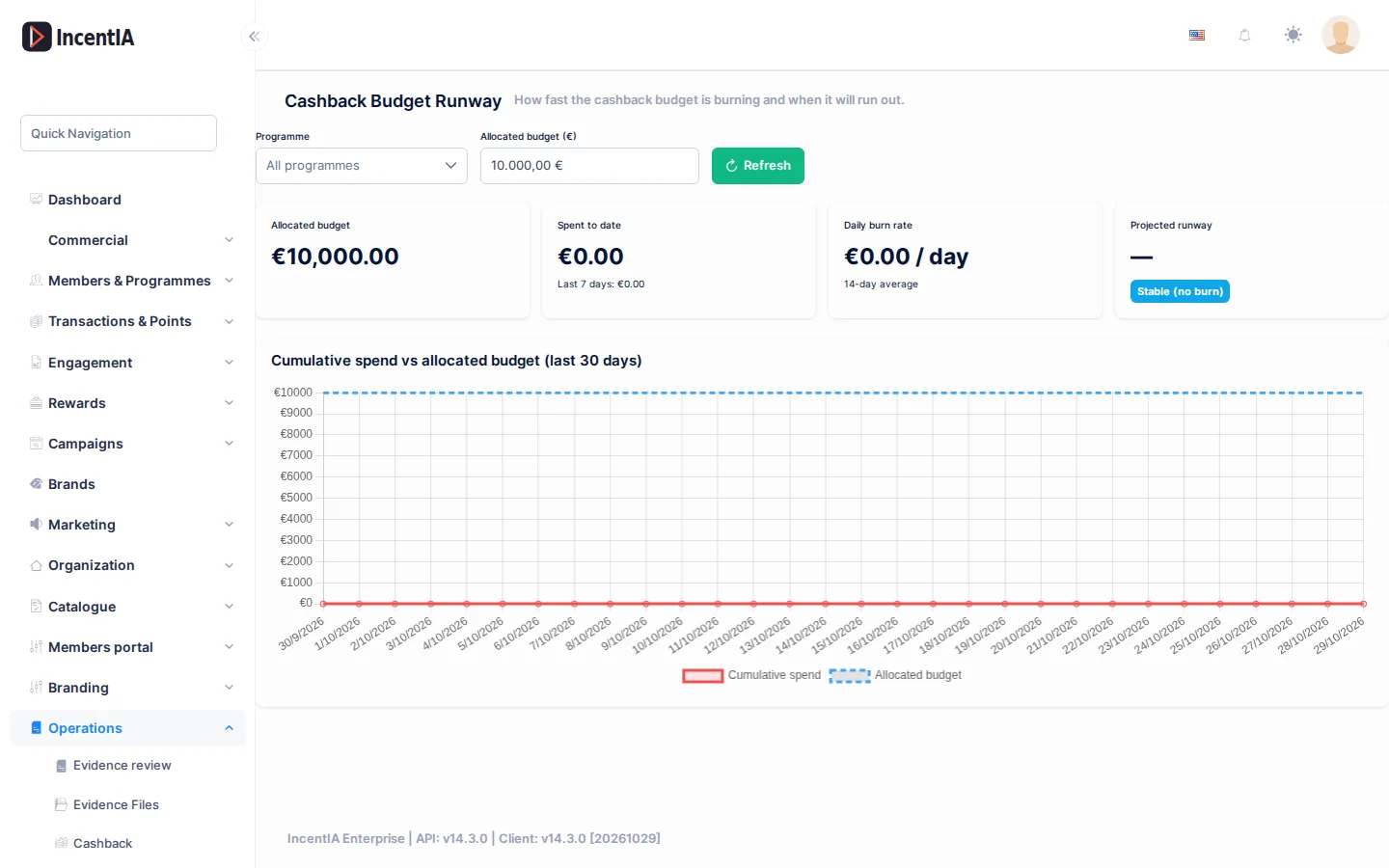
This screen's labels are shown in English.
- In Programme, choose a programme or leave All programmes.
- In Allocated budget (€), enter the budget you have set aside. The default is €10,000. This figure is not saved: it is only for the calculation.
- Click Refresh.
| Data | What it is |
|---|---|
| Allocated budget | The budget you entered |
| Spent to date | Cashback already paid, and Last 7 days |
| Daily burn rate | Average spend per day over the last 14 days |
| Projected runway | Days left at the current pace, and the status |
Spent to date adds up completed, sent and confirmed payouts and those that need reconciliation. It does not count pending or failed ones.
The Cumulative spend vs allocated budget (last 30 days) chart compares cumulative spend with the budget.
| Status | When it shows |
|---|---|
| 🟢 Healthy | More than 30 days left |
| 🟡 Warning | Between 15 and 30 days left |
| 🔴 Critical | Fewer than 15 days left |
| ⚫ Budget exceeded | Spend already exceeds the budget |
| Stable (no burn) | There is no recent spend |
| No budget set | The budget is 0 |
Permissions
| Action | Permission (UI text) | Technical id |
|---|---|---|
| View payouts and runway, approve, complete, reject, reconcile and export a batch | Cashback | Pages.Loyalty.Cashback |
Related
- Payouts: settings, review and batches: payout account, approval policy, payee review and batches.
- Cashback: how cashback is set up in a campaign.
- Collecting your cashback: what the member sees.
- Launch a cashback with a receipt: step-by-step guide.
- Evidence review: the receipts that give rise to these payouts.