Media library
The library gathers your account's images so you can reuse them in landings, flows and rich text. Menu: Members portal › Media library.
Loyalty Programmes permission · Edition: all (Free, Starter, Pro, Growth, Enterprise) · Only from an account, not from platform access
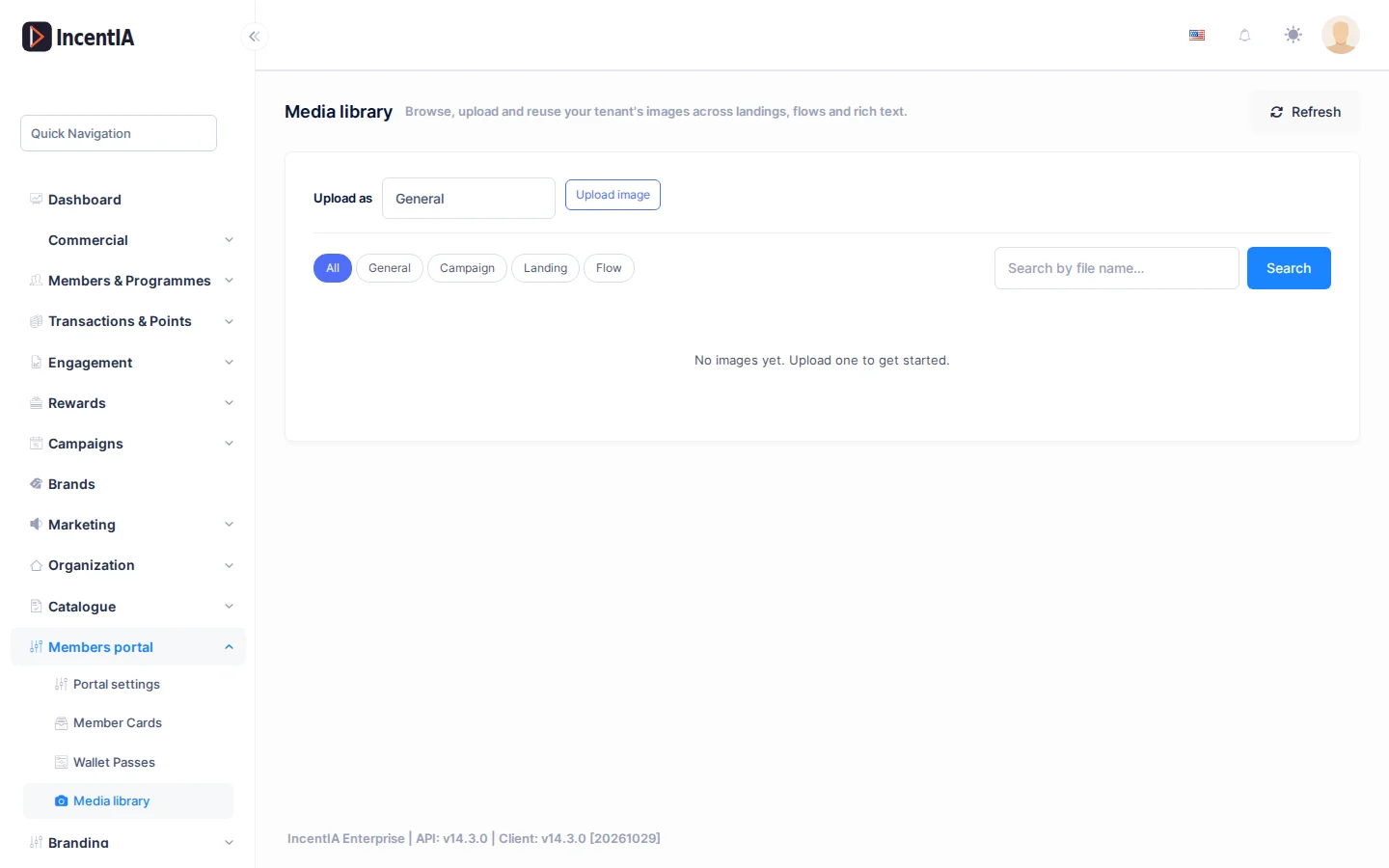
Upload an image
- In Upload as, choose the category: General, Campaign, Landing or Flow.
- Click Upload image and choose the file.
- When it finishes, the image appears in the grid.
Formats: JPG, JPEG, PNG, GIF, WebP and SVG, up to 10 MB each.
Library images are public: anyone with their address can view them. Do not upload anything confidential.
Search and filter
- The All, General, Campaign, Landing and Flow tabs filter by category.
- The Search by file name… box and the Search button find images by name.
- Refresh reloads the library.
Each thumbnail shows the file name and its category.
Reuse an image
Editors that support images (landing, conversational flows, stamp cards, games) usually include a library button next to the upload one. It opens the Choose from gallery picker, where you choose an existing image instead of uploading it again. Every image you upload from those editors is also saved in the library.
Delete an image
Click the bin icon on the thumbnail and confirm Delete "name"? This action cannot be undone. Only someone with permission to delete loyalty programmes can do this.
Deleting an image also deletes the file. If you use it in a landing, a flow or a campaign, it will stop showing. Before deleting, check where it is used.
Statuses and limits
- You cannot upload or delete from platform access (without an account).
- The logo and favicon of White label are uploaded from their own form and have different limits.
Permissions
| Action | Permission (UI text) | Technical id |
|---|---|---|
| View, search and upload | Loyalty Programmes | Pages.Loyalty.Programs |
| Delete | Deleting Loyalty Program | Pages.Loyalty.Programs.Delete |