PIN codes and booklets
Generate unique codes to distribute on receipts, packaging or booklets and track how many are redeemed. Menu: Campaigns › Pin Codes.
Pin Codes permission · Export pin codes (print shop) to see the codes in clear text and download the print run · Starter edition or higher.
How it fits together
A batch is a group of codes with the same reward and expiry. A print run is a serial production of booklets (blocks of codes) for the print shop. Each booklet can be assigned to a store, and redemptions are attributed to it.
The person enters or scans their code on the campaign landing page and receives the batch's reward. Each code can be used only once.
The screen has two tabs, Batches and Print runs, and a link to the Store Map.
Batches
List
Filter by Campaign ID, Store, Print run and Assignment (All, Assigned or Unassigned), or by a From / To range. Use Clear filters and Refresh.
| Field | What it is | Notes |
|---|---|---|
| Name | Internal name of the batch. | |
| Reward Type | What the person who redeems receives. | |
| Reward Points | Points per redemption. | Points rewards only. |
| Total Codes | Codes generated. | |
| Redeemed / Usage | Codes used and percentage. | |
| Expires on | Expiry. | No Expiry if it has none. |
| Status | Active, Inactive or Expired. |
Expand a batch to see its codes with their status (Available or Used), the redemption date and the member who used it. Without the export permission, codes are masked.
Each row has actions to view its QR code (enlarge, print, download), Reorganise into booklets, assign it to a store or Unassign store, view the Store history and edit its settings. Print QRs (n) prints the QR codes of the selected batches.
Generate a batch
- Click Generate Batch.
- In Generate PIN Batch, fill in Name, Description and Number of Codes.
- Choose the Reward Type:
Points,Coupon,Game Access,Stamp,CustomorInstant win. Depending on the type, enter Reward Points, Coupon code or Game, and the Reward Description. - Adjust Code Length, Prefix length and Expires on if needed.
- Tick Tolerate 0/O typos if you want the system to accept the letter O for zero.
- Choose the Prize Pool Tier (
StandardorVIP), the campaign (Campaign ID) and the Programme. - Click Generate. Use Copy to Clipboard to take the codes with you.
Instant win batches require a campaign of type Instant win. If the batch already has redeemed codes, the reward type and the campaign are locked.
Reward types appear in English on the generation screen; that is the text you see today.
Split a batch into booklets
With Reorganise into booklets (on the batch row) you turn an existing batch into booklets. Choose the Mode: Fixed size (Codes per booklet), Prefix (Prefix length) or Ranges; the Sort order (Ascending or Code) and a Print run name. Review the preview and type the confirmation word to run it. With Reorganise campaign (filtering by campaign first) you reorganise in one go the batches of that campaign that have no store.
Print runs
A print run generates booklets in the background. Click New print run and enter No. of booklets, Codes per booklet and the rest of the batch settings.
| Limit | Value |
|---|---|
| Booklets per print run | 1 to 20,000 |
| Codes per booklet | 1 to 500 |
| Codes per print run | 1,000,000 maximum |
| Code length | 6 to 20 (8 by default; minimum 8 if the print run exceeds 10,000 codes) |
When the print run finishes, download it as CSV or as PDF (labels, maximum 2,000 booklets per PDF). View booklets lists each booklet with its progress. Downloading requires the Export pin codes (print shop) permission.
Codes are prizes. Only users with Export pin codes (print shop) can download them in clear text; share them with the print shop through a secure channel.
Assign booklets to stores
Assign each booklet to a store from the batch row (requires Editing Store). With Unassign store the booklet is left without a store; enter a Reason. This way you will know which store each redemption comes from.
Store map
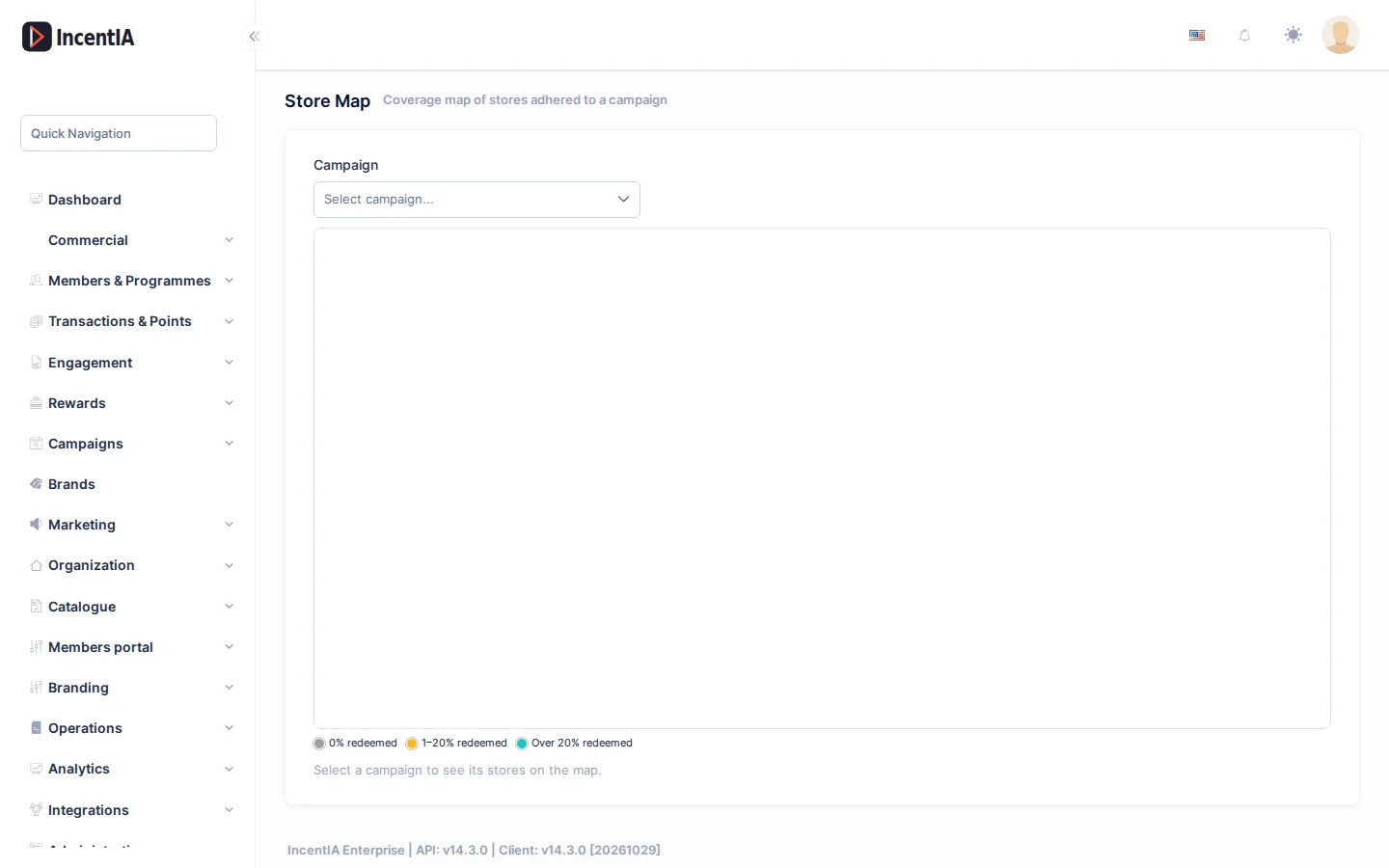
Menu: Campaigns › Pin Codes › Store Map (requires access to Stores). Select a campaign to see its stores on the map, with Booklets, Participations and Redeemed. With no stores, you will see No stores registered for this campaign yet.
Booklet records
In the list, enter an optional date range and click Download booklet registrations to export the records. Details in Export data.
With a campaign selected, Client link creates a no-login download link for the client. See Client link.
Permissions
| Action | Permission (UI text) | Technical id |
|---|---|---|
| Enter the screen and manage print runs | Pin Codes | Pages.PinCodes |
| Generate batches | Campaigns | Pages.Gamification.Campaigns |
| See codes in clear text, download print-run CSV and PDF | Export pin codes (print shop) | Pages.PinCodes.Export |
| Store map | Stores | Pages.Stores |
| Assign booklets to stores | Editing Store | Pages.Stores.Edit |
Related
- Concept: Campaigns
- Guide: Launch a games campaign
- Export data · Create a campaign