Terms and conditions
Store every version of your programme's legal terms and conditions. Participants accept them when registering and each acceptance is tied to the version in force. Menu: Campaigns › Terms & Conditions.
Terms & Conditions permission · No edition restriction. Creating, editing and deleting have their own permissions (see Permissions).
How it works
A version is a text with a number, type and scope. Only one version can be active for each combination of type, scope and programme. When you activate a new one, IncentIA deactivates the previous one.
- Tenant terms apply to the whole programme.
- Campaign terms apply only to the campaign you choose. They are the legal rules of the raffle or promotion.
- A new version requires accepting again. Old acceptances remain tied to the version they signed.
List
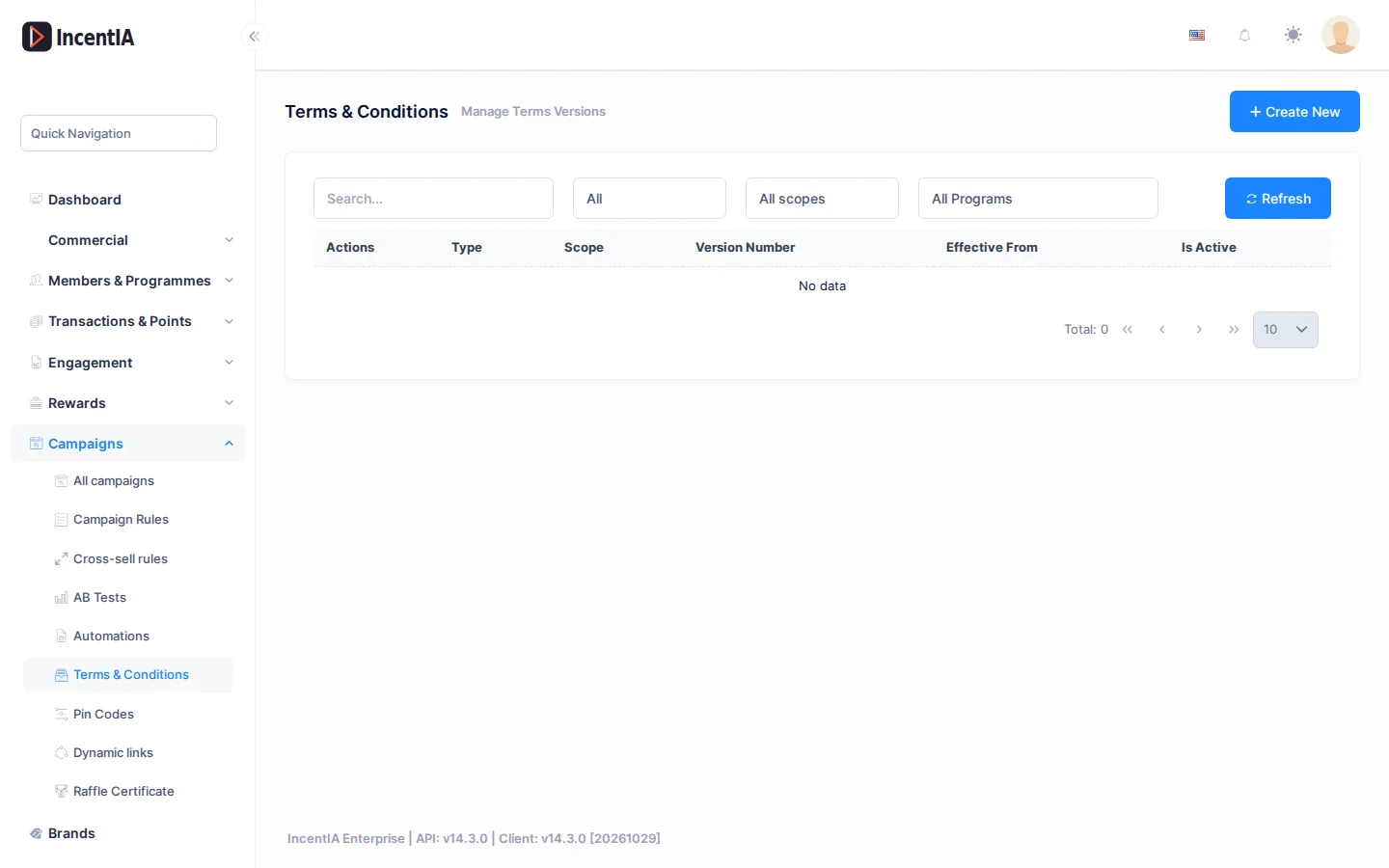
| Field | What it is | Notes |
|---|---|---|
| Type | Kind of document. | Marketing, Privacy, TermsOfService or Cookie (the screen shows them in English). |
| Scope | Tenant or Campaign. | For a campaign, its name is shown. |
| Version Number | Label of the version. | Free text, up to 32 characters. |
| Effective From | Date from which it applies. | |
| Active | Marks whether it is the version in force. |
Filter by text, by type (All), by scope (All scopes) and by programme (All Programs). Each row has the Actions menu with Edit and Delete.
Active Terms Coverage
If there are active versions, the Active Terms Coverage block appears above the table. For each one it shows the Coverage (percentage and members who accepted it out of those eligible) and the Pending re-consent, that is, how many members have not yet accepted the version in force.
Create / edit a version
Click Create New.
| Field | What it is | Notes |
|---|---|---|
| Version Number | Identifier, for example v1.0. | Required. |
| Type | Marketing, Privacy, TermsOfService or Cookie. | |
| Effective From | Date it comes into force. | Required. |
| Active | Makes this the version in force. | Deactivates the previous one of the same type and scope. |
| Scope | Tenant or Campaign. | On-screen help: tenant terms apply to the whole programme; campaign terms apply only to the chosen campaign. |
| Campaign | Campaign they apply to. | Required with Campaign scope. |
| Content | Formatted text. | Up to 20,000 characters. |
If a campaign has no terms version in force, the Accept terms and conditions requirement is considered met and nothing is asked. Create and activate the version before launching the campaign.
Use the terms in a campaign
- Participation requirement. In the Participation tab of the campaign detail, tick Accept terms and conditions. The Edit terms versions link takes you to this screen.
- Own link. In the same tab, Official rules URL (brand site) replaces the generated terms. It only accepts
https. - Chat flow. In a conversation flow, the Accept terms action records the acceptance of the chosen version. The Legal terms URL variable inserts the link in the message.
- Public link. Each campaign publishes its terms at
/api/public/legal-terms/<campaign-slug>, with no account needed. Add/<number>at the end for a specific version.
States and limits
- The active version is the one that counts as in force; the others are kept as history.
- Deleting a version removes only that version; do not touch one that already has acceptances if you need to keep the history, deactivate it instead.
- The public privacy, terms and cookie pages of your brand are described in Legal pages.
Permissions
| Action | Permission (UI text) | Technical id |
|---|---|---|
| View the screen | Terms & Conditions | Pages.Compliance.TermsVersions |
| Create | Creating Terms Version | Pages.Compliance.TermsVersions.Create |
| Edit | Editing Terms Version | Pages.Compliance.TermsVersions.Edit |
| Delete | Deleting Terms Version | Pages.Compliance.TermsVersions.Delete |