Campaign detail
Manage a campaign from a single panel with tabs. Menu: Campaigns › All campaigns, then the campaign name or Actions › Manage Campaign.
Campaigns permission to view the detail page · Editing Campaign for the settings tabs. Each tab only appears if your role has the permission it needs (see Permissions).
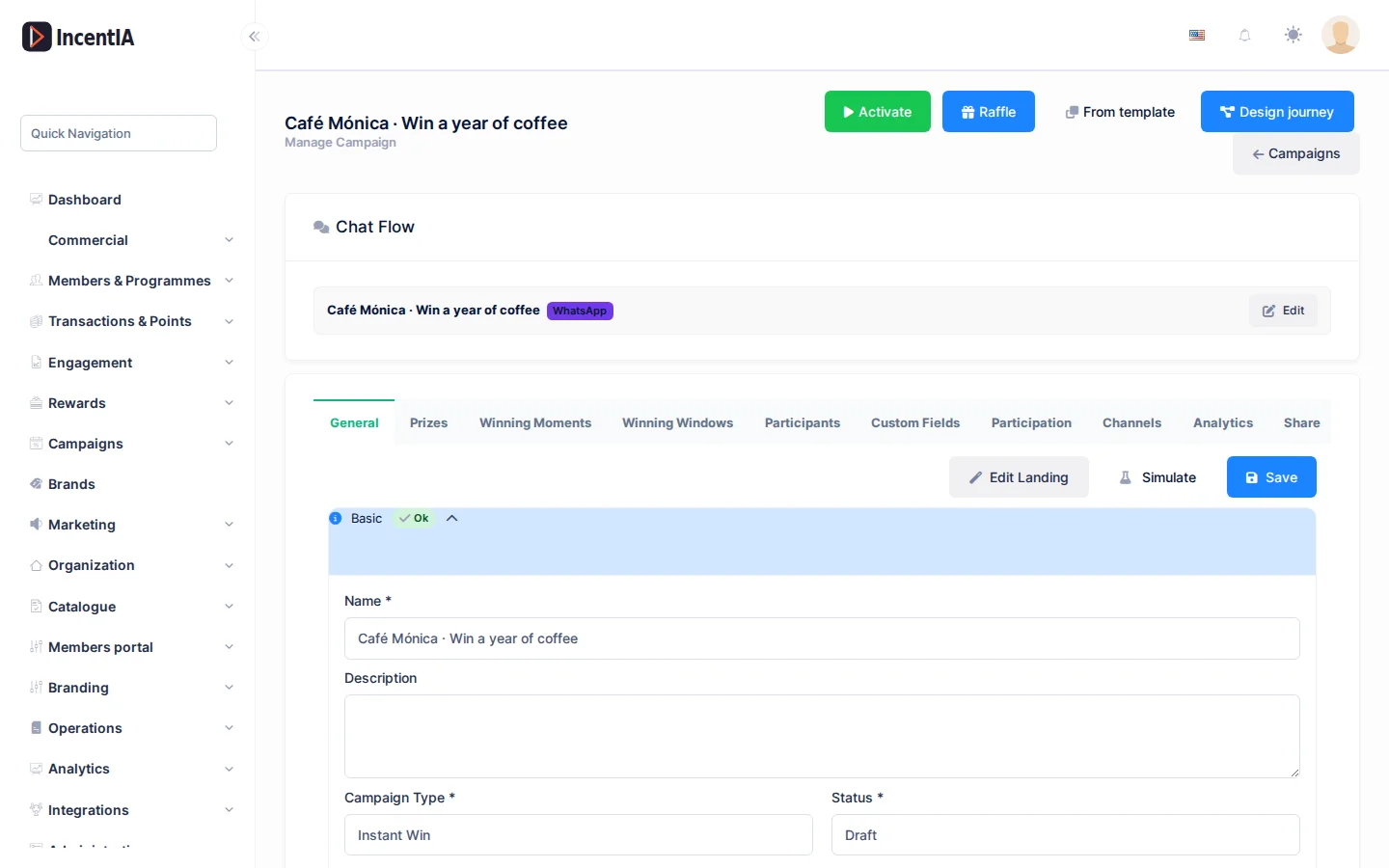
Header buttons
| Button | What it does | When it appears |
|---|---|---|
| Activate | Sets the campaign to active. | If it is in draft, scheduled or paused. |
| Back to draft | Returns an active campaign to draft. | If it is active. |
| Raffle | Opens the raffle screen. | Always. |
| Design journey | Opens the campaign journey editor. See Landing builder. | With the Pages.Gamification.JourneyBuilder permission (no translated text on the roles screen). |
| Campaigns | Returns to the list. | Always. |
Below the header, if you have access to conversation flows, you will see the Chat Flow block. If the campaign has none, use Create chat Flow for this campaign. More in Conversation flows.
Tabs
The active tab is reflected in the address (?tab=), so you can save or share a direct link to a tab.
| Tab | What it is for | Notes |
|---|---|---|
| General | Name, dates, programme, type, participation rules, prize screen texts, participant accounts and public ranking. | Requires Editing Campaign. |
| Prizes | Prize table with Probability, Stock and those already Awarded. | Only in Instant win campaigns. |
| Winning Moments | Specific instants at which there is a prize. See Winning moments. | Only in Instant win. |
| Winning Windows | Time slots with a prize. | Only in Instant win. |
| Participants | List of participants, winners and prize delivery. | See below. |
| Custom Fields | Extra fields you ask for at registration. | Managing Campaign Custom Fields permission to edit them. |
| Participation | Requirements, limits and receipt photo rules. | See below. |
| Channels | Channels used to take part and to reply. | See below. |
| Analytics | Figures, breakdowns and access to the funnel. | See below. |
| Share | Preview and public link of the campaign. See Campaign landing page. |
Prizes, moments and windows
In Instant win there are two ways to hand out prizes: by probability or windows (Prizes and Winning Windows tabs) or by preloaded moments (Winning Moments tab). Choosing one or the other is explained in Winning moments.
- In Prizes, probabilities must add up to 100% and stock cannot drop below the prizes already delivered. Save with Save prizes.
- In Winning Windows use Add Window or Generate Evenly, or import several with Import CSV.
Participants
Search with Search..., add one manually with Add Participant and check, per row, the plays used, the status and the conversation (View conversation).
- Shipping: delivery status of each winner's prize. Change it with Update shipping. Details in Export data.
- Identities: shows the participant's contact channels and lets you split or unlink merged identities.
- Export data and Anonymize (GDPR): access and erasure rights for a participant who is not a member. Anonymising is irreversible and asks for your password. See GDPR.
- Export: downloads participations and participants in Excel or CSV. See Export data.
Participation
Under Participation pipeline, click Configure participation to define what a person must do to take part:
- Triggers: for example Receipt/photo.
- Requirements: Registration (Email, Phone or Email or phone), OTP verification (SMS or email), Minimum age, Custom fields, Accept terms and conditions and Marketing consent (optional). Marketing consent is offered but never blocks.
- Rules: Daily limit and Limit per field value.
- Receipt/photo: Read the receipt with OCR, Approve automatically when the OCR reading clears the threshold, Duplicate detection, Max photo size (MB) and Max photos per participant.
If the campaign does not use the pipeline, the tab says so with This campaign does not use the participation pipeline.
Channels
Here you choose the Active channels, the Fallback channel and whether replies go through the same channel the person participated with (Reply on the participation channel).
Analytics and funnel
The Analytics tab brings together Participations, Unique participants, Winners and the breakdowns Per day, By day of week, By hour of day, Per week, Per month and By store. With Generate report you get a campaign report.
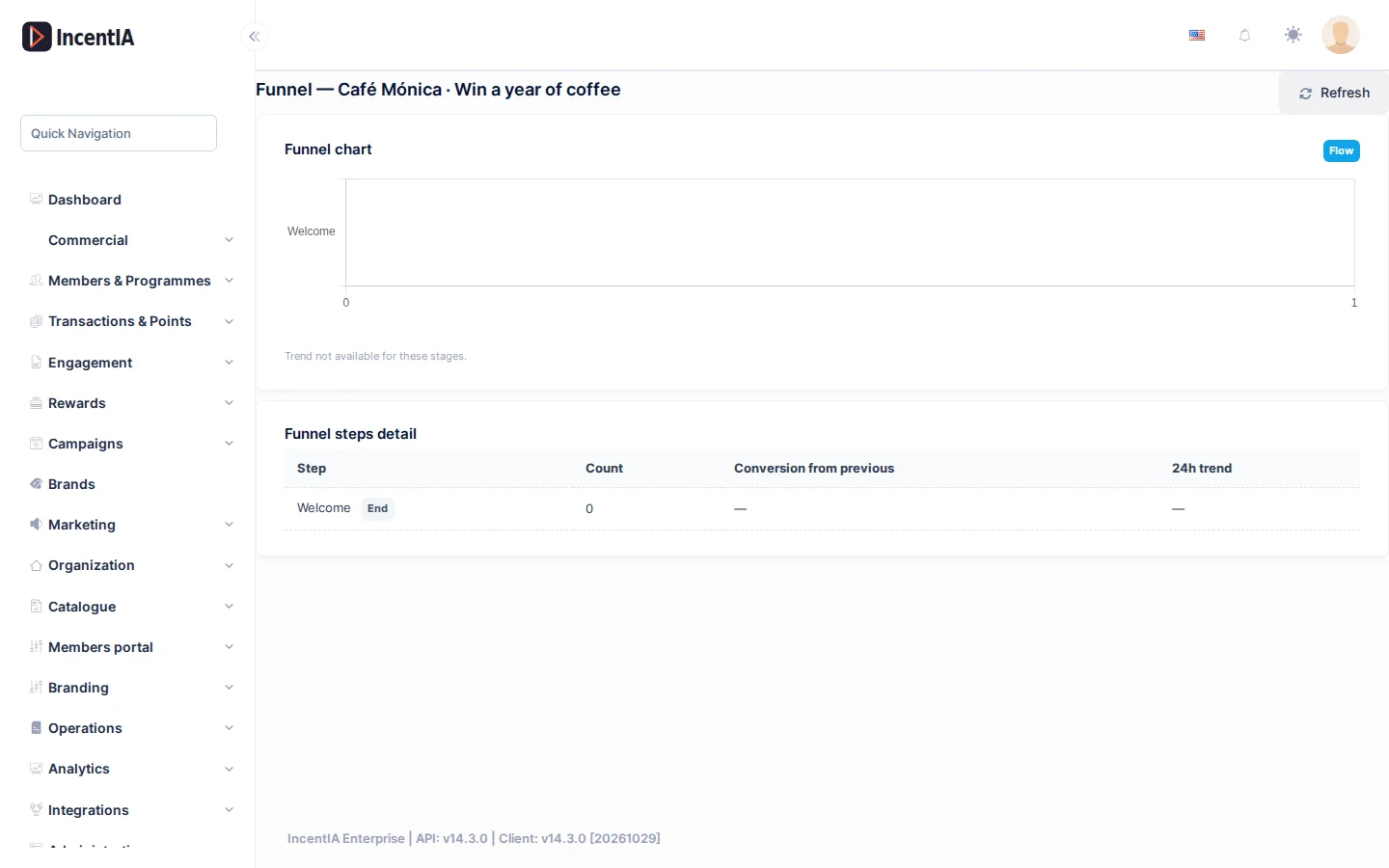
View full funnel opens the Funnel: the participants recorded at each stage of the campaign flow, in order. For each step you will see Count, Conversion from previous and Drop-off, with a chart and the 24h trend. A step marked Branch is reached through an alternative outcome; one marked End has no steps after it.
Statuses and limits
- Activate requires the Editing Campaign permission.
- The Prizes, Winning Moments and Winning Windows tabs do not exist in other campaign types.
- Once a campaign is activated, participants can already see it: check prizes and probabilities beforehand.
Permissions
| Action | Permission (UI text) | Technical id |
|---|---|---|
| View the detail page, Participants, Participation, Channels, Analytics, Share | Campaigns | Pages.Gamification.Campaigns |
| General, Prizes, Winning Windows, activate and back to draft | Editing Campaign | Pages.Gamification.Campaigns.Edit |
| Winning Moments | Managing Winning Moments | Pages.Campaigns.ManageWinningMoments |
| Export participants and winners | Exporting Campaign Winners | Pages.Gamification.Campaigns.Winners.Export |
| Personal data in clear when exporting | Exporting participant personal data (email, phone, sensitive fields) | Pages.Gamification.Campaigns.Winners.Export.Pii |
| Update shipping | Managing Winner Fulfillment | Pages.Gamification.Campaigns.Winners.Fulfillment |
| Edit Custom Fields | Managing Campaign Custom Fields | Pages.Gamification.Campaigns.CustomFields |
| Export data of a participant | Member GDPR Export | Pages.Members.GdprExport |
| Anonymize (GDPR) | Member GDPR Erase | Pages.Members.GdprErase |
Related
- Concept: Campaigns · Evidence
- Guide: Launch cashback with a receipt
- Create a campaign · Export data