Chatbot
The chatbot is an AI assistant for the team, not for your members. It looks up your programmes and campaigns and proposes how to create or activate a campaign. Menu: Marketing › Conversational › Chatbot.
Chatbot permission · Edition: all. Do not confuse it with flows: those converse with your members.
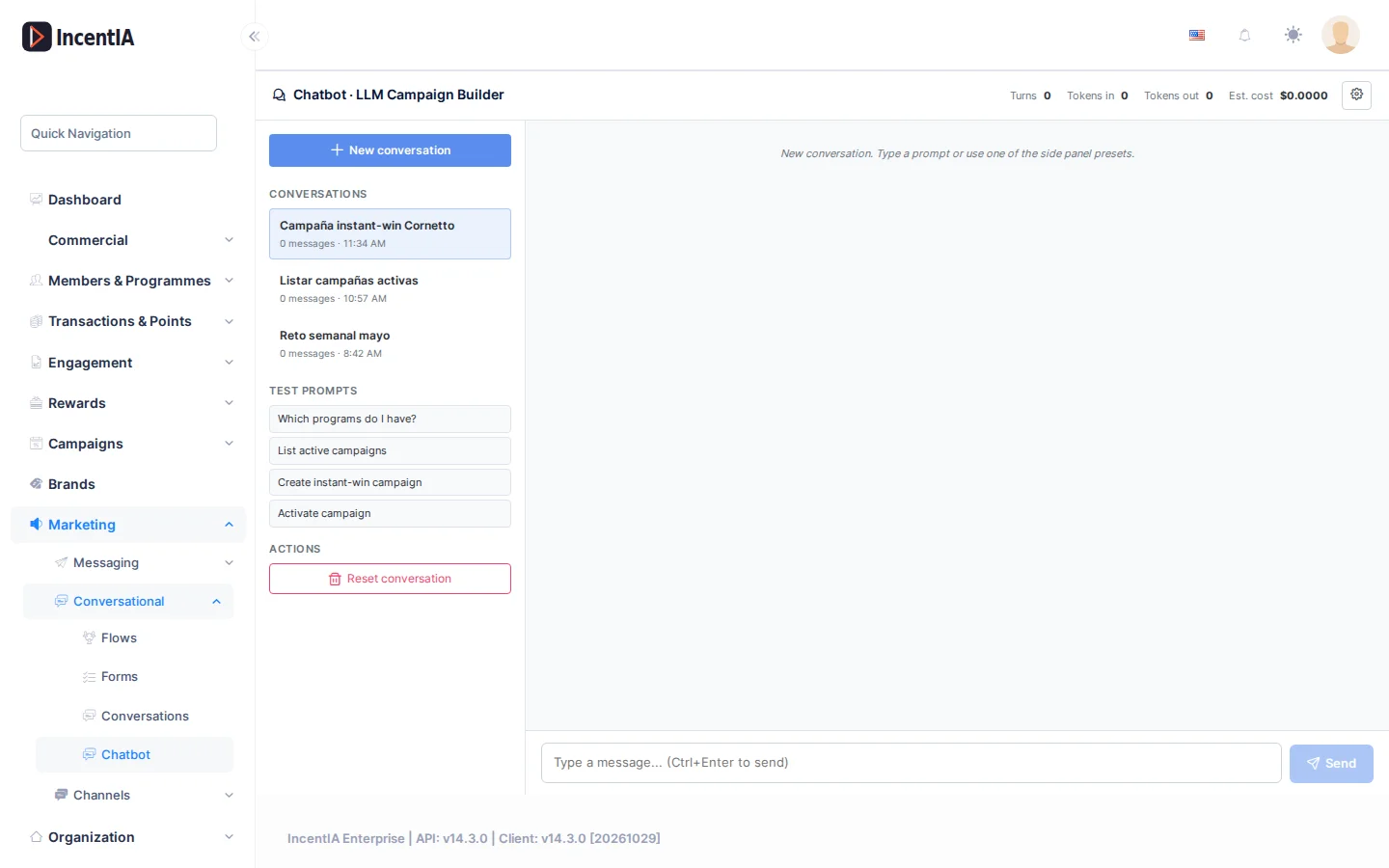
Talk to the assistant
- Open Marketing › Conversational › Chatbot.
- Type your request in the message box, or click a prompt under Test prompts.
- Read the reply. To start from scratch, click New conversation.
The test prompts are Which programs do I have?, List active campaigns, Create instant-win campaign and Activate campaign.
Confirm a plan
When you ask for a change (creating or activating a campaign), the assistant does not do it straight away. It shows a Proposed plan with its steps; expand args on a step to see its data.
- Confirm and execute: launches the steps. The button shows Validating… while the plan is checked.
- Request changes: asks you What would you like to change in the plan?. Type the adjustment and click Send changes.
- Cancel: discards the plan.
If the plan says This plan cannot be confirmed yet:, fix what it points out first. After confirming, the changes are applied to your account.
Right-hand panel
Show or hide the panel with Show settings / Hide settings.
| Element | What it is | Notes |
|---|---|---|
| Model | AI model that replies | Changes cost and quality |
| Temperature | How much variation the reply allows | 0 gives more stable replies |
| Max tokens | Maximum length of the reply | |
| Show reasoning blocks | Shows the assistant's reasoning | Off by default |
| Status | The conversation's Turns, Tokens in, Tokens out and Est. cost | The cost is an estimate |
Reset conversation restarts the open conversation. In the left column, Conversations lists previous ones with their message count.
Statuses and limits
- Each turn has a cost. Each account has a daily AI spending cap, which resets at 00:00 UTC; once reached, the assistant rejects new turns until the next day.
- The technical details of each tool the assistant uses are only visible to the platform team.
Permissions
| Action | Permission (UI text) | Technical id |
|---|---|---|
| Use the chatbot | Chatbot | Pages.Chatbot.Use |