WhatsApp forms
Collect data from participants without leaving WhatsApp (native form) or on an external web page (web form) when the data must not travel through Meta, such as an IBAN or a DNI/NIE. Menu: Marketing › Conversational › Forms.
WhatsApp forms permission · Viewing sensitive values unmasked also requires the View sensitive form data permission.
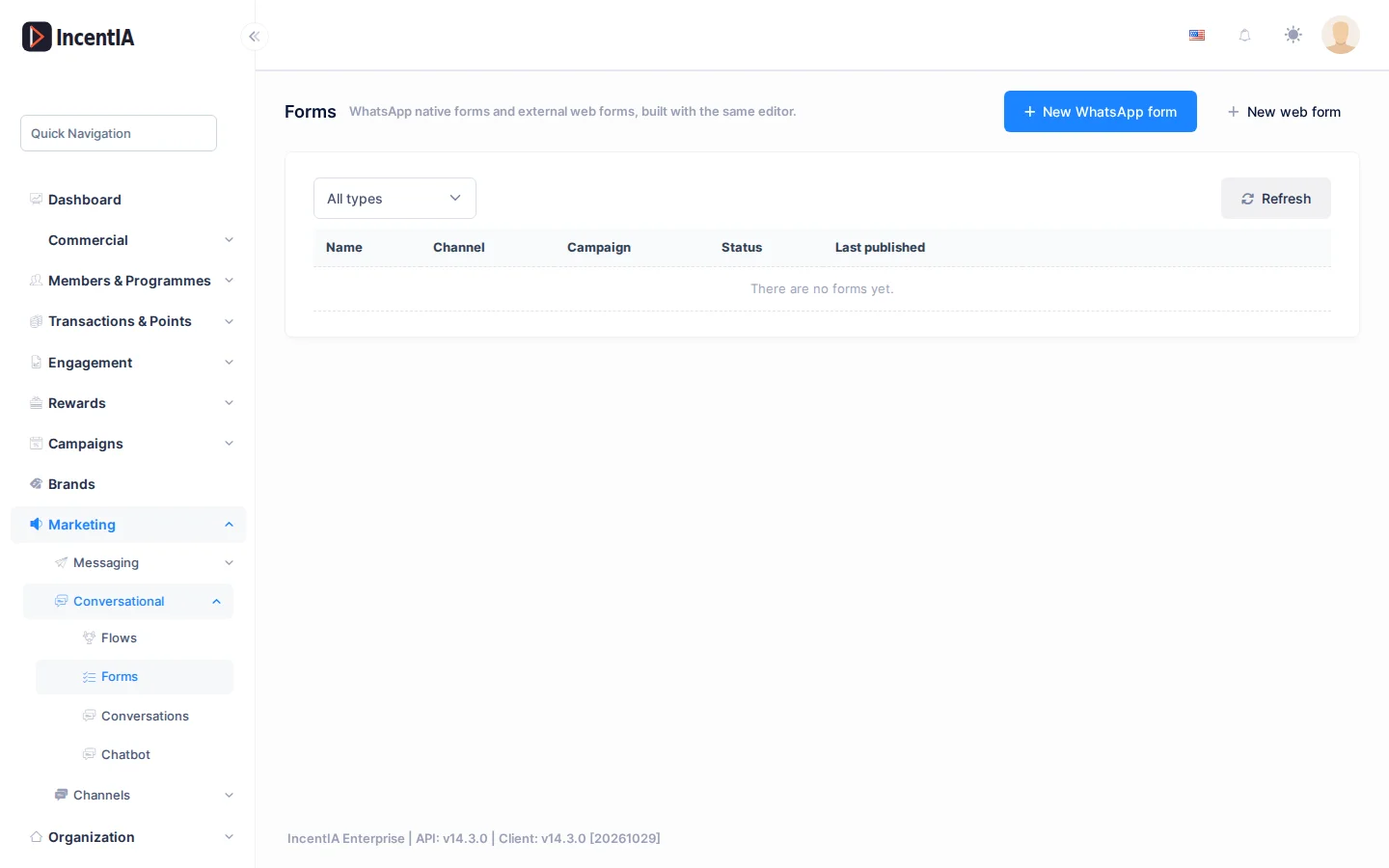
Two kinds of form
| WhatsApp native | External web | |
|---|---|---|
| Where it is filled in | Inside the WhatsApp chat | On a single-use link (/f/…) |
| Channel | Required (a WhatsApp channel) | Not applicable |
| Publish | Sent to Meta | Only validates; available immediately |
| Sensitive data | No | Yes, marked with a padlock |
List
Columns: Name, Channel, Campaign, Status and Last published.
| Status | Meaning |
|---|---|
| Draft | Never published, or edited since the last publication (the published version keeps serving until you publish again) |
| Published | Live and ready to be sent |
| Error | Meta rejected or blocked the form; hover the chip to see the reason |
| Retired | Can no longer be sent |
Row actions: edit, Duplicate (as a draft), Publish, Refresh status (asks Meta), Retire and delete.
Builder
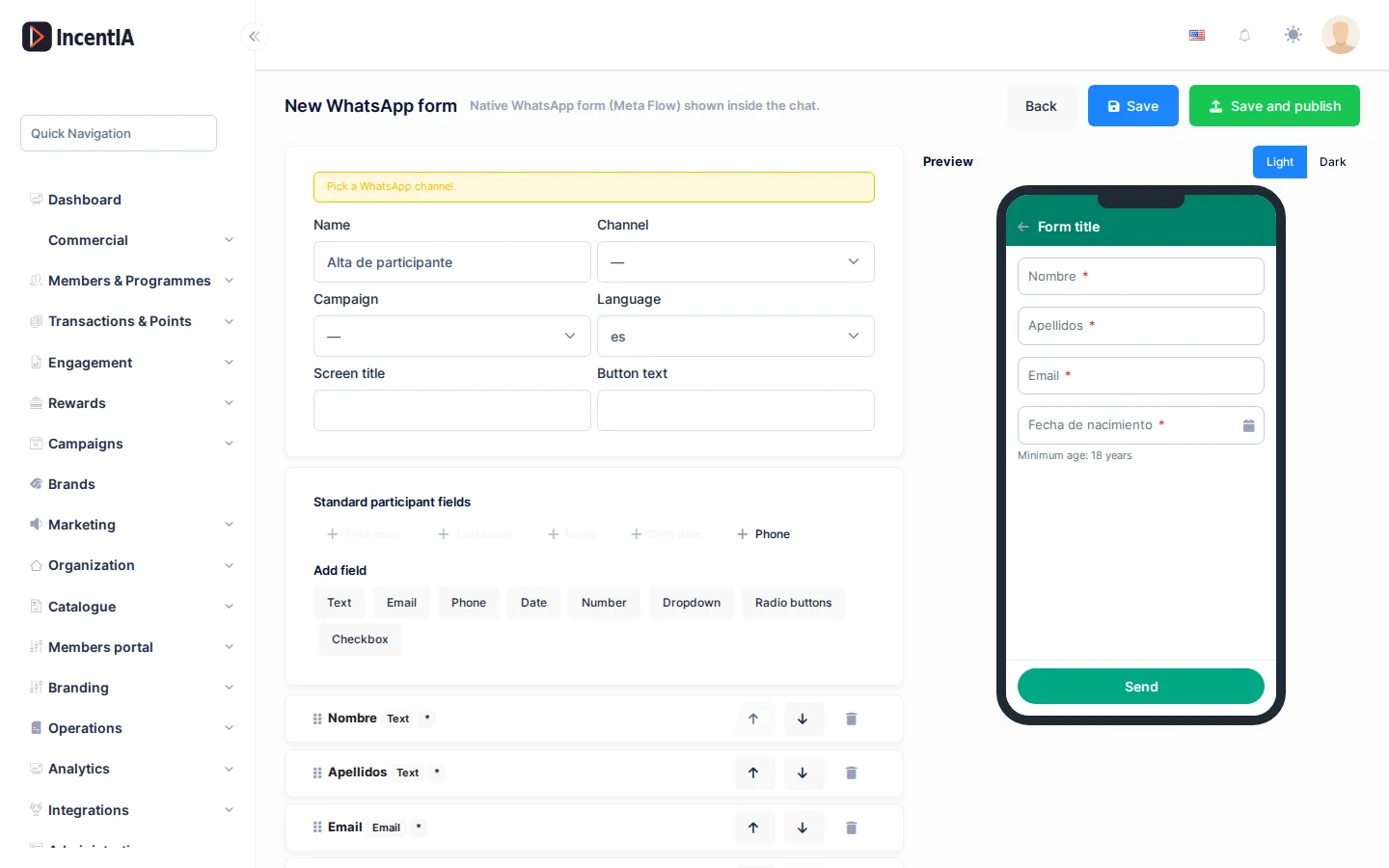
- Fill in Name, Channel (native only), Campaign and Language.
- Set the Screen title and the Button text.
- Add fields with the shortcuts:
- Standard participant fields: First name, Last name, Email, Birth date and Phone. They are saved on the participant.
- Campaign custom fields: shown once you pick a campaign.
- Add field: any allowed type.
- Reorder the fields by dragging the handle or with the arrows.
- For each field: type, label, key, required, helper text and, depending on the type, the options (dropdown, radio, checkboxes) or the Minimum age (dates).
- Click Save or Save and publish.
The preview reproduces WhatsApp's look (phone frame, light or dark theme) and updates as you edit. Errors show next to the field: first the limits checked instantly (label too long, duplicate key, empty options…) and, if Meta rejected the publication, Meta's error attached to the field when it can be identified.
A form allows up to 49 fields and 5 single acceptance checkboxes. Labels and helper texts have a maximum length that depends on the type.
Web forms and sensitive data
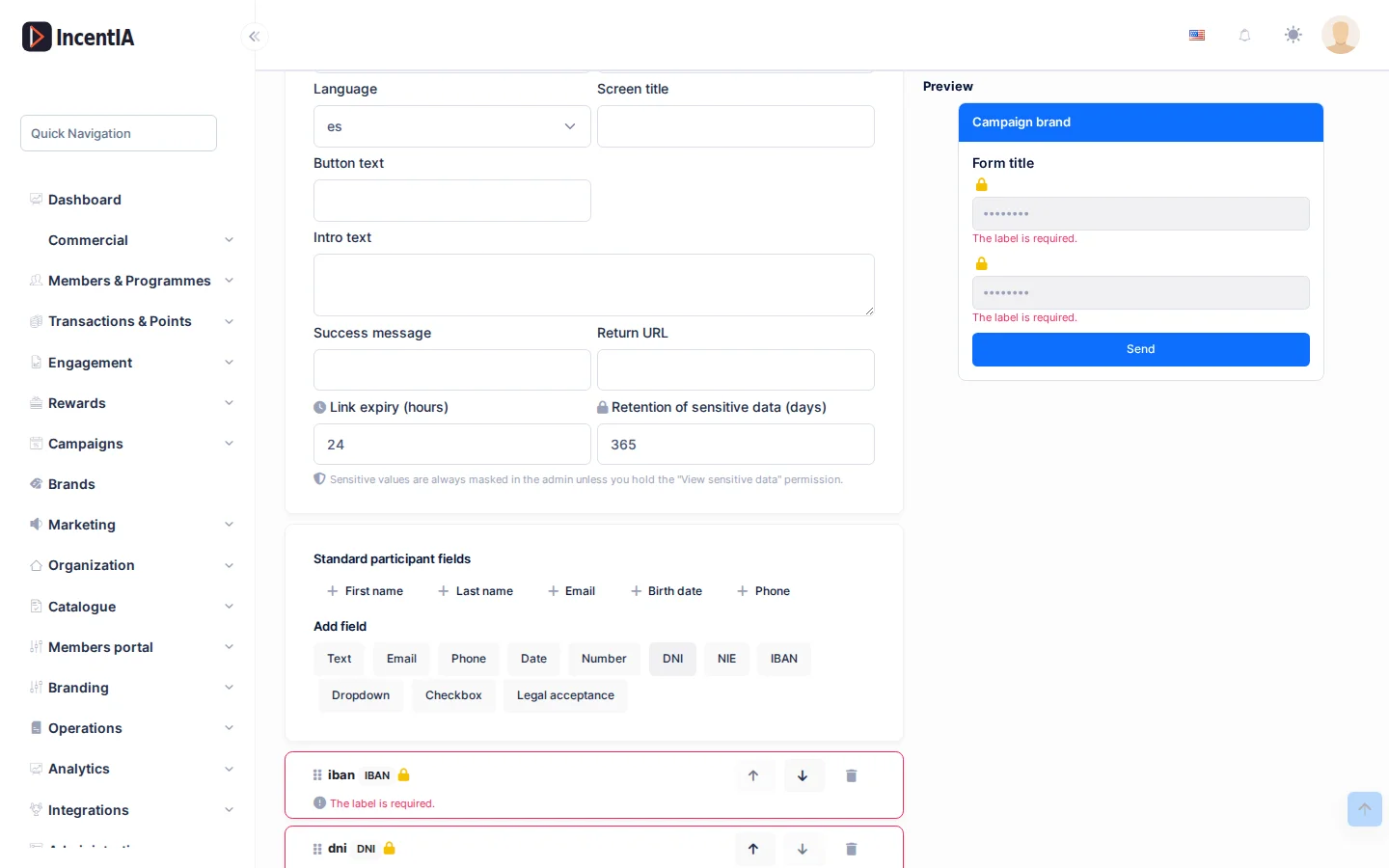
The web form adds:
- IBAN (with optional account holder), DNI and NIE types, and Legal acceptance with a link.
- Padlock: a sensitive field is stored encrypted and never reaches the flow context, logs or webhooks. IBAN, DNI and NIE are sensitive by default; on other types you can turn it on with the Sensitive button.
- Link expiry (hours) and Retention of sensitive data (days).
- Intro text, Success message and Return URL.
- A preview of the public page with the campaign's branding.
Sensitive values are always shown masked (for example ****1332) unless you hold the View sensitive form data permission; every access is logged.
Use the form in a flow
In the flow editor, add the Send WhatsApp native form or Send form link action to a node and pick the form from the dropdown. Only published native forms are listed. Below it you see the fields that will arrive in the context ({{ctx.key}}); sensitive ones carry a padlock because they do not arrive.
If you need a Flow built by hand in Meta, open Advanced: paste a Flow Id; it is only used when no form is selected.
Test the flow
In Test (sandbox), when the node waits for a form the fields appear with editable example values. Click Simulate completed form to continue the flow. Sensitive values are masked in the test conversation.
The sandbox simulates the form being completed; the example values are shown in the conversation but are not saved on any participant.