Connect your WhatsApp Business number to send templates, run flows and receive evidence. Menu: Marketing › Channels › WhatsApp onboarding for onboarding and Marketing › Channels › Channels for the channel.
Permissions Meta health (view) and Connecting WhatsApp (Embedded Signup) (connect) · Edition: Growth and Enterprise (WhatsApp Channel feature)
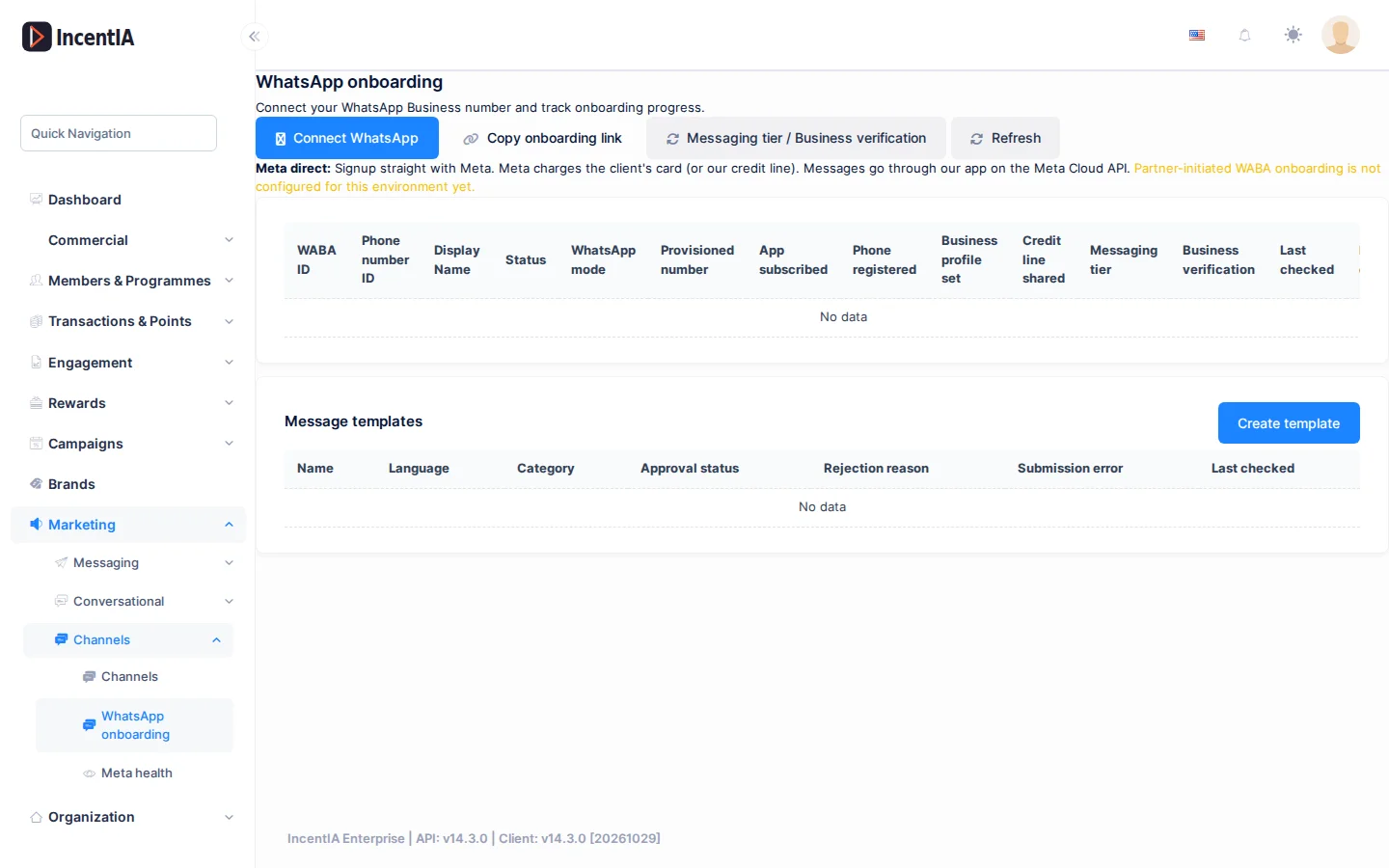
Connect your number
You do not paste credentials: the connection is made with Meta's wizard (Embedded Signup).
- Go to Marketing › Channels › Channels, create a channel of type WhatsApp and open it, or open Marketing › Channels › WhatsApp onboarding.
- Click Connect WhatsApp. Meta's wizard opens.
- Sign in with your Meta Business account, choose or create your WhatsApp Business account and register the number.
- When finished, the channel shows as Connected with the WABA ID, the Phone number ID, the Messaging tier and the Business verification.
If the button is disabled you will see "El Embedded Signup de WhatsApp todavía no está configurado para este entorno". Contact support.
WhatsApp onboarding
This screen lists the WhatsApp accounts of your IncentIA account and the progress of each onboarding.
| Column | What it is | Notes |
|---|---|---|
| WABA ID | WhatsApp Business account | The refresh icon updates its status |
| Phone number ID | Number at Meta | |
| Display Name | Business display name | |
| Status | Pending, Awaiting customer acceptance, Verifying, Active or Error | |
| Provisioned number | Number delivered by the partner | Only for partner-initiated onboardings |
| App subscribed, Phone registered, Business profile set, Credit line shared | Technical onboarding steps | Yes / No |
| Messaging tier | Contacts allowed every 24 h | Request tier upgrade asks to raise it |
| Business verification | Status with Meta | In red, Complete verification in Meta Business Manager appears |
| Last checked, Last error | Tracking |
The header buttons are:
| Button | What it does | Permission |
|---|---|---|
| Connect WhatsApp | Launches Meta's wizard | Connecting WhatsApp (Embedded Signup) |
| Copy onboarding link | Copies a link so your customer can connect their own WhatsApp | Connecting WhatsApp (Embedded Signup) |
| Iniciar solicitud | Asks for the customer's Meta Business Manager ID and creates a partner-initiated request | Initiating Partner-initiated WABA request |
| Messaging tier / Business verification | Refreshes that data from Meta | Refreshing Meta Health |
| Refresh | Reloads the table |
Onboarding for a customer (360dialog)
If you work as an agency with the partner-hosted mode, the brand or customer of a campaign owns the 360dialog account and the number is anchored to that campaign.
- In WhatsApp onboarding, choose For campaign (optional) or, if you do not choose a campaign, For brand (optional). Empty = account-level number.
- Click Connect WhatsApp if you do the onboarding yourself, or Copy onboarding link and send it to the customer.
- The customer completes the wizard from the link, without access to your panel.
- Follow the Status until it changes to Active.
These selectors only appear when your environment has partner mode configured. Otherwise "La incorporación de WABA iniciada por el partner todavía no está configurada para este entorno." is shown.
WhatsApp templates
Messages you send first need a template approved by Meta. Below the onboarding table, the Message templates section lists the templates submitted to Meta.
- Click Create template (requires Creating/submitting WhatsApp message templates).
- If you have several accounts, choose the WABA ID.
- Fill in Name, Language, Category (
UTILITY,MARKETINGorAUTHENTICATION) and Body. - Click Create.
The table shows the Approval status (Pending, Approved, Rejected or Disabled), the Rejection reason and the Submission error. For the text with variables the platform uses, see Templates.
Evidence over WhatsApp
If a flow asks for a receipt photo, the participant sends it over WhatsApp and it is recorded as evidence. It reaches Operations › Evidence review like any other. With the channel paused, photos are not processed.
Protections against blocks
WhatsApp can limit or block a number for sending too much, with low-quality templates, or to people who opted out. The platform protects you in two ways:
- Account monitoring: queries Meta periodically and stores the quality, tier and statuses. See Meta health.
- Reading errors on send: if Meta says the account is restricted, the platform stops sending and notifies you; if a template is disabled, it does not use it until you fix it; if a recipient has blocked you, it does not retry. Rate limits are retried automatically.
Do not keep pushing after an account restriction: fix the cause first (template quality, recipient list, consents) or Meta may block the number.
Statuses and limits
- Meta reviews your business before allowing bulk sends; the process can take weeks.
- Quality drops quickly if you send promotions to contacts who do not know you.
- The Messaging tier limits (250, 1,000, 10,000, 100,000 or unlimited contacts every 24 h) depend on Meta.
- A paused channel does not run flows; see Channels.
Permissions
| Action | Permission (UI text) | Technical id |
|---|---|---|
| View Meta health and WhatsApp onboarding | Meta health | Pages.Communications.MetaHealth |
| Refresh statuses | Refreshing Meta Health | Pages.Communications.MetaHealth.Refresh |
| Connect and copy link | Connecting WhatsApp (Embedded Signup) | Pages.Communications.MetaHealth.Connect |
| Start a partner request | Initiating Partner-initiated WABA request | Pages.Communications.MetaHealth.InitiatePartnerRequest |
| Create WhatsApp templates | Creating/submitting WhatsApp message templates | Pages.Communications.MetaHealth.ManageTemplates |
| Request tier upgrade | Requesting messaging-tier upgrade | Pages.Communications.MetaHealth.RequestTierUpgrade |
Several of these permissions appear untranslated on the roles screen.
Related
- Concept: Communications
- Guide: Set up channels and templates
- Channels · Meta health · Templates · Flows