Broadcasts and email campaigns
A broadcast is a single message for many members at once, over the channel you choose. An email campaign is the email-specific version, with a subject and an HTML body. Menus: Marketing › Messaging › Broadcasts and Marketing › Messaging › Email Campaigns.
Broadcasts: Broadcasts permission · Growth and Enterprise editions (Broadcasts feature). Email campaigns: Email Campaigns permission · Edition: all.
Broadcasts
List
Filter by All Statuses and All Channels, and click Refresh to reload. Create New opens the form.
| Column | What it is | Notes |
|---|---|---|
| Name | Internal name | Sortable |
| Channel | Email, WhatsApp, Telegram, SMS, Push or InApp | |
| Content Type | What kind of message it is | See below |
| Target | Everyone, number of segments or number of members | |
| Status | Draft, Scheduled, Sending, Sent, Failed or Cancelled | |
| Recipients / Sent / Failed | Recipients, sent and failed | |
| Scheduled / Sent At | Scheduled or send date |
The interface shows several headers and statuses in English. Under Actions: Edit, Send Now, Cancel and Delete. Editing, sending and cancelling are only available on Draft and Scheduled. A broadcast that is being sent cannot be deleted.
Create a broadcast
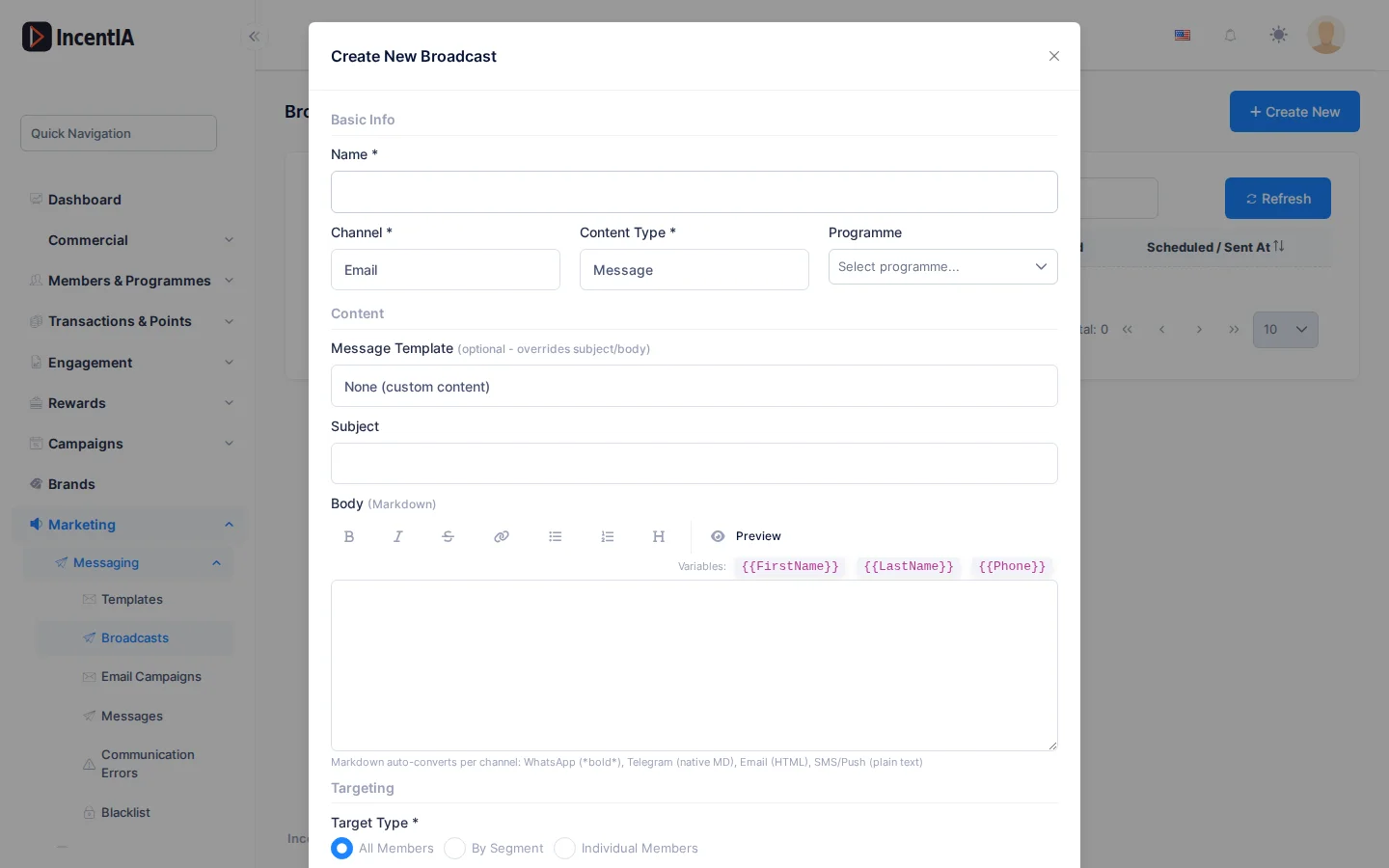
Click Create New. The form is titled Create New Broadcast.
| Field | What it is | Notes |
|---|---|---|
| Name | Internal name | Required |
| Channel | Delivery channel | Required |
| Content Type | Message, Challenge Invite, Game Invite, Reward Promo or Campaign Promo | The last four ask you to choose the challenge, game, reward or campaign |
| Programme | Loyalty programme | |
| Message Template | Template that replaces subject and text | Optional; see Templates |
| Subject, Body | Subject and text | The text supports Markdown and the variables {{FirstName}}, {{LastName}}, {{Phone}} |
| Target Type | All Members, By Segment or Individual Members | For individual members, enter the Member IDs separated by commas |
| Schedule for later | Schedules the send | Asks for Scheduled Date & Time |
Markdown is converted according to the channel: WhatsApp (bold), Telegram, email (HTML), and plain text for SMS and push. Turn on the preview next to the text box to check it.
Send
- Save the broadcast. It stays as Draft, or as Scheduled if you gave a future date.
- Open Actions › Send Now and confirm the notice showing the number of recipients.
- Follow progress in Recipients / Sent / Failed.
Once it is in Sending, the messages go out and cannot be recalled. Check the channel, the text and the recipients before confirming.
Who receives the message
- Only active members.
- Promotional broadcasts (Game Invite, Reward Promo, Campaign Promo) only reach people who accepted receiving marketing. Message and Challenge Invite are service messages and do not require it.
- Sends respect quiet hours and the daily message limit per member.
- Promotional email broadcasts need
{{UnsubscribeUrl}}in the text or in the template; if it is missing, they cannot be sent.
Email campaigns
Marketing › Messaging › Email Campaigns lists your email campaigns with Name, Subject, Status, Segment, Scheduled At and Sent. Filter by status with All Statuses.
Click Create New to open New Email Campaign.
| Field | What it is | Notes |
|---|---|---|
| Name | Internal name | Required |
| Subject | Email subject | Required. Supports {{FirstName}}, {{LastName}}, {{Email}} |
| Preheader Text | Text shown in the inbox after the subject | |
| Body (HTML) | Email content | Required |
| Plain Text Body (optional) | Alternative for clients that do not display HTML | |
| Segment | Who it is sent to | All active members if left empty |
| Scheduled At | Send date | Empty: it stays as a draft and you send it manually |
Under Actions: Edit, Send Now, Cancel (scheduled only) and Delete. The statuses are Draft, Scheduled, Sending, Sent, Cancelled and Failed.
The HTML body must contain {{UnsubscribeUrl}}. Without it, the campaign cannot be sent.
Permissions
| Action | Permission (UI text) | Technical id |
|---|---|---|
| View broadcasts | Broadcasts | Pages.Communications.Broadcasts |
| Create | Creating Broadcast | Pages.Communications.Broadcasts.Create |
| Edit and cancel | Editing Broadcast | Pages.Communications.Broadcasts.Edit |
| Delete | Deleting Broadcast | Pages.Communications.Broadcasts.Delete |
| Send | Sending Broadcast | Pages.Communications.Broadcasts.Send |
| View email campaigns | Email Campaigns | Pages.Communications.EmailCampaigns |
| Create / edit / delete | Creating / Editing / Deleting Email Campaign | Pages.Communications.EmailCampaigns.Create · .Edit · .Delete |
| Send email campaign | Sending Email Campaign | Pages.Communications.EmailCampaigns.Send |